Annotate your screen recordings
Saying "this bit here" only works if the viewer is looking where you are. Arrows, boxes, highlights and numbered steps put the mark on the frame, for exactly as long as it is needed.
Free to use. Recordings are capped at three minutes and export at 720p with a watermark.
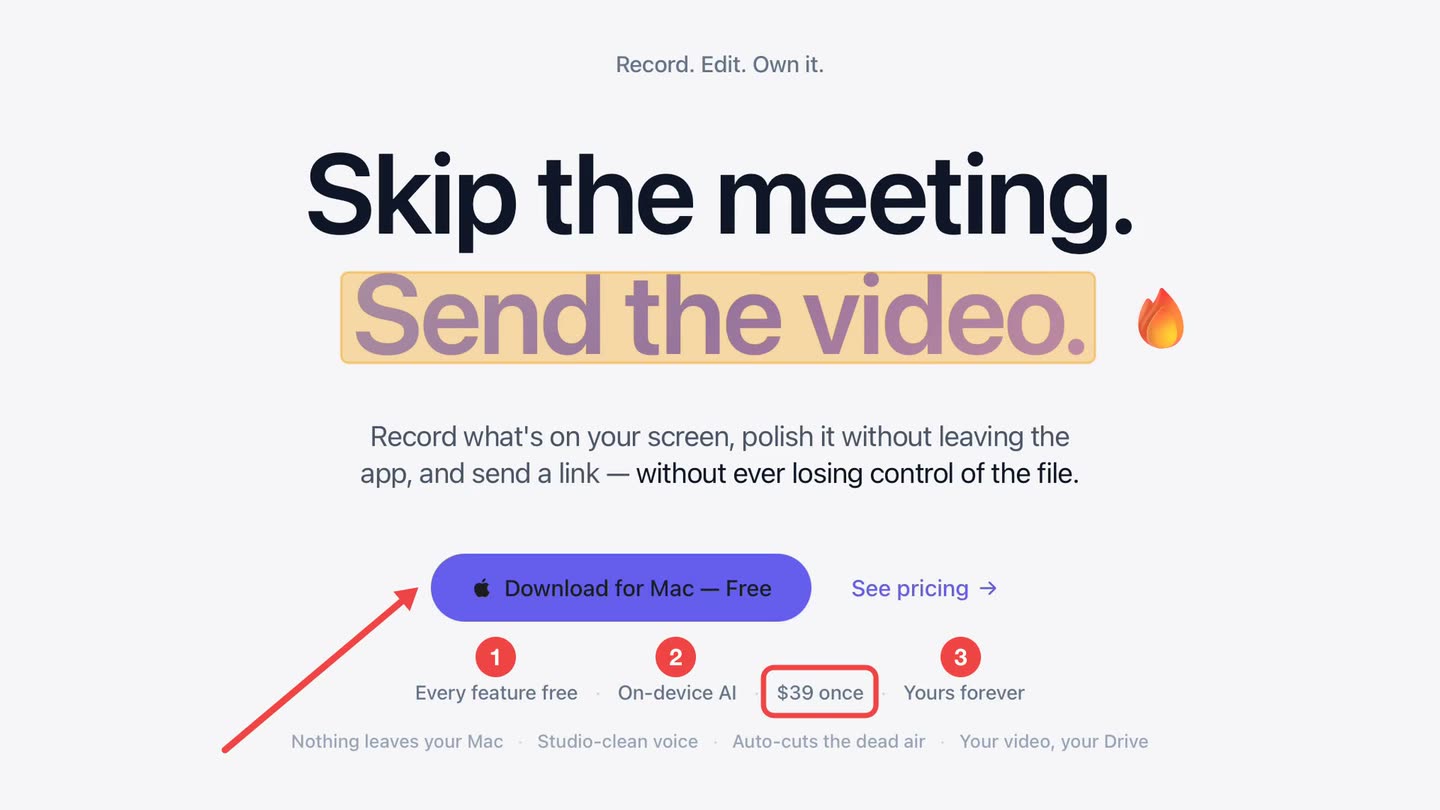
Narration alone leaves it ambiguous
On a busy interface, "the field at the top" describes four things. The viewer spends the next sentence searching instead of listening, and by the time they find it you have moved on.
A mark on the frame removes the ambiguity without a word.
Each mark has its own moment.
An arrow can appear for the four seconds you talk about that control and then leave. It is a stream on the timeline, not a sticker on the whole video — and nothing is written into the picture until export.
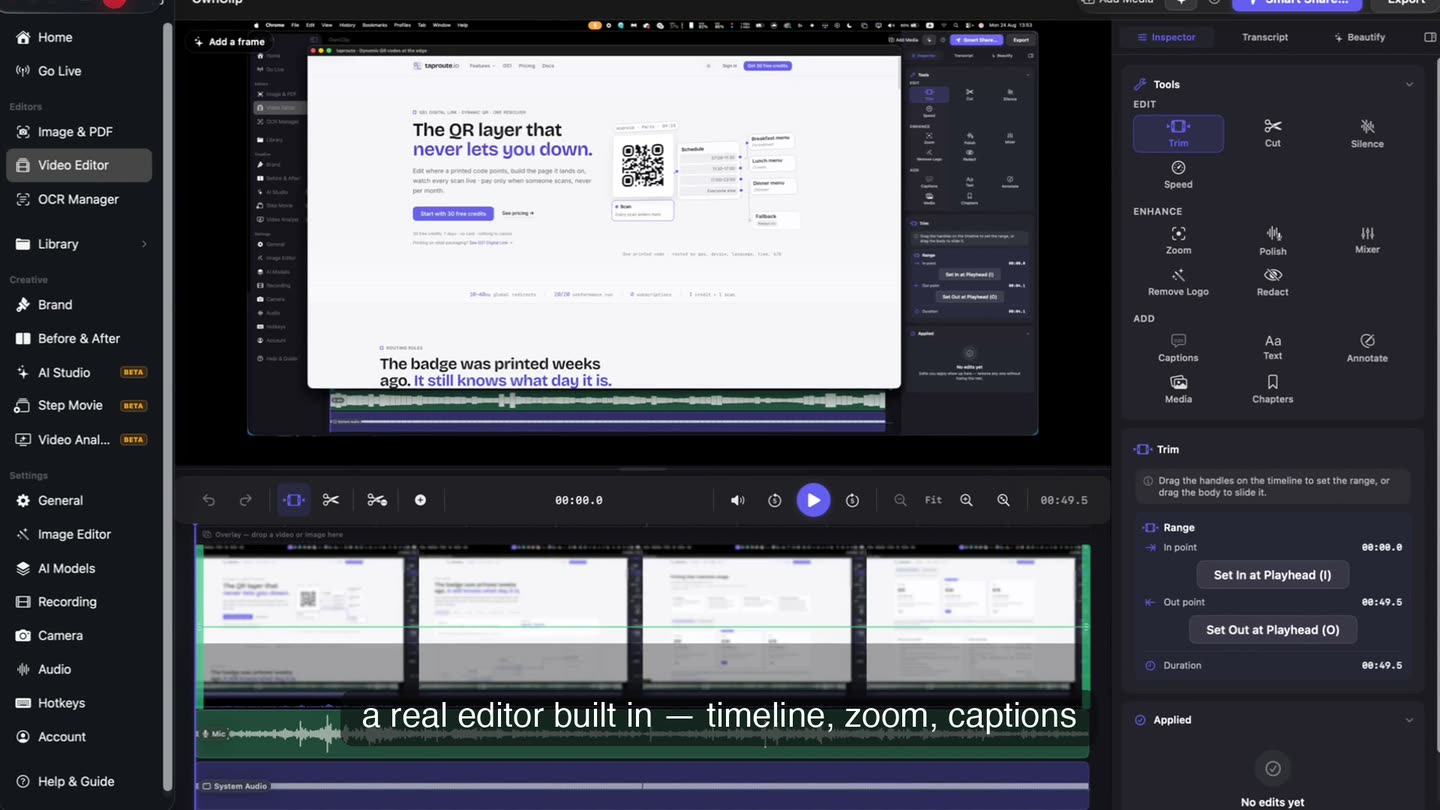
The tools
All eight drawing tools and the emoji stickers are free.
Arrows
Single, double-headed and plain lines, for pointing and for connecting two things.
Boxes and ellipses
Enclose a region — a row in a table, a panel, a paragraph.
Highlighter
A translucent sweep over text or a control, the way you would on paper.
Freehand pen
Circle something, cross it out, scrawl a note.
Numbered steps
Badges that number themselves in order, so a sequence reads as a sequence.
Emoji stickers
Around 1,600 searchable emoji when a reaction says it faster than a label.
A pen, and a blur.
You can draw live when you are presenting to someone at the same time. The live toolbar is deliberately smaller, because the full set belongs where marks can be retimed and undone.
Questions people ask
Yes. All eight drawing tools and the emoji stickers are available on every tier.
Yes, and that is the default behaviour. Each mark has its own time range on the timeline, so you set exactly when it appears and disappears.
No. Nothing is burned into the video until export, so annotations stay editable — you can move, retime, restyle or delete them at any point.
Yes, with a pen and a blur tool. The full annotation set is an editor feature, because that is where marks can be retimed and undone.
You can bring video into the editor and annotate it. Features that rely on data captured during recording, such as Smart Zoom, need a take OwnClip recorded itself.
Related
Annotate your screen recordings
Free to start. macOS 26 or later, Apple silicon.