151 updates.
ten months. One price.
Every feature below landed on Macs that already had OwnClip. No new charge, no renewal, no subscription. This is what buying once looks like.
- updates shipped
- 151updates shipped
- new capabilities
- 48new capabilities
- once, every update below included
- $39once, every update below included
- shipped today
- v2.0.5shipped today
Make a 12-second commercial: your logo, a real 3D shot and your website
Choose Commercial in Promo Shorts. Your logo builds, the camera dives through it into a white flash on the music's hit, one photo becomes a moving 3D shot with your two lines, and it ends on “Try yoursite.com” in a real voice. All made on your Mac.
- An example: type the business name “Luma Coffee”, the website lumacoffee.com and the idea “a 12-second commercial for our new cold brew”. OwnClip picks the Commercial, writes two short lines such as “Cold brew. / Now on tap.”, paints one wide picture with a clear subject, and ends on “Try lumacoffee.com”.
- The cut lands on the music: OwnClip listens for the moment the music hits and times the dive through your logo so the white flash lands on it.
- A real 3D camera: the photo is lifted into depth, and the camera pulls back out of the white and drifts around the subject, which stays solid on the ground.
- Wide or tall: set Shape to 16:9 for YouTube, your website or a presentation, or 9:16 for phones. The Brand ad scenes work wide too.
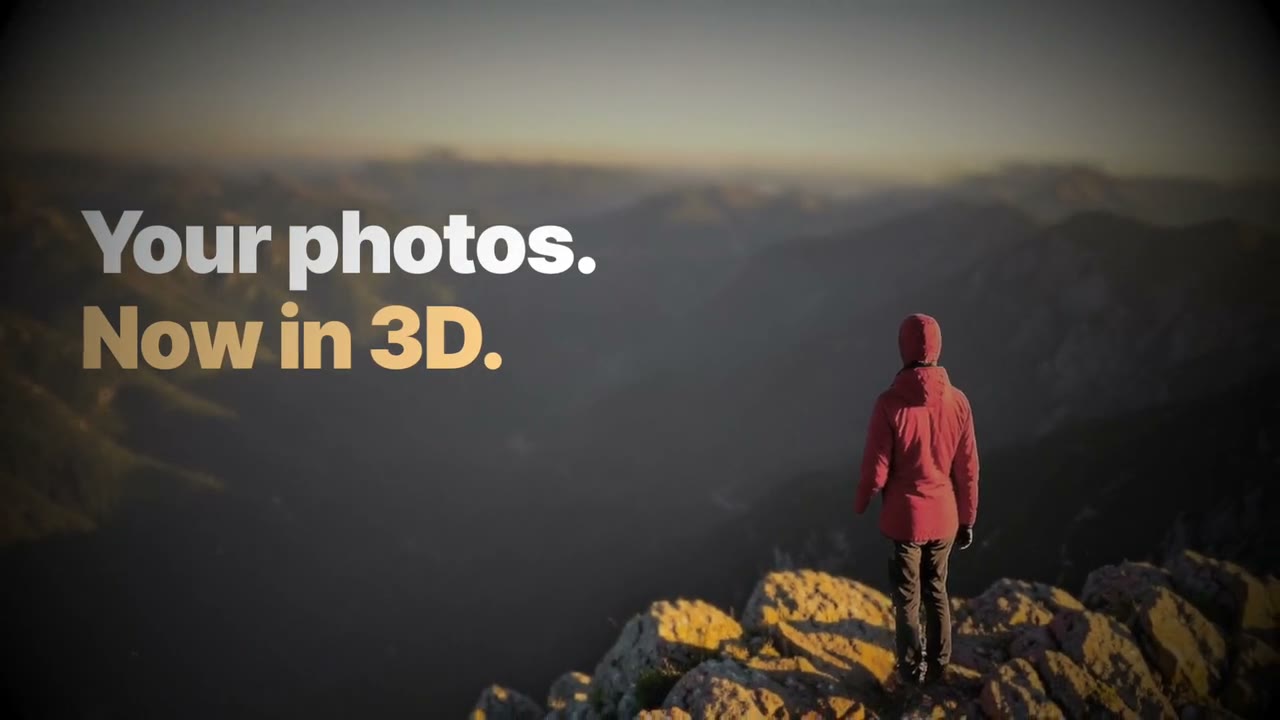
The same commercial, tall for phones
Set Shape to 9:16 and the same film is staged for a phone screen: the logo, the 3D shot and the end card are framed tall, and every word stays clear of the buttons that apps lay over the edges.
- One switch: OwnClip paints the picture for the shape you chose, so nothing important is cropped away.
- The cover image and a 4:5 version for feeds are saved next to the film, with the post text ready to copy.
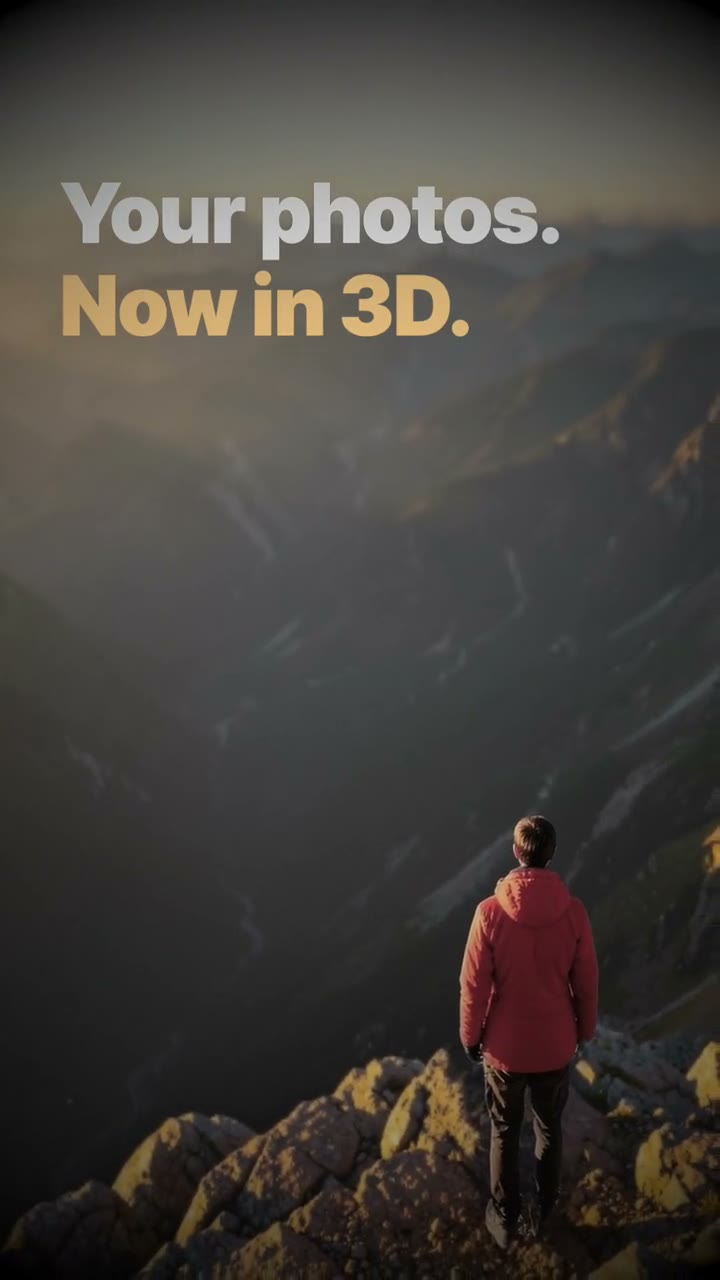
Promo Shorts: one idea becomes a motion-designed ad
Type your business name and your idea. OwnClip writes the scenes, picks a style, paints the pictures while you watch, and renders a vertical Short with a voice, music and captions, all on your Mac. 2.0.4 also brings Depth Motion.
- Describe your Short: type your business name and a sentence or two about the idea. Add your website, your logo or a photo of your product if you like. Without a logo, your name is drawn as an animated wordmark.
- Pick a style, or let OwnClip read it from your idea: Brand ad (kinetic type, logo reveal, light sweeps), Cinematic (big pictures, a slow 3D camera, a film look) or Social (fast cuts, punchy words).
- The pictures are painted while the set is made, so the preview shows your Short right away. Generate paints them again at full size, adds the voice and the music, and saves the Short to your Library.
- A new motion engine: words that flip and slam into place, headlines behind the subject of a picture, 3D cards, light sweeps and transitions that keep moving.
Depth Motion: your photos, filmed in 3D
Pick a few photos and a style. OwnClip lifts each photo into layers and films it with a moving camera, cut on the beat of the style's own music. Studio.
- Each photo is lifted into layers: the people are cut out, the room behind them is filled in, and a moving camera films the scene in one of 18 styles.
- Every style has its own music, and the cuts land on its beat. Each style card shows a short preview of what you'll get.
- Everything runs on your Mac. The models download once, from Settings or the Depth Motion screen.
- Find it under More tools → Depth Motion. Studio.
OwnClip 2.0: one project, many recordings
Put several recordings in one project and cut them into one video on a timeline made of clips: split, trim, reorder, give each clip its own Look, and animate it with keyframes. It works on every plan, and 2.0 is a free update for everyone who bought OwnClip 1.
- Put several recordings in one project: choose Combine Recordings on Home and pick them in the order they should play, select two or more videos in the Library and choose Edit Together, or choose Add Recording in the editor. Each recording keeps its own blurs, camera and trims. Plain videos and images you drop in become clips too.
- Your timeline is now made of clips. Blade (⌘B) splits the clip at the playhead, drag either end of a clip to trim it, Ripple Delete (Delete) removes a clip and closes the gap, and Lift (⇧Delete) leaves a gap instead. Drag clips along the clip lane to put them in a new order, and press ↑ or ↓ to jump between edit points.
- Give each clip its own Look: ten ready-made looks and six sliders, with Copy, Paste and Apply to All Clips.
- Animate a clip with keyframes: move, scale, turn, crop and fade it over time, from the inspector, on the preview or on the timeline.
Record your iPhone or iPad from your Mac
Plug it in with a cable and it appears in a new Device tab. Press Record: its screen and its own sound are captured, your camera lands on its own track, you can draw on the phone while it records, and the take opens in the editor like any other. Nothing to install on the phone.
- Unlock the device, tap Trust, and it is listed in the source picker next to your displays and windows. While it records, the phone is mirrored on your Mac — you see the take without looking down — and iOS shows its clean status bar: 9:41, full battery, full signal.
- Your camera records on its own track beside the phone, so the layout is a decision you make afterwards: a bubble on the screen, the two side by side, or you and the phone as separate cards. Open the annotation tools and mark up the mirror as you go; the strokes land on the phone in the recording.
- Its sound comes off the cable as its own track and your microphone is another, so you can narrate over the phone without a mixer and fix either one later. In the editor, captions, layouts and backgrounds all apply, and a zoom is boxed by the phone's own edges — it never shows anything outside the screen.
- A cable is required; there is no wireless capture. Taps and swipes are not drawn, because iOS sends no touch information to the Mac. Unplug mid-take and the recording is finished and saved. A running iOS Simulator is listed in the same tab. Included on every plan, with the usual Free caps.
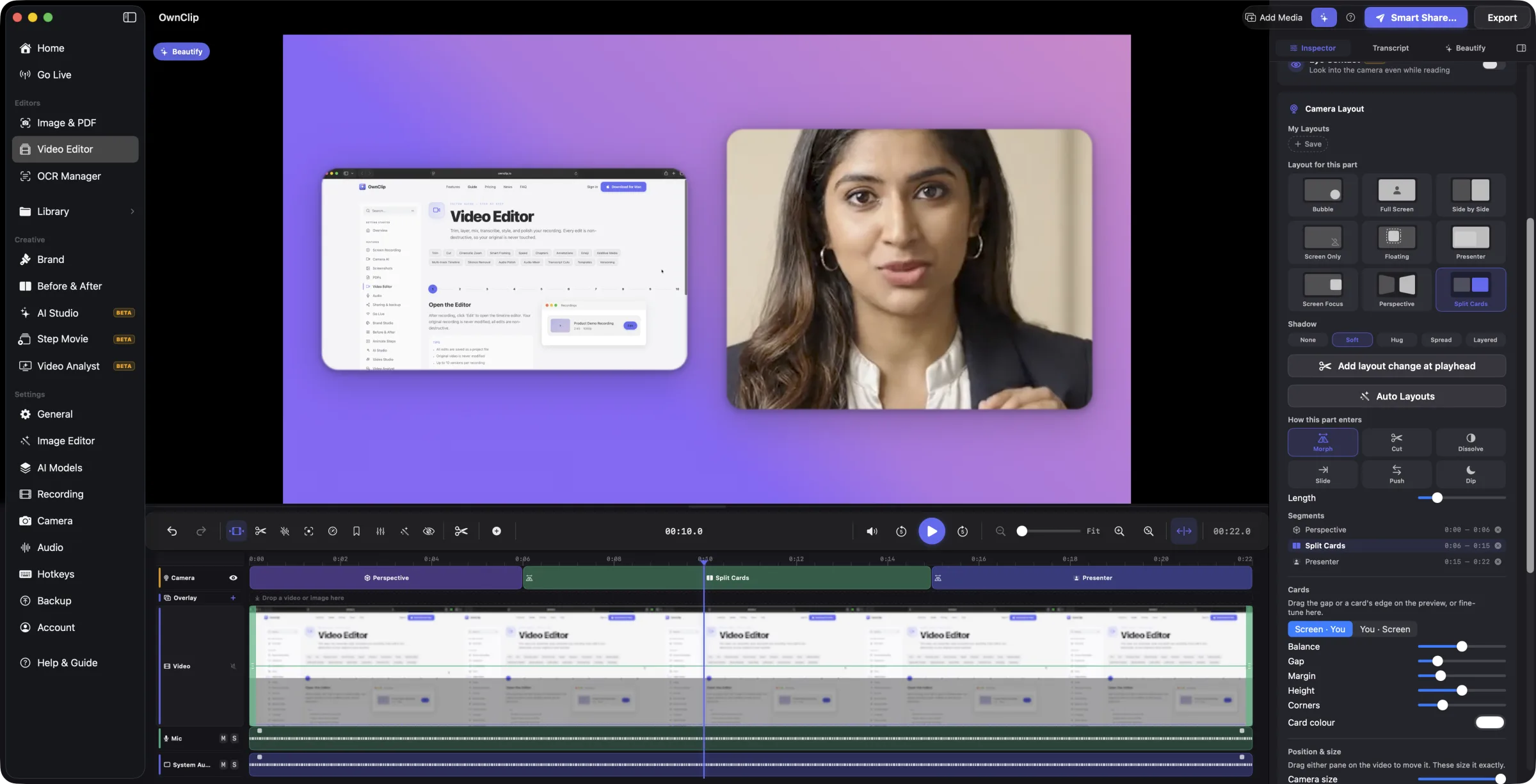
Three new ways to frame you and your screen
Presenter puts you in the frame with your screen as a panel beside you. Screen Focus gives the screen most of the picture and you a strip alongside. Perspective angles the two toward each other. Plus shadows under the layers, your own saved framings, and six ways for each change to enter.
- The camera layout picker goes from five options to nine. Presenter fills the frame with you and sets the screen in as a panel, which is the right shape for explaining rather than demonstrating. Screen Focus is the opposite balance — the screen takes most of the picture with you in a strip beside it. Perspective sets the two side by side and angles them toward each other, which needed the tilt effect to start rendering for video, so it now works on the mask and the shadow too, not just the picture.
- Underneath there is a Shadow control with five settings, from none through to a layered drop that separates you from the background. It greys itself out on layouts that fill the frame, where there is nothing behind the picture to catch a shadow.
- How each change enters used to be one switch for the whole project — smooth or cut. Now it is set per boundary, with six choices: Morph, Cut, Dissolve, Slide, Push and Dip, each with an adjustable length. Pick one and the preview jumps back a second and plays it, so you see the choice rather than just setting it.
- Framings you tune by hand can be saved. My Layouts keeps them as chips you can apply, update, rename or delete, including exactly where you dragged the camera. Layouts have keyboard shortcuts now too — 1 through 9 for the part under the playhead, and Option-S to split a layout where you are.
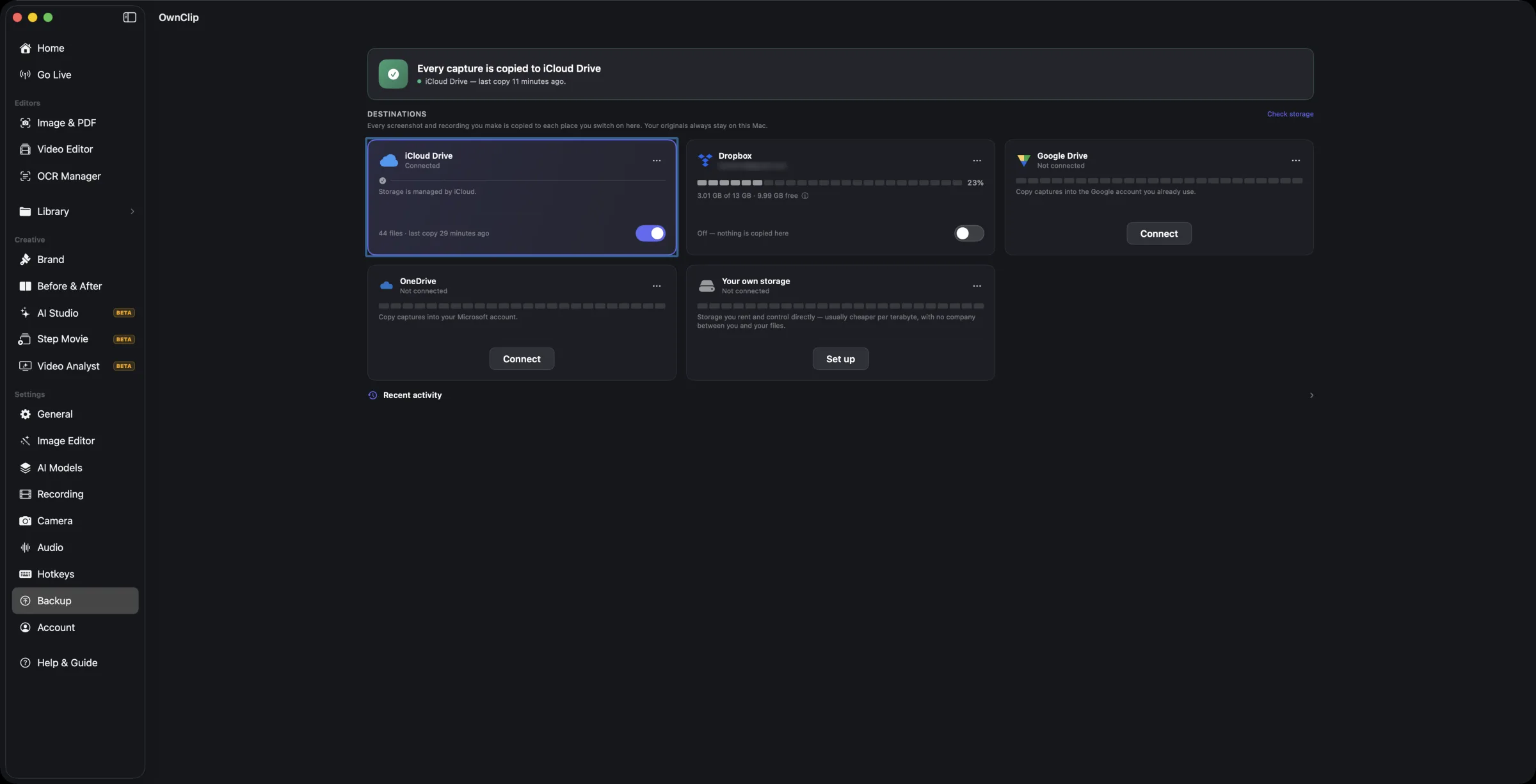
Backup gets its own page, and storage you own
Backup moves to its own settings page that surfaces problems instead of burying them. Google Drive, iCloud Drive and OneDrive stay free on every plan, and Studio adds storage you rent yourself.
- Backup has its own page in settings now rather than a corner of your account, and it opens with a status line that tells you the truth — whether something needs reconnecting, whether a destination is nearly full, and how many files have failed — instead of leaving you to notice.
- Google Drive, iCloud Drive and OneDrive are free on every plan, and you can run several at once. Studio adds storage you rent and control directly — a bucket at Cloudflare R2, Backblaze B2, Wasabi, Amazon or MinIO, or a server you run yourself.
- A destination is a copy, never a move: your files stay on your Mac. And if a Studio licence lapses, the storage you configured is paused rather than deleted — your files are untouched, and it starts again when the licence does.
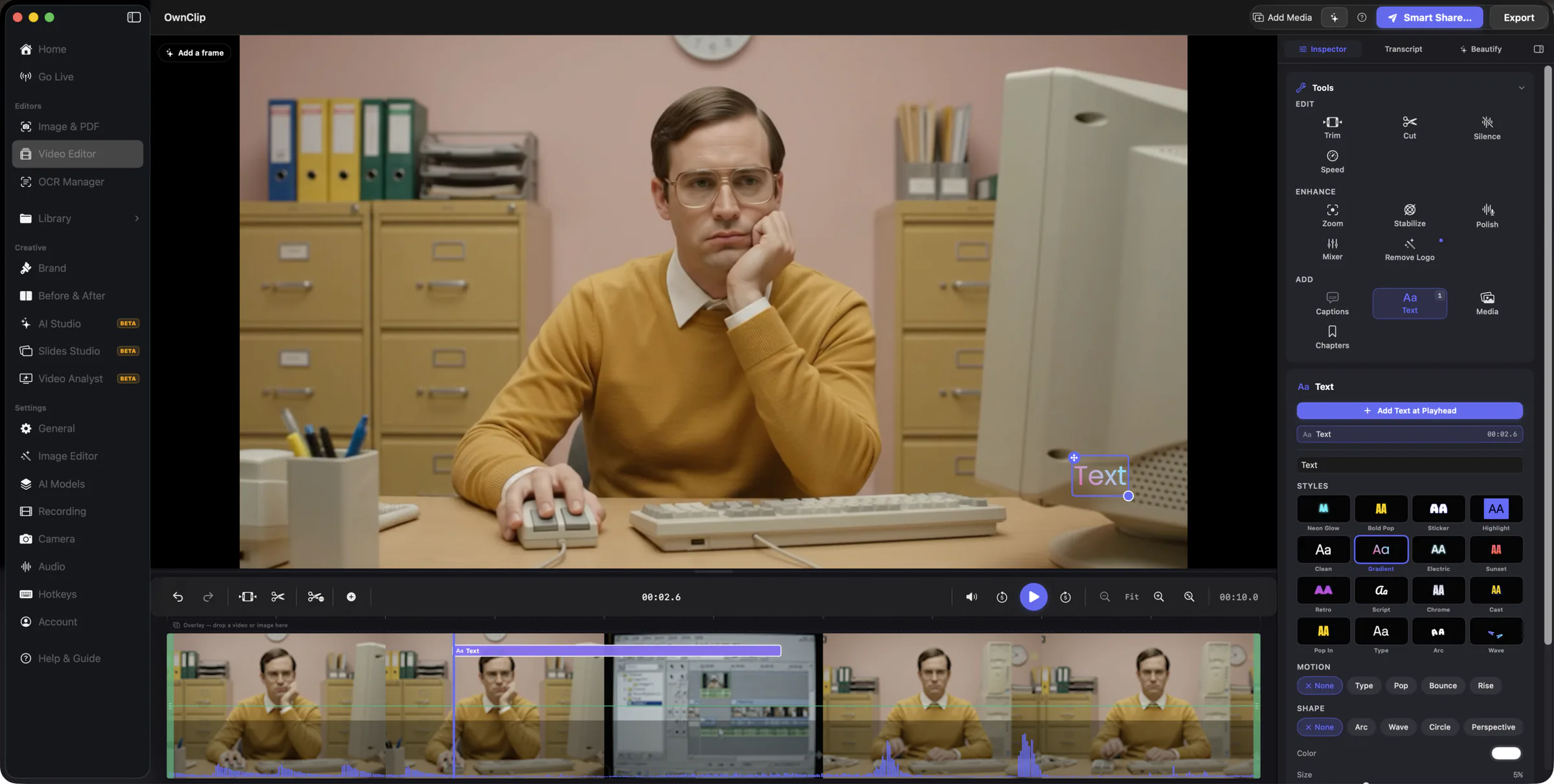
Point at the thing you're talking about
Draw straight onto your video: arrows, boxes, ellipses, a highlighter, freehand pen, and numbered step badges — plus emoji from a searchable set of about 1,600. Pick a tool, drag on the picture, and it appears exactly when you want it to and disappears when you don't. Nothing is burned into your recording until you export.
- Eight ways to mark something up. Arrow, double arrow, line, box, ellipse, highlighter, freehand pen, and numbered step badges. Choose one and drag on the video where you want it — the tool stays active, so you can move the playhead and keep marking your way through a whole walkthrough in one pass. Colour, thickness, dashed, and fill are one panel away.
- Emoji, from a real library. About 1,600 of them, searchable, dropped onto the picture at whatever size you like and timed like anything else. A 🎯 on the thing that matters beats a sentence explaining where to look.
- Steps that number themselves. Place badges in the order you want them read, and they label themselves 1, 2, 3. Re-time one and the whole sequence renumbers, so the walkthrough always counts up.
- Every mark gets its own timeline stream. Overlapping marks never pile on top of each other — each one is its own band you can drag to re-time or grab by the edge to make longer or shorter. The Annotate panel also lists every mark in the clip, so clicking a row selects it and jumps you there.
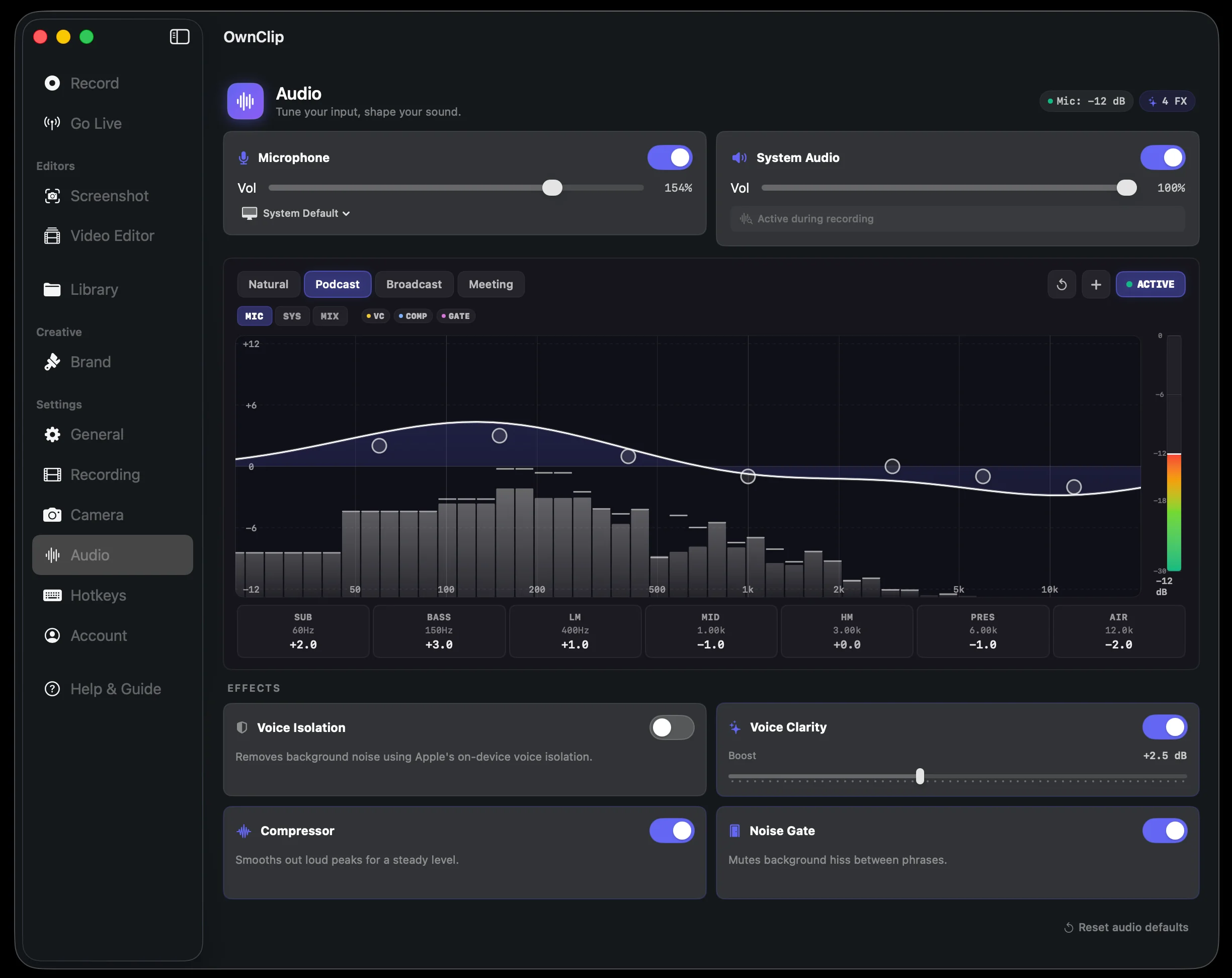
Your voice and your computer's audio, on separate tracks
When a recording captures your microphone and your computer's audio at the same time, OwnClip now keeps each as its own lossless track. Open it in the editor and they're already split. Balance them against each other, or silence either one — including just a moment of it — long after the recording is done.
- Two tracks, recorded automatically. Any take with both your mic and your computer's audio switched on now keeps them apart at the moment of recording. There's no setting to remember and nothing to turn on; single-source recordings are unchanged.
- Narrate over anything without committing. Record a walkthrough of an app that makes noise, or talk over a video, and the two are no longer welded together. Lift your voice, drop the computer audio under it, or mute one entirely — the decision is yours afterwards instead of before.
- The fix for speaker bleed. If your speakers were loud enough for your microphone to pick them up, that bleed sits on the mic track only. Mute the mic — or paint over just the moments where it happened — and your computer's audio stays clean, because it's captured inside your Mac and never travels through the microphone.
- Silence part of a track, not all of it. Drag across any stretch of a waveform and exactly that stretch goes quiet, dimmed with a small badge. Click the badge to bring it back. Nothing is deleted, ⌘Z undoes every change, and your original recording is never modified.
Beautify grows up: AI backgrounds made on your Mac, one-tap styles, and batch
The Beautify panel can now generate a background for you — described in your words or matched to the screenshot itself — rendered entirely on your Mac, shaped to your canvas. Around it: shadows that adapt to the background, 3D tilt presets, styles you can save and reapply with one tap, a whole-folder batch mode, and your desktop wallpaper as a background.
- Describe a background, get a background. Type “warm wooden desk in morning light” or just tap a style — Dark Studio, Nature Bokeh, Marble, Clouds and more — and OwnClip generates the backdrop on your Mac, already shaped to the aspect ratio you're exporting. Nothing is uploaded anywhere. Macs with Apple Intelligence keep the quick stylized wallpapers too; the new photoreal engine is part of Studio and shares its one-time download with Photo Story.
- Match my screenshot. One click reads the shot's tone and colors — a dark code editor, a bright document, a product page — and generates a background that belongs with it. If your Brand Kit is on, your accent color leads.
- Shadows that set themselves. Alongside the existing presets there are two new looks — Hug, a tight contact shadow, and Spread, a big soft ambient one — plus Adaptive, which reads the background's brightness and picks shadow strength that reads correctly on light and dark alike.
- A little perspective. Grab the framed screenshot and drag — it turns and leans in 3D like a card you're holding, and the exported file matches the preview exactly. Preset angles get you started; Turn and Lean sliders dial it in precisely.
Animate: turn a step-by-step screenshot into a guided video
Mark up a screenshot with numbered steps, then let OwnClip animate it into a cinematic walkthrough: the camera zooms to each step, an animated cursor leads the way, with optional narration and music. Export as a video, a GIF, or a self-contained interactive page.
- Animate (Studio) turns your step annotations into a polished walkthrough automatically, with no timeline and no manual keyframes. The camera glides and zooms to each step in order while an animated cursor points the way.
- Dial in the motion: a new Max zoom slider sets how tight the camera gets, and Calm / Balanced / Snappy presets set the pace. Add spoken narration and a music bed to finish the explainer.
- Share it the moment it's ready. One button renders your walkthrough and gives you a private link, no save dialog. Or save it as a video, a GIF, or an interactive page you can host yourself.
- Also in this release: step labels now scale with the step's size so callouts always look right, the Home screen gives recent captures more room, and a round of stability fixes lands across recording and editing.
Capture Text: lift any words off your screen in one shortcut
Press ⌘⇧T, drag over anything on screen (a video still, a PDF, a slide, an error dialog) and the text is on your clipboard before you let go. 18+ languages, recognized entirely on your Mac, nothing sent to the cloud.
- Drag over any region of your screen and OwnClip reads the text instantly, right on your Mac. The result is on your clipboard the moment the scan finishes, with no account, no upload, and no waiting.
- 18+ languages, auto-detected. Pick a specific language from the globe menu and it re-reads the same capture, so there's no need to drag again.
- Every capture is saved to a private Recent history you can pin, copy from again, or reveal in Finder, and switch off entirely whenever you want.
- Works on the stuff you normally can't select: a frame of a video, a flattened PDF, a slide on a shared screen, or a dialog that blocks copy.
The editor now does the work you'd normally pay a video pro for
Cinematic auto-zoom that follows the speaker and the cursor. Subject erase that lifts a person or object out cleanly. And a preview that is, frame for frame, the file you'll export.
- Cinematic auto-zoom generates smooth push-ins on faces and clicks; every keyframe stays editable.
- Subject Erase traces the real outline of a person or object and removes it, filling the background back in, all on your Mac.
- What you see playing in the editor is exactly what exports. No surprises at render time.
Noise removal that never eats your voice
Background-noise removal got a safety net: it cleans fans, hum, and hiss but can no longer over-process your voice into silence. Cleaner takes, zero surprises.
- Turn it on and forget it. If it ever has nothing useful to remove, your voice always comes through untouched.
Cinematic zoom that follows your cursor on its own
Three big ones land together. Transcripts on hour-long recordings now make it all the way to the end. No more half-blank subtitles. The Zoom tool auto-generates cinematic push-ins from your speaker's face. And the floating controls panel finally stays put across spaces and full-screen apps.
- Transcripts finish, every time. Long recordings no longer cut off halfway. Everything runs on your Mac, with no cloud and no API key.
- Cinematic auto-zoom. Open the Zoom tool and OwnClip generates a sequence of subtle push-ins on the speaker, like a director slowly emphasizing the moment. Each keyframe is editable and mixes with anything you placed by hand.
- Clean cursor + click pulses for screencasts. A polished synthetic cursor replaces the raw system cursor, with a soft ring on every click.
- Floating controls stay on top. They no longer disappear when you switch spaces or maximize a window.
A screenshot editor with layers, history, and a canvas that keeps up
A round of polish on the screenshot editor, driven by your feedback. New history panel, smarter layer behavior, layers that survive a crop, and a much smoother Compare drop zone.
- History panel. Press ⌘⇧Y to see every edit you've made and jump back or replay forward with one click.
- Free Transform on demand. ⌘T snaps you into resize and rotate mode instantly.
- Crop keeps your layers. Drawings, stickers, text, and lifted subjects survive a crop, repositioned cleanly instead of disappearing.
- Drawing lands above the layer you're working on, not at the top of the stack.
Every update
RSS feed →All 151 of them, in plain language, with the detail behind each one. Runs of related releases are grouped. Open any of them to see every entry.
October 2026
8 updatesOwnClip 2.0: one project, many recordings
- Newv2.0.5 ·
Make a 12-second commercial: your logo, a real 3D shot and your website
Choose Commercial in Promo Shorts. Your logo builds, the camera dives through it into a white flash on the music's hit, one photo becomes a moving 3D shot with your two lines, and it ends on “Try yoursite.com” in a real voice. All made on your Mac.
DetailsHide- An example: type the business name “Luma Coffee”, the website lumacoffee.com and the idea “a 12-second commercial for our new cold brew”. OwnClip picks the Commercial, writes two short lines such as “Cold brew. / Now on tap.”, paints one wide picture with a clear subject, and ends on “Try lumacoffee.com”.
- The cut lands on the music: OwnClip listens for the moment the music hits and times the dive through your logo so the white flash lands on it.
- A real 3D camera: the photo is lifted into depth, and the camera pulls back out of the white and drifts around the subject, which stays solid on the ground.
- Wide or tall: set Shape to 16:9 for YouTube, your website or a presentation, or 9:16 for phones. The Brand ad scenes work wide too.
- The voice reads your address the way people say it (“lumacoffee dot com”), while the screen shows it written.
- No logo yet? Your name is drawn as an animated wordmark instead. Promo Shorts is part of Studio.
- Newv2.0.5 ·
The same commercial, tall for phones
Set Shape to 9:16 and the same film is staged for a phone screen: the logo, the 3D shot and the end card are framed tall, and every word stays clear of the buttons that apps lay over the edges.
DetailsHide- One switch: OwnClip paints the picture for the shape you chose, so nothing important is cropped away.
- The cover image and a 4:5 version for feeds are saved next to the film, with the post text ready to copy.
- Improvedv2.0.5 ·
Music sits evenly under the voice, and Promo Shorts has room to write
The bundled music plays at one even level, a Short's voice stays clearly on top of its music, and the Promo Shorts screen gives your idea room and keeps every label whole.
DetailsHide- Music is levelled: the music tracks that come with OwnClip now play at the same loudness, so switching tracks no longer jumps in volume.
- In a Short, the voice sits clearly on top of the music, and the music never gets louder than the voice.
- The idea box in Promo Shorts grows as you write, labels are no longer cut off, and the templates sit under one category menu.
- A finished Short opens on its cover with a play button, shows its length and size, and keeps every button inside the window. The cover of a film that opens on its logo is taken from the first scene with words.
- A file you open with OwnClip from Finder opens in the editor.
- Exporting to WebM no longer leaves the result screen spinning, and its buttons fit the panel.
- Newv2.0.4 ·
Promo Shorts: one idea becomes a motion-designed ad
Type your business name and your idea. OwnClip writes the scenes, picks a style, paints the pictures while you watch, and renders a vertical Short with a voice, music and captions, all on your Mac. 2.0.4 also brings Depth Motion.
DetailsHide- Describe your Short: type your business name and a sentence or two about the idea. Add your website, your logo or a photo of your product if you like. Without a logo, your name is drawn as an animated wordmark.
- Pick a style, or let OwnClip read it from your idea: Brand ad (kinetic type, logo reveal, light sweeps), Cinematic (big pictures, a slow 3D camera, a film look) or Social (fast cuts, punchy words).
- The pictures are painted while the set is made, so the preview shows your Short right away. Generate paints them again at full size, adds the voice and the music, and saves the Short to your Library.
- A new motion engine: words that flip and slam into place, headlines behind the subject of a picture, 3D cards, light sweeps and transitions that keep moving.
- Change anything: the words, how each scene moves, which word stands out and the style. Rewrite one scene, try another version, or save the set under My sets.
- Voices and music: premium voices no longer drone or drop a sentence, long lines keep their ending, cuts land on the music's beat, and captions follow the spoken words.
- Newv2.0.4 ·
Depth Motion: your photos, filmed in 3D
Pick a few photos and a style. OwnClip lifts each photo into layers and films it with a moving camera, cut on the beat of the style's own music. Studio.
DetailsHide- Each photo is lifted into layers: the people are cut out, the room behind them is filled in, and a moving camera films the scene in one of 18 styles.
- Every style has its own music, and the cuts land on its beat. Each style card shows a short preview of what you'll get.
- Everything runs on your Mac. The models download once, from Settings or the Depth Motion screen.
- Find it under More tools → Depth Motion. Studio.
- Improvedv2.0.2 ·
Zoom lands where you look
Zoom works with every template and every kind of video, zooms you add by hand come back out, and Smart Zoom follows where you rest the pointer. 2.0.2 also brings Promo Shorts fonts, your own photos and clips, and music you describe, plus everything in 2.0.1.
DetailsHide- Zoom works with every template: in a 9:16 or square video the zoom lands on what you clicked, the picture is never stretched, and the pointer stays where it was. Videos shot on iPhone in portrait open, play and export the right way up, and blurred areas stay on what you covered.
- A zoom you add by hand now zooms in, holds and zooms back out. Move, resize or delete the whole zoom at once, drag a corner all the way out to see the full picture again, and Option-click adds a zoom even while another one is on screen.
- Smart Zoom also zooms on what you rest the pointer on, not only on clicks. It leaves out the click that stopped the recording and clicks outside what you recorded, and turning it off or running it again never removes zooms you added yourself. Templates keep your zooms and replace only their own, and quick clicks get one smooth zoom instead of a flicker.
- Promo Shorts: pick the font, use your own photo or clip in any picture scene, add photo scenes, and describe the music you want or let OwnClip describe it for you. Twelve new 30-second tracks are in every music picker. Promo Shorts now needs a Mac with 16 GB of memory.
- Simulator recordings show the pointer, a window you resize while recording keeps its zooms on target, and a recording that ends unexpectedly keeps its pointer movements for Smart Zoom.
- 2.0.2 is the first update since 2.0.0, so it also includes everything in 2.0.1: blurs that hold on every frame, Remove Noise in step with the picture, and the rest of the notes below.
- Improvedv2.0.1 ·
Blurs hold everywhere, and the mic lines up with the picture
What you blur, cut or mute stays out of every video OwnClip makes, Remove Noise keeps your voice in step with the picture, and two Promo Shorts templates get a new look.
DetailsHide- Blurred and pixelated areas stay covered on every frame of an export, including where one clip meets the next, around a video block and through a crossfade. Pixelated areas show each block's average, so text moving underneath doesn't show through. A recording with blurs, cuts or a crop can't be dropped into another project as its raw file; Add Recording brings it in with its edits.
- With Remove Noise on, your voice now lines up with the picture, and nothing you say just before Unmute ends up in the recording. While you record, the System Audio switch in Settings stays as the recording started, and a change applies to your next recording.
- Cutting part of the timeline cuts the voiceover under it too. Captions, subtitles and Video Analyst Productions leave out words you cut or muted. When you export a video whose Video Analyst titles or narration were written before you added a blur, OwnClip shows a notice so you can check them.
- The Library brings in a whole recording when you import the video inside it, keeps every file of a recording together when you rename or delete it, and won't let a file you receive take over another video's edits.
- Promo Shorts: Travel escape and Flash sale have a new design, with full-frame pictures, big type and nothing cut off. Every template now shows a placeholder web address for you to replace with your own. A Promo Short won't use a recording whose edits can't be read or whose clip is cropped.
- A busy licence server can no longer take a paid Mac off your licence.
- Newv2.0.0 ·
OwnClip 2.0: one project, many recordings
Put several recordings in one project and cut them into one video on a timeline made of clips: split, trim, reorder, give each clip its own Look, and animate it with keyframes. It works on every plan, and 2.0 is a free update for everyone who bought OwnClip 1.
DetailsHide- Put several recordings in one project: choose Combine Recordings on Home and pick them in the order they should play, select two or more videos in the Library and choose Edit Together, or choose Add Recording in the editor. Each recording keeps its own blurs, camera and trims. Plain videos and images you drop in become clips too.
- Your timeline is now made of clips. Blade (⌘B) splits the clip at the playhead, drag either end of a clip to trim it, Ripple Delete (Delete) removes a clip and closes the gap, and Lift (⇧Delete) leaves a gap instead. Drag clips along the clip lane to put them in a new order, and press ↑ or ↓ to jump between edit points.
- Give each clip its own Look: ten ready-made looks and six sliders, with Copy, Paste and Apply to All Clips.
- Animate a clip with keyframes: move, scale, turn, crop and fade it over time, from the inspector, on the preview or on the timeline.
- The preview follows you as you work: move or resize an overlay, turn a clip or drag a Look slider, and the picture changes at once.
- Select several clips with ⌘-click, ⇧-click or ⌘A, then move, delete, duplicate or nudge them together. Copy and Paste clips within a project or into another one.
- ⌘B and Delete work on clips now: ⌘B splits the clip at the playhead, and Delete removes the clip you selected. Press ? in the editor to see every shortcut.
- Every edit is one Undo step, named in the Edit menu. A project you open in 2.0 keeps a copy of its earlier edits, and More ▸ Revert to 1.x Edits puts them back.
- New in Studio, Promo Shorts: choose Make a Short on a recording, and OwnClip turns your recordings and images into a vertical promo video from a template, with voice, music and captions made on your Mac.
- Before you update: if you open your projects on more than one Mac, update each of them to OwnClip 1.8.4 or later first. OwnClip 1.8.3 and earlier can't tell a 2.0 project apart from their own and would write over its 2.0 edits. The first time 2.0 saves a project it moves it to the 2.0 format, and 1.8.4 and 1.8.5 then open it read-only. Your recordings themselves are never changed or deleted.
September 2026
23 updatesThe edit starts doing itself, and you keep every choice
- Improvedv1.8.5 ·
Cuts leave out everything they cut
Cutting part of a recording now leaves out its sound on separate Mic and System tracks and its titles and captions, and the rest stays in step with the picture.
DetailsHide- Recordings with separate Mic and System tracks leave out what you cut from both, and the rest stays in step with the picture through speed changes and blocks. Music under your voice no longer stays turned down for the whole video, and deleting words from the transcript of a voiceover takes them out of the voiceover too.
- Titles and captions stay with their moments: after a cut they no longer land on other footage, a caption for words you cut is left out, and the preview, the export and saved subtitle files agree.
- Muting the mic during a recording takes effect the moment you press it, even while the recording is starting, and what you say while it's muted is never heard when you unmute. A video opened from Finder, or picked from disk for the Video Analyst, is edited as its Library copy. If a recording's earlier edits can't be read, the editor says so and the recording isn't exported or shared, even after a rename or a duplicate, until you continue without them. Boxes over sensitive text land on the text in phone videos filmed sideways, including boxes found before this update.
- Buying OwnClip on the website now shows up the next time you open the app or switch back to it, and an upgrade the next time you open it, instead of up to a day later.
- OwnClip opens faster, in about 1.4 seconds (2.5 seconds right after an update), and has a new icon with dark, clear and tinted styles.
- Improvedv1.8.4 ·
What the Video Analyst makes keeps your blurs
Clips and frames from the Video Analyst now follow your edits: blurred areas stay blurred, erased logos stay erased, and its clips leave out the parts you cut.
DetailsHide- Clips, demos and ads start from your edits: parts you cut stay out of the picture, the sound, the captions and the titles, and a camera you hid stays hidden. A clip made only of moments you cut is skipped and doesn't use a render.
- Frames it shows, saves, or puts into packs, guides and decks carry your blurs. If you blur more of a video after analyzing it, analyze it again before using what it wrote, so that's left out.
- Saving a post or description keeps your earlier results, and analyzing again keeps what you made, unless you've blurred more since.
- Blur boxes you drew but didn't apply are applied when you leave the editor, and blurs hold in split-screen and during crossfades, wipes and slides. Exports leave out the chapter titles of parts you cut, and a project saved by a later version of OwnClip opens read-only instead of being overwritten.
- Improvedv1.8.3 ·
Recordings you receive can only use their own files
A recording someone sends you can no longer bring files from elsewhere on your Mac into what you share, or remove anything outside it.
DetailsHide- OwnClip now checks every file a received recording refers to, and uses it only if it really is inside that recording.
- Replacing or deleting an old version moves its file to the Trash instead of deleting it for good.
- Reopening a recording in the editor keeps its custom pointer, title-card logo and moving backdrop. Before, opening the editor could remove them from the recording.
- The Undo button on Silence Removal only undoes silence removal. After you make another edit it steps aside, and Edit › Undo takes over.
- Undo after a change in the audio mixer, on an overlay lane, or to a block or chapter undoes only that change. Before, it could also take away a blur you had applied in between.
- Newv1.8.2 ·
Smart Zoom now works on the free plan
Smart Zoom, the enlarged cursor and click highlights now work on every plan, Free included.
DetailsHide- Smart Zoom, the enlarged cursor and click highlights now work on every plan.
- On the free plan, recordings and exports are 720p with a small OwnClip watermark.
- The watermark sits in the bottom-right corner of the finished video, on top of everything else in the frame, including a Beautify background.
- Newsv1.8.2 ·
New global shortcuts you can change
OwnClip's shortcuts moved to Control-Option-Command, so they no longer take over Save As, reopen tab or reload in other apps. You can change or turn off each one in Settings → Hotkeys.
DetailsHide- Start or stop recording: ⌃⌥⌘R. Pause: ⌃⌥⌘P. Cancel: ⌃⌥⌘Esc.
- Screenshot: ⌃⌥⌘S. Area screenshot: ⌃⌥⌘A. Free Capture: ⌃⌥⌘L. Capture Text: ⌃⌥⌘T.
- If another app already uses a combination, Settings tells you so you can pick a different one.
- Newsv1.8.2 ·
Pro now covers two Macs, with a 14-day money-back guarantee
Every paid licence now activates on up to two Macs, includes every 1.x update, and comes with a 14-day money-back guarantee.
DetailsHide- If you already own Pro, your second Mac activates the next time you sign in on it.
- For a refund within 14 days of purchase, email support@ownclip.io.
- Newv1.8.1 ·
Record your iPhone or iPad from your Mac
Plug it in with a cable and it appears in a new Device tab. Press Record: its screen and its own sound are captured, your camera lands on its own track, you can draw on the phone while it records, and the take opens in the editor like any other. Nothing to install on the phone.
DetailsHide- Unlock the device, tap Trust, and it is listed in the source picker next to your displays and windows. While it records, the phone is mirrored on your Mac — you see the take without looking down — and iOS shows its clean status bar: 9:41, full battery, full signal.
- Your camera records on its own track beside the phone, so the layout is a decision you make afterwards: a bubble on the screen, the two side by side, or you and the phone as separate cards. Open the annotation tools and mark up the mirror as you go; the strokes land on the phone in the recording.
- Its sound comes off the cable as its own track and your microphone is another, so you can narrate over the phone without a mixer and fix either one later. In the editor, captions, layouts and backgrounds all apply, and a zoom is boxed by the phone's own edges — it never shows anything outside the screen.
- A cable is required; there is no wireless capture. Taps and swipes are not drawn, because iOS sends no touch information to the Mac. Unplug mid-take and the recording is finished and saved. A running iOS Simulator is listed in the same tab. Included on every plan, with the usual Free caps.
- Newsv1.8.0 ·
Dropbox is no longer a backup destination
Dropbox has been retired as a place OwnClip copies your captures. Nothing already copied there is touched, and Google Drive, iCloud Drive and OneDrive stay free on every plan.
DetailsHide- Dropbox was available as a backup destination for one build. It has been removed.
- Nothing is deleted. Every file already copied there stays in your own account exactly where it is, and OwnClip only ever had access to its own folder in it. If Dropbox was the only destination you had switched on, you are no longer covered — switch on Google Drive, iCloud Drive or OneDrive to start copying again. All three are free on every plan including Free, and you can run several at once.
- Updating clears the stored connection from your Mac by itself. You can also remove OwnClip under Connected apps in your Dropbox account settings.
- Improved10 releases
Auto Layouts, transitions, split-card layouts, a seamless camera edge, and a zoom that moves like a camera
Show all 10Collapse- Improvedv1.8.0 ·
Layout changes show up the moment you make them
Changing a camera layout, a shadow or a Split Card while the video was paused used to leave the preview on the old picture until you pressed play. The preview now redraws straight away.
DetailsHide- When you picked a new layout with the video paused, the preview kept showing the previous one. The change was real — it appeared as soon as you played — but until then it looked as if nothing had happened, and you had to press play to check your work.
- Two things were behind it. The rebuilt preview was handed its first paused frame a moment before the part that displays frames had connected to it, so the frame was lost. And a few edits, the camera's shadow and the Split Cards design among them, were not counted as changes at all, so the preview was never rebuilt for them.
- Both are fixed. Every layout, shadow and card change redraws the paused preview immediately.
- Newv1.8.0 ·
Split Cards are yours to resize and design
Drag the gap between you and your screen to give one of you more room, pull the edges to change the margin and height, swap sides with a double-click, and give the screen card a colour of its own.
DetailsHide- Split Cards put you and your screen side by side as two rounded cards. Until now the two cards were always the same size in the same place. Now they are yours to shape.
- On the preview, hover over the pair and handles appear. Drag the gap to rebalance the cards, so the screen gets more room while you demo and you get more while you talk. Drag an outer edge to change the margin, or a top or bottom edge to make both cards taller or shorter. Double-click the gap to swap sides. Nothing is drawn while you are not touching it, so the preview always shows your video, not the tool.
- The Camera Layout inspector has a matching Cards section with sliders for balance, gap, margin, height and corners, and a switch for which side you sit on. There is also a card colour: pick one and the screen sits inside a coloured card with a small border, instead of the picture itself being the card.
- Every design belongs to the part of the clip it is in, so one part can be equal cards and the next can lean toward the screen. Saved layouts keep the design, and the shadow you pick now applies to the camera card like every other layout.
- Improvedv1.8.0 ·
Perspective now angles you and your screen toward each other
The two planes were turning away from each other, and each was also drawn slightly smaller and off to one side. Both are fixed, so the layout looks like the tile that promised it.
DetailsHide- Perspective is meant to stage you and your screen like two panels facing each other, wrapping toward the viewer. The angles were the wrong way round, so the pair read as two panels turning their backs on each other.
- There was a second problem underneath. The way each plane was tilted also shrank it a little and slid it off its spot, by a different amount on each side of the frame. That made the same angle look different on the screen and on you.
- Both are fixed. The planes face inward, sit exactly where they should, and match the picture on the Perspective tile.
- Improvedv1.8.0 ·
The camera bubble comes back to life after you stop recording
After a recording was saved, the bubble could sit on a black spinner with the camera light on. It now returns to a live preview every time.
DetailsHide- When you stopped a recording, two parts of the app briefly disagreed about who owned the camera preview. The recorder's clean-up could switch off the fresh preview that had just started, leaving a black bubble that said Camera and never recovered until you toggled the camera.
- The clean-up now leaves a preview it does not own alone, and the bubble checks on itself after a recording and restarts if it lost its picture.
- Newv1.8.0 ·
Your background now shows between you and your screen
Split Cards puts you and your screen side by side as two rounded cards with real space around them, and your background fills that space. Side by Side, Screen Focus and Perspective get the same treatment.
DetailsHide- Until now, a layout that set you beside your screen filled the space around the two with black. You could pick a beautiful background and never see it — the layout painted over the middle of the frame and left your gradient as a thin border.
- Split Cards is the layout built for that space. You and your screen sit as two separate rounded cards, each with its own soft shadow, with a real gutter between them and margins around the pair. The background you chose fills all of it.
- The same fix reaches the layouts you already had. Side by Side, Screen Focus and Perspective now let the background through instead of butting their panes together on a black plate. And because that space is the point, picking one of these layouts turns your background on if it was off.
- You can also give a single stretch of the clip its own background, straight from the camera layout panel — useful when one section deserves a different mood from the rest.
- Improvedv1.8.0 ·
The camera has no ring around it any more
Your camera used to carry a thin white outline in every recording, whether you wanted it or not. It is gone by default. If you do want an edge, you can pick any colour, or soften it so the camera melts into what is behind it.
DetailsHide- Every camera got a thin white outline. It was never a choice — it was simply always there, and on a dark screen recording it read as a sticker stuck onto the picture rather than part of it.
- The default is now no outline at all. The camera sits in your video without announcing its own boundary.
- If an edge is what you want, it is yours to shape. Turn the outline up to any thickness and set it to any colour, so it can match your brand instead of being white.
- There is also a soft edge. Turn it up and the camera fades into whatever is behind it rather than being cut out of it — a gentler look for talking-head sections, and a good match for a busy background.
- One fix alongside it: after you stopped a recording, the camera preview would sit frozen on your last frame while the video finished saving. It clears the moment recording stops now.
- Newv1.8.0 ·
Let OwnClip cut between you and your screen
Auto Layouts reads what you said and what you did, then lays out the whole clip — you full-frame to open, the screen once you start clicking, both side by side when you're pointing at something. Every part it makes is an ordinary chip on the timeline, so you can drag it, retype it or delete it like anything you made yourself.
DetailsHide- Deciding when to show your face and when to show your screen is the slowest part of editing a walkthrough, and it is the part that most changes how the finished video feels. Auto Layouts does the first pass for you. Click it once and OwnClip reads the clip's transcript and your cursor activity — all of it on your Mac — and proposes a run of layout parts across the whole thing.
- The rules are the ones you would apply by hand: open on the person for the first few seconds, go camera-forward while you're talking over a quiet screen, go screen-forward the moment clicking and typing start, and drop the camera entirely for a long silent demo. Boundaries land in the gaps between words, never mid-sentence, and it holds itself to about four changes a minute so the result doesn't flicker.
- The important part is what you get back. Not a locked render you have to accept or discard — ordinary timeline chips. Drag a boundary, pick a different layout, delete a part you disagree with, or undo the lot from the banner. If the clip genuinely reads better as one layout, it says so and changes nothing rather than inventing work for you.
- Auto Layouts needs Pro. Building layout parts by hand stays free.
- Newv1.8.0 ·
Three new ways to frame you and your screen
Presenter puts you in the frame with your screen as a panel beside you. Screen Focus gives the screen most of the picture and you a strip alongside. Perspective angles the two toward each other. Plus shadows under the layers, your own saved framings, and six ways for each change to enter.
DetailsHide- The camera layout picker goes from five options to nine. Presenter fills the frame with you and sets the screen in as a panel, which is the right shape for explaining rather than demonstrating. Screen Focus is the opposite balance — the screen takes most of the picture with you in a strip beside it. Perspective sets the two side by side and angles them toward each other, which needed the tilt effect to start rendering for video, so it now works on the mask and the shadow too, not just the picture.
- Underneath there is a Shadow control with five settings, from none through to a layered drop that separates you from the background. It greys itself out on layouts that fill the frame, where there is nothing behind the picture to catch a shadow.
- How each change enters used to be one switch for the whole project — smooth or cut. Now it is set per boundary, with six choices: Morph, Cut, Dissolve, Slide, Push and Dip, each with an adjustable length. Pick one and the preview jumps back a second and plays it, so you see the choice rather than just setting it.
- Framings you tune by hand can be saved. My Layouts keeps them as chips you can apply, update, rename or delete, including exactly where you dragged the camera. Layouts have keyboard shortcuts now too — 1 through 9 for the part under the playhead, and Option-S to split a layout where you are.
- There is one more way in: select a sentence in the transcript and give exactly those words their own layout. All of this is free.
- Newv1.8.0 ·
Soften every cut in one click
Cutting a clip, removing silence or dropping in a block all leave a hard seam. Transitions smooth them — dip to black or white, flash, zoom punch, whip pan, crossfade, wipe or slide — applied across every cut in the clip at once, with the audio faded to match.
DetailsHide- Every edit you make leaves a seam. Trimming leaves one, removing silence leaves a dozen, and inserting a block leaves two. Until now OwnClip left them all hard. The Cut tool has a Transitions panel with eight kinds and a None tile, and it tells you how many cuts are in the clip before you commit.
- Five of them work on a single stream: dip to black, dip to white, flash, zoom punch and whip pan. The other three — crossfade, wipe and slide — need frames from both sides of the cut at the same moment, which meant building a proper A and B roll underneath. The material you trimmed away is still in the source file, so the frames needed to blend across a cut are already there and cost nothing to reach for. At the very start or end of a clip, where there is no material to reach into, those three fall back to a dip rather than blending against a frozen frame.
- Audio fades are matched to the picture at every softened cut, so nothing clicks. Transitions are free, and the panel appears once the clip actually has a cut to decorate.
- Improvedv1.8.0 ·
Zoom that moves like a camera
A new Cinematic easing starts and settles without the snap at either end, the push magnifies evenly instead of loitering and then racing, and the move is sampled twice as finely so it never reads as stepped. Auto-zoom follows click-and-drags now too, including on recordings you already made.
DetailsHide- Auto-zoom has been in OwnClip for a while. This release is about how the move looks once it starts, which turned out to be four separate problems.
- The first is the easing. The old curve went from a standstill to full speed instantly at both ends — a small thing, but the eye reads it as a snap. The new Cinematic curve brings both speed and acceleration to zero at each end, so a push starts and settles instead of jerking. It is the default for new zooms; a project that already saved a choice keeps rendering exactly as it did.
- The second is the push itself. It used to shrink the frame at a constant rate, but the eye reads magnification proportionally, so the first half barely seemed to move and the second half raced. The push is geometric now, and the point you are pushing toward travels a matched path, so the content stops sliding under the camera mid-move.
- The third is frame rate. A one-second push in a thirty-frame-a-second composition is thirty discrete camera positions, and that reads as stepped no matter how good the curve is. When a clip has generated motion, OwnClip renders the composition at sixty, which doubles how finely the camera and the cursor are sampled while your screen pixels simply repeat. Recording still happens at thirty — nothing about your capture changed.
- The fourth is what auto-zoom can see. macOS reports cursor movement with a button held down through a different channel than ordinary movement, and OwnClip was only reading one of them — so for the whole of any click-and-drag it had no idea where the pointer went, and glided straight from the press to wherever you let go. Both channels are merged now, which also fixes recordings you made before this release.
- Newv1.8.0 ·
One recording, a week of posts
Analyze a recording once, then pick what you want out of it — vertical captioned clips of the best moments, a narrated product demo with title cards, a short ad, or a text kit of titles, description, tags and chapters. OwnClip renders the finished videos on your Mac.
DetailsHide- Getting a recording is the easy part. Turning it into things you can actually post is where the afternoon goes. Productions closes that gap: analyze the clip once, choose what you want out of it, and OwnClip cuts and renders the finished files.
- Social Clips finds the moments worth pulling out and renders them vertical and captioned. Product Demo assembles a narrated walkthrough with title cards and a closing call to action. Short Ad cuts a fifteen to thirty second version. SEO Pack skips video entirely and hands you the writing — titles, a description, tags, chapters and thumbnail picks.
- All of the analysis and rendering happens on your Mac. Video Analyst as a whole has moved down from Studio to Pro, which is the bigger news for most people: Pro now covers analysis, chapters, questions about your own footage, and the full text kit. Pro includes ten rendered productions a month and Studio is unlimited. The SEO Pack is text and never counts against that.
- Newv1.8.0 ·
Trace any shape and get a clean cutout
Free Capture lets you draw around anything on screen — freehand or in straight edges, with the outline snapping onto real edges as you go — and hands back a PNG cropped to exactly that shape, with a transparent background.
DetailsHide- Rectangles are a poor fit for most of what people actually want to grab. Free Capture lets you draw the shape instead. Trace freehand, or click to lay down straight edges, and the outline magnetically follows the edges already in the picture as you move, so a window, a chart or an irregular panel comes away cleanly without needing a steady hand.
- What you get back is a PNG cropped to the outline with a genuinely transparent background, ready to drop onto a slide or into a document without a white box around it.
- Pasting transparent images got fixed at the same time. Chat apps used to re-encode a pasted cutout and fill the transparency with white; OwnClip now offers the file first so the transparency survives, and the attachment arrives with a readable name instead of a long string of characters.
- Free Capture is on Command-Shift-Option-L, in the File menu, and in the capture-mode picker. It needs Pro.
- Newv1.8.0 ·
Backup gets its own page, and storage you own
Backup moves to its own settings page that surfaces problems instead of burying them. Google Drive, iCloud Drive and OneDrive stay free on every plan, and Studio adds storage you rent yourself.
DetailsHide- Backup has its own page in settings now rather than a corner of your account, and it opens with a status line that tells you the truth — whether something needs reconnecting, whether a destination is nearly full, and how many files have failed — instead of leaving you to notice.
- Google Drive, iCloud Drive and OneDrive are free on every plan, and you can run several at once. Studio adds storage you rent and control directly — a bucket at Cloudflare R2, Backblaze B2, Wasabi, Amazon or MinIO, or a server you run yourself.
- A destination is a copy, never a move: your files stay on your Mac. And if a Studio licence lapses, the storage you configured is paused rather than deleted — your files are untouched, and it starts again when the licence does.
- Newv1.8.0 ·
A different backdrop for one stretch, or your own footage behind everything
Pin a background to just one section of a clip instead of the whole thing, with a crossfade at each boundary — or hand OwnClip a video of your own to loop behind your recording, with blur and strength controls.
DetailsHide- Beautify backgrounds used to be all-or-nothing: one backdrop for the entire clip. Now you can pin one to a single stretch — the panel offers the section you are standing in and a Use here only button, and the backgrounds crossfade where the sections meet. There is always one click back to a single background for the whole clip.
- Worth knowing what this does and doesn't change: it swaps what is behind your recording, not the shape of the frame. Padding, corner rounding and canvas size stay consistent across the clip.
- Separately, you can use a video of your own as the moving background. Choose a clip and it loops to fill the whole recording, with a blur slider — a little blur keeps a backdrop behind your content rather than competing with it — and a strength control. The file is copied into the project, so the project stays portable.
- Both are free.
August 2026
8 updatesDraw on your video, and mic and system audio come apart
- Newv1.7.5 ·
Point at the thing you're talking about
Draw straight onto your video: arrows, boxes, ellipses, a highlighter, freehand pen, and numbered step badges — plus emoji from a searchable set of about 1,600. Pick a tool, drag on the picture, and it appears exactly when you want it to and disappears when you don't. Nothing is burned into your recording until you export.
DetailsHide- Eight ways to mark something up. Arrow, double arrow, line, box, ellipse, highlighter, freehand pen, and numbered step badges. Choose one and drag on the video where you want it — the tool stays active, so you can move the playhead and keep marking your way through a whole walkthrough in one pass. Colour, thickness, dashed, and fill are one panel away.
- Emoji, from a real library. About 1,600 of them, searchable, dropped onto the picture at whatever size you like and timed like anything else. A 🎯 on the thing that matters beats a sentence explaining where to look.
- Steps that number themselves. Place badges in the order you want them read, and they label themselves 1, 2, 3. Re-time one and the whole sequence renumbers, so the walkthrough always counts up.
- Every mark gets its own timeline stream. Overlapping marks never pile on top of each other — each one is its own band you can drag to re-time or grab by the edge to make longer or shorter. The Annotate panel also lists every mark in the clip, so clicking a row selects it and jumps you there.
- Clicks land on the mark, not its box. An arrow is grabbed by its line, and an empty box lets you click straight through to whatever is behind it. Where things genuinely stack, clicking the same spot again cycles down through them.
- Newv1.7.5 ·
Your voice and your computer's audio, on separate tracks
When a recording captures your microphone and your computer's audio at the same time, OwnClip now keeps each as its own lossless track. Open it in the editor and they're already split. Balance them against each other, or silence either one — including just a moment of it — long after the recording is done.
DetailsHide- Two tracks, recorded automatically. Any take with both your mic and your computer's audio switched on now keeps them apart at the moment of recording. There's no setting to remember and nothing to turn on; single-source recordings are unchanged.
- Narrate over anything without committing. Record a walkthrough of an app that makes noise, or talk over a video, and the two are no longer welded together. Lift your voice, drop the computer audio under it, or mute one entirely — the decision is yours afterwards instead of before.
- The fix for speaker bleed. If your speakers were loud enough for your microphone to pick them up, that bleed sits on the mic track only. Mute the mic — or paint over just the moments where it happened — and your computer's audio stays clean, because it's captured inside your Mac and never travels through the microphone.
- Silence part of a track, not all of it. Drag across any stretch of a waveform and exactly that stretch goes quiet, dimmed with a small badge. Click the badge to bring it back. Nothing is deleted, ⌘Z undoes every change, and your original recording is never modified.
- One honest limit. This separates what your microphone heard from what your computer played. Anything that was already mixed into the incoming audio before it reached your Mac arrives that way, and no editing here can pull it apart.
- Improvedv1.7.5 ·
A timeline that keeps up with your hand
The editor's timeline got a pass over the parts you touch every minute. Dragging it scrubs the picture live, dragging across a stretch selects it and offers Cut and Speed on the spot, and the audio lanes finally grow when you give the timeline more room.
DetailsHide- Select a stretch, then act on it. Drag across the track and the range you painted stays selected, with Cut and Speed right there above it. Click anywhere to move the playhead and clear the selection. The picture follows your hand the whole time you drag, so you're always looking at the frame you're pointing at.
- Lanes that use the space you give them. Drag the divider above the timeline and the audio and overlay lanes grow with it instead of staying a fixed sliver, so waveforms are readable when you're working on sound and compact when you're not.
- One consistent look. Clips, bands, and markers now share a single visual language — the same shape, the same selection glow, the same materials — so a selected thing looks selected everywhere, and floating controls read as controls rather than boxes drawn on the picture.
- New
Beautify grows up: AI backgrounds made on your Mac, one-tap styles, and batch
The Beautify panel can now generate a background for you — described in your words or matched to the screenshot itself — rendered entirely on your Mac, shaped to your canvas. Around it: shadows that adapt to the background, 3D tilt presets, styles you can save and reapply with one tap, a whole-folder batch mode, and your desktop wallpaper as a background.
DetailsHide- Describe a background, get a background. Type “warm wooden desk in morning light” or just tap a style — Dark Studio, Nature Bokeh, Marble, Clouds and more — and OwnClip generates the backdrop on your Mac, already shaped to the aspect ratio you're exporting. Nothing is uploaded anywhere. Macs with Apple Intelligence keep the quick stylized wallpapers too; the new photoreal engine is part of Studio and shares its one-time download with Photo Story.
- Match my screenshot. One click reads the shot's tone and colors — a dark code editor, a bright document, a product page — and generates a background that belongs with it. If your Brand Kit is on, your accent color leads.
- Shadows that set themselves. Alongside the existing presets there are two new looks — Hug, a tight contact shadow, and Spread, a big soft ambient one — plus Adaptive, which reads the background's brightness and picks shadow strength that reads correctly on light and dark alike.
- A little perspective. Grab the framed screenshot and drag — it turns and leans in 3D like a card you're holding, and the exported file matches the preview exactly. Preset angles get you started; Turn and Lean sliders dial it in precisely.
- Styles you keep. Save any combination — background, padding, corners, shadow, tilt, ratio — as a named style and reapply it with one tap in the screenshot editor or the video editor. Set one as your Brand style and it rides along with your Brand Kit.
- Batch Beautify. Select a stack of screenshots in your Library, pick a style, and export them all in one pass — originals untouched, results named alongside them, into a folder or straight back into your Library.
- And a small one that's been requested forever: your current desktop wallpaper is now one tap away as a beautify background.
- Newv1.7.4 ·
Your recording survives the thing that used to end it
If something ended your recording before you did — the window you were recording closed, your Mac went to sleep, you quit mid-take — OwnClip now saves the recording instead of losing it. Anything left behind by an older crash is recovered the next time you open the app, and OwnClip will never delete a recording on its own again. You can also take a screenshot of exactly what you're recording without stopping.
DetailsHide- Recordings survive an interruption. Close the window you were recording, leave a meeting, lose screen-recording permission, close the lid, or quit with ⌘Q while a recording is running, and the take is finished and saved like any other — named, thumbnailed, and waiting in your library, with a notification telling you what happened. Previously the recording was lost.
- OwnClip stops the recording itself when the window goes away. If the app you were recording closes its window there is nothing left to record, so the recording ends and saves on its own rather than running on against a window that no longer exists.
- Recordings left behind by an earlier crash are recovered when you next open the app, completed with artwork and restored to your library under a “Recovered” name so you can tell them apart. Note that a recovered recording has no cursor data, so Smart Zoom isn't available for it.
- Nothing is ever deleted outright. A recording OwnClip can't open now goes to the Trash, where you can still get at it, instead of being removed from your disk.
- The recording controls always come back. If a recording ended unexpectedly, the record button used to disappear until you quit and reopened OwnClip. It recovers on its own now.
- Unplugging a webcam no longer ends a screen recording — the camera overlay drops out and the recording carries on. Your Mac and its display also stay awake while recording, so a screen that went to sleep mid-take can no longer leave black frames in the finished video.
- Take a screenshot of exactly what you're recording, without interrupting it, using the new shutter button in the recording controls.
- Fixed: exports failed with an unhelpful error when Audio Polish or Studio Voice was applied. Annotated PDFs now also land in your library next to the original, instead of only being saved wherever the save panel pointed.
- Newv1.7.2 ·
Animate becomes a full studio, and you can now direct the cursor
Animate gets a proper workspace: bring in captures you already have, arrange them as scenes, choose a look, and export when it reads well. In the editor, new Cursor Studio controls give the recorded pointer a natural tilt, a trail, an idle fade, click sounds, and even a pointer image of your own. The camera also picks up 14 new animated backdrops, and Home was reorganized so your next step is one click away.
DetailsHide- Animate now works like a small studio instead of a single dialog. Import screenshots or captures you already took, arrange them as scenes on a strip, and shape each one from a side panel with timing, camera, and text controls. Look presets restyle the whole movie at once, and drafts save themselves while you work, so you can step away and pick up where you left off.
- The cursor often carries a screen recording, so it now has controls of its own. Give the pointer a slight tilt as it moves and a trail behind it, let it fade out when it sits idle, and make clicks audible with a sound you pick. If the system pointer is not the look you want, use an image of your own instead. The same controls drive the cursor in Animate, so a guided movie built from stills moves with the same character as a real recording.
- The camera's animated backdrops grew from 4 scenes to 18, and the picker now previews each one with the actual effect running, so what you see in the grid is exactly what you get on camera.
- Home was also reorganized into a compact grid: your studios, recent work, and shortcuts sit in one view, so the thing you came to do is one click away.
- Newv1.7.2 ·
Export to WebM, and erase a logo without losing what was behind it
Two additions to the editor: WebM joins the export formats, and Remove Logo can now measure a see-through badge and subtract it, so the picture underneath comes back instead of being painted over.
DetailsHide- Export to WebM. Pick it in the export panel like any other format. Files come out noticeably smaller than MP4 at the same quality, which is what you want when the video is going on a page rather than into a player. Everything else about exporting is unchanged.
- Erase a logo and get the picture back. If a badge burned into a clip is see-through, Remove Logo can now measure exactly how see-through it is and subtract it, rather than covering the area over. What was behind it returns, including movement, which the old fill could only smooth away.
- Draw the box as usual, then hit Analyze. It works by watching what happens behind the badge across the clip, so it needs the shot there to change and to not be heavily textured. When it can't get a clean measurement it says so plainly and keeps using the fill you already had.
July 2026
13 updatesAI Music Video shipped, then got hardened
- Newv1.7.2 ·
Turn a track into a video worth watching
Every music visual in OwnClip has been rebuilt: real materials that catch the light, mirror floors, shafts of light and depth of field, plus three new looks. Music you make in the AI Studio can now become a finished video without leaving the screen.
DetailsHide- Visuals that look rendered, not drawn. Shapes now have real surfaces (polished metal, chrome, glass) that catch a moving key light and reflect the space around them. Scenes that stand on the ground get a genuine mirror floor with ripples that swell on the bass, and the whole frame gets shafts of light, a shallow focus that throws the background soft, and a shutter kick on every beat.
- Three new looks. City sends the camera down a street of mirrored towers. Liquid is a body of molten metal that merges and splits with the music, with an oil‑slick sheen across it. Ink is flowing, marbled colour that fills the frame. They join the nine looks you already had, all of which get the new lighting too.
- Reflections, depth, and light rays are each a switch, so you can dial the drama up or down per video.
- Make a video from music you just made. When a track finishes in the AI Studio, you can send it straight to the visualizer: pick a look, preview it live, and render. The finished video lands in your Library, ready to share.
- The screen you watch while music is being made is new as well: a living body of liquid metal that re‑forms as your track takes shape, surrounded by sparks that ride the sound. It now fills the window instead of sitting in a small band, a real difference on a large display.
- Improvedv1.7.1 ·
Smoother AI, a fresher AI Studio
Heavy AI features now share your Mac more gracefully. OwnClip runs one demanding task at a time and eases off when your Mac runs warm or is on battery saver, so the app stays responsive while it works. The AI Studio also gets a visual refresh and new one-tap ways to shape your music.
DetailsHide- AI that keeps your Mac responsive. When you generate music, images, a voiceover, or a video, OwnClip now paces that work so the rest of the app stays smooth. It runs one demanding task at a time instead of letting several fight for your Mac, and it quietly eases off when your Mac gets warm or you're on battery saver.
- A fresher AI Studio. Voice, style, and layout choices are now vivid cards, each with its own color and artwork, so picking a look feels like picking a look, not reading a list.
- Shape your music in one tap. Audio Studio adds Mood and Sound tags (Epic, Dreamy, Piano, 808 bass and more) that build a richer description of the track you want, so you get a more produced result without needing the right words.
- Before a heavy model downloads, OwnClip now shows how well your Mac is suited to run it, so you know what to expect on your machine.
- Recording, the editor, screenshots, sharing, and the other studios are unchanged and stable.
- Newv1.7.0 ·
AI Music Video goes cinematic
A big upgrade to AI Music Video: your scenes now move with real camera work and depth parallax, cut between each other with beat-synced transitions that vary with the song, and the reactive overlay is finally smart. It recolors to each scene and glows around your subject.
DetailsHide- Motion that feels filmed. Every scene now gets a real camera move: a slow push-in, a pan, an orbit, or a dolly, eased and choreographed to flow from one shot into the next. Because the camera actually travels across the depth of each image, you get genuine 3D parallax, not a flat slideshow.
- Transitions that follow the music. Instead of one fixed transition for the whole video, each cut is chosen from the song itself: loud drops punch, glitch, or flash; calm passages melt and dissolve. There's a whole new set, timed to the beat: depth-morph, wipes, zoom punches, slides, iris, glitch, light-leak.
- An overlay that's actually smart. The reactive visualizer now recolors to match the real colors of each scene, glows around the subject in your shot, and rises and falls with the song's energy: subtle in the intro, full force at the drop.
- Recording, the editor, screenshots, and the other studios are unchanged and stable.
- Improved8 releases
AI Music Video: stability across eight releases
Show all 8Collapse- Improvedv1.6.9 ·
Steadier long renders in AI Music Video
AI Music Video stays on, and this build deepens the internal diagnostics around its render so that if anything ever goes wrong on your Mac, the report tells us the exact step it happened. Continued stability work under the hood.
DetailsHide- AI Music Video remains available: turn a track into generated scenes cut to the beat, on your Mac.
- This update carries finer internal instrumentation around the video render engine. It changes nothing you'll see, but it means any rare hiccup reports precisely where it occurred, so we can fix the exact cause rather than guess.
- Recording, the editor, screenshots, sharing, and the other studios are unchanged and stable.
- Improvedv1.6.8 ·
AI Music Video is available again
The AI Music Video studio returns. Turn a track into generated scenes cut to the beat. We're continuing deep stability work on its render under the hood, and this build carries better internal diagnostics so any remaining issue tells us exactly where it happened.
DetailsHide- Yesterday we paused AI Music Video rather than leave it crashing. Today it's back: pick a track, and OwnClip generates scenes that evolve with the song and cuts them to the beat, all on your Mac.
- Under the hood, this build frees the image generator's memory before the video render begins and carries much finer internal diagnostics around the render engine, so if anything still goes wrong on your machine, the report tells us the exact step.
- Everything else is unchanged and stable: recording, the editor, screenshots, sharing, the other studios.
- Improvedv1.6.7 ·
AI Music Video paused while we finish a fix
AI Music Video is temporarily unavailable while we finish a fix for renders that stalled on long tracks. Everything else in OwnClip is unaffected.
DetailsHide- We chased this crash through several updates and kept getting closer without ending it. That's on us. So we've made a call: AI Music Video is switched off for now, rather than left in a state where it can bring the app down.
- Everything else is unaffected and stable. Recording, the editor, screenshots, sharing, and the other AI studios all work normally. If you make music videos, that one feature is temporarily unavailable.
- We're catching the root cause with instrumentation that pinpoints the exact fault instead of us guessing, and we'll switch the feature back on the moment it's genuinely solid. Thanks for your patience.
- Improvedv1.6.6 ·
More stability for AI Music Video
A follow-up to yesterday's Music Video fix. We turned the depth-motion effect back off. On real runs it was loading too slowly to actually apply, and its loading was interfering with the render. Music videos are steadier for it, and depth motion returns properly once we've moved its loading out of the render's way.
DetailsHide- Yesterday's update fixed the biggest cause of the Music Video crash: the app now frees the image generator's memory before building the video, and that got runs much further.
- But the 3D depth-motion effect had a second problem we could only see on full-length runs: it loads its model in the background, and on a real render that load hadn't finished in time to be used, so it added no visible motion while its loading got in the render's way. We've switched it off again while we move that loading somewhere it can't interfere.
- Net effect: music videos generate their scenes, cut to the beat, and finish. The depth effect will come back once it can load cleanly, out of the render's path.
- Improvedv1.6.5 ·
Depth motion returns to AI Music Video
We found the actual cause of the Music Video crash. After generating your scenes, the app wasn't releasing the image generator's memory before starting the video, so the two collided. It does now. Depth motion, which we'd briefly switched off, is back on.
DetailsHide- The earlier updates kept moving the crash around instead of ending it, the sign that we were treating symptoms. We dug in properly this time.
- The real cause: generating your AI scenes uses a lot of the Mac's graphics memory, and the app wasn't handing that memory back before it started building the video. The video engine then tried to use memory the generator was still holding, and the app fell over. Every other AI feature in OwnClip already hands its memory back at exactly this point; Music Video was the one place that didn't. One missing step.
- It's fixed at the source now, so the depth-motion effect we'd temporarily turned off is back on. It runs after the memory is freed, on a clean slate. Music videos generate their scenes, add the 3D parallax, cut to the beat, and finish.
- Improvedv1.6.4 ·
AI Music Video, made reliable
AI Music Video could still crash partway through rendering. We traced it to the experimental depth-motion effect and have turned that one effect off, so music videos now generate reliably start to finish. We'll bring depth motion back once it's rock-solid.
DetailsHide- Across the last few updates we chased a crash that hit while an AI Music Video was rendering. Each fix moved it somewhere new, which is the classic sign of one part of the app quietly stepping on another.
- We found it: the experimental depth-motion effect (the one that gives scenes a subtle 3D parallax) was loading its model at the same moment the video engine was starting up, and the two collided. It's off now. Your music videos generate the same beautiful scenes and beat-synced cuts, just without that one motion effect, and they finish reliably.
- Depth motion will return once we've moved it somewhere it can't interfere with the render. If you make music videos and you're on an earlier build, please update.
- Improvedv1.6.3 ·
Depth motion holds up on longer tracks
Earlier today's 1.6.2 fixed one crash when creating an AI Music Video. A second one could still close the app while it prepared the depth effect that gives your scenes their sense of motion. This release fixes that too.
DetailsHide- 1.6.2 fixed the crash that closed OwnClip the moment an AI Music Video started rendering. In the process we found a second one, in a different spot: as the app prepared the depth effect that makes each scene feel three-dimensional, it could quit on some Macs.
- We've changed how that step runs so it takes a steadier path. The effect looks the same; it just gets there without tripping.
- If you're on 1.6.2 and make music videos, please update. Everything else in the app was unaffected.
- Improvedv1.6.2 ·
A steadier AI Music Video, plus a wave of editor improvements
Turning a track into an AI Music Video could quit the app the instant the render began. That's fixed. This release also brings a broad round of video-editor improvements: steadier trimming, more export control, and more reliable playback and undo.
DetailsHide- If you asked OwnClip to turn a song into an AI Music Video, the app could close the moment the render started. No error, just gone. It's fixed.
- The cause: the part that draws the video was being built at the worst possible moment, colliding with the AI that adds depth to your scenes. That work now happens ahead of time, so the two never trip over each other. We also added recovery around the depth step so a hiccup there falls back gracefully instead of taking the app down.
- Alongside the fix, we spent real time in the video editor: trimming a clip tracks your cursor precisely, exporting gives you more control including a cancel button and a frame-rate choice, and playback, undo and audio all behave more predictably.
- Recording, screenshots and sharing are unchanged and stable.
- Improvedv1.6.1 ·
AI features stay running through a long job
In 1.6.0, using any of the on-device AI features would quit OwnClip the moment you started one. This release fixes it. If you're on 1.6.0, please update; everything else in the app was unaffected.
DetailsHide- Yesterday's 1.6.0 shipped with a piece missing. Not missing from the app you use, but from the package we built for you. The part of OwnClip that lets AI run on your Mac's graphics chip didn't make it into the download, and without it the app closed instantly the moment you asked it to generate something.
- It affected all of the on-device AI at once: generating music in AI Studio, product shots, photo stories, voices, and the studios that read your slides and videos. Press the button, and OwnClip disappeared without so much as an error message.
- It only ever affected the version you download. The build we run here during development had the missing piece all along, which is exactly why it slipped past us: it worked perfectly on our machines right up until it didn't work on yours.
- It's fixed, and we've added a check that now inspects the finished download before a release can go out. If that piece is ever missing again, the release stops there and never reaches you.
- We also fixed a separate issue that would have hit you the second time you generated a track in a session. Recording, the editor, screenshots and sharing were never affected by any of this.
- Improvedv1.6.0 ·
Now you can tell what's finished and what's still cooking
OwnClip's AI features are real and usable today, but they're younger than the rest of the app. From this release they carry a BETA label everywhere they appear, so you always know which parts are rock-solid and which are still improving.
DetailsHide- OwnClip has grown fast, and a lot of that growth has been AI: Showcase, AI Studio, Slides Studio, Video Analyst, Step Movie, Eye Contact and Select Subject. They all work today and they all run on your Mac. But they're newer than recording and the editor, and they can change or surprise you in a way the core never does.
- Until now nothing in the app said that. So we've labelled it. Every one of those features now shows a BETA badge wherever its name appears: in the sidebar, on the Home screen, and at the top of each studio. The About window says OwnClip Beta.
- You'll also see a short note the first time you open OwnClip, and again before you buy, explaining plainly which parts are still evolving. We'd rather set the expectation up front than have you find out later.
- Nothing has been taken away or moved between plans. This is the same app, being honest about itself. Recording, the editor, screenshots and sharing are unchanged and stable.
June 2026
14 updatesCapture Text, editable captions, cleaner audio
- Newv1.5.0 ·
Animate: turn a step-by-step screenshot into a guided video
Mark up a screenshot with numbered steps, then let OwnClip animate it into a cinematic walkthrough: the camera zooms to each step, an animated cursor leads the way, with optional narration and music. Export as a video, a GIF, or a self-contained interactive page.
DetailsHide- Animate (Studio) turns your step annotations into a polished walkthrough automatically, with no timeline and no manual keyframes. The camera glides and zooms to each step in order while an animated cursor points the way.
- Dial in the motion: a new Max zoom slider sets how tight the camera gets, and Calm / Balanced / Snappy presets set the pace. Add spoken narration and a music bed to finish the explainer.
- Share it the moment it's ready. One button renders your walkthrough and gives you a private link, no save dialog. Or save it as a video, a GIF, or an interactive page you can host yourself.
- Also in this release: step labels now scale with the step's size so callouts always look right, the Home screen gives recent captures more room, and a round of stability fixes lands across recording and editing.
- Improvedv1.4.2 ·
Steadier recordings and a more resilient app
We made OwnClip tougher: a problem in one corner no longer takes the whole app down, and a recording that reaches the free time limit now always finishes cleanly and saves a clip you can open.
DetailsHide- Recordings that hit the free time limit now stop gracefully and save a clip you can open every time. No more rare cases where the file was left unfinished.
- The app is more resilient overall: if something unexpected happens mid-session, OwnClip recovers and keeps your capture safe instead of quitting.
- Plus a round of under-the-hood reliability fixes across recording, editing, and export.
- Newv1.4.1 ·
Captions you can edit, and text you type right on the video
One click turns your transcript into timed subtitles. Then reword, restyle, or drag any line, because captions are real editable text now. You can also type text straight onto the video, right where you want it.
DetailsHide- Add Captions turns your transcript into clean, timed subtitle lines across the lower third. Every line is editable: fix a word, change the size or color, or drag it anywhere on the frame.
- Edited the transcript and want to redo them? Update Captions rebuilds just the caption lines and leaves any text you added by hand untouched, and checks with you first if you've already edited a caption.
- Text overlays now work the way you'd expect: double-click on the video and type in place, then move and restyle it. What you see in the preview is exactly what you get on export.
- Improvedv1.4.1 ·
Copy a full-page capture and get the whole image
Capture a long, scrolling page, then hit Copy. The whole stitched image lands on your clipboard, top to bottom. Previously a very tall capture could leave only the last screen behind.
DetailsHide- When you copy a tall scroll capture, the complete image is now placed on your clipboard every time. Paste it into Mail, Slack, Preview, or anywhere else and you get the full page, not just the final screenful.
- Copying is also lighter on memory, so even very long captures copy instantly.
- Improvedv1.4.1 ·
Capture Text always opens the OCR Manager
Trigger Capture Text from the floating controls and the OCR Manager comes straight to the front, even when the main window is minimized. The Device Manager also now shows the exact number of Macs your plan includes.
DetailsHide- Capture Text from the floating controls now brings OwnClip forward and opens the OCR Manager every time. Your scan, your history, and the editor are right there, even if the main window was tucked away in the Dock.
- The Device Manager now shows the correct number of Macs for your plan.
- Newv1.4.0 ·
Capture Text: lift any words off your screen in one shortcut
Press ⌘⇧T, drag over anything on screen (a video still, a PDF, a slide, an error dialog) and the text is on your clipboard before you let go. 18+ languages, recognized entirely on your Mac, nothing sent to the cloud.
DetailsHide- Drag over any region of your screen and OwnClip reads the text instantly, right on your Mac. The result is on your clipboard the moment the scan finishes, with no account, no upload, and no waiting.
- 18+ languages, auto-detected. Pick a specific language from the globe menu and it re-reads the same capture, so there's no need to drag again.
- Every capture is saved to a private Recent history you can pin, copy from again, or reveal in Finder, and switch off entirely whenever you want.
- Works on the stuff you normally can't select: a frame of a video, a flattened PDF, a slide on a shared screen, or a dialog that blocks copy.
- New
Copy the text, then clean it up, rephrase it, or summarize it
Captured text opens in a real editor (bold, lists, fonts, colors) with on-device AI that repairs OCR artifacts, rewrites for clarity, or condenses to bullet points. Review every change before you keep it, then save as .txt or .rtf.
DetailsHide- A full formatting toolbar: bold, italic, underline, fonts and sizes, color, bullet and numbered lists, alignment, and find & replace.
- Clean Up rejoins broken line breaks and fixes obvious recognition typos without touching your wording. Rephrase rewrites for clarity. Summarize condenses a wall of text to bullets. (On Macs with Apple Intelligence.)
- Every AI suggestion shows a before/after card. Nothing is changed silently. Keep it, discard it, or copy just the result.
- Save as plain .txt or formatted .rtf, or send straight to Messages, Mail, or Notes.
- Story
The text trapped in a call, a slide, or a screenshot is finally yours
An address buried in a screenshot. A command on a tutorial video. A figure on a shared slide. A message in a dialog you can't select. Drag over it. It's editable text in about a second.
DetailsHide- On a screen-share: grab the URL, address, or numbers off someone else's screen without asking them to retype it.
- From a video: pause any tutorial and lift the exact command or code on screen, instead of squinting and retyping.
- From a scan or screenshot: turn a flat image into editable, formatted notes you can actually work with.
- From an error dialog: copy the exact message to search for it or drop it into a ticket, even when the window blocks selection.
- Story
The editor now does the work you'd normally pay a video pro for
Cinematic auto-zoom that follows the speaker and the cursor. Subject erase that lifts a person or object out cleanly. And a preview that is, frame for frame, the file you'll export.
DetailsHide- Cinematic auto-zoom generates smooth push-ins on faces and clicks; every keyframe stays editable.
- Subject Erase traces the real outline of a person or object and removes it, filling the background back in, all on your Mac.
- What you see playing in the editor is exactly what exports. No surprises at render time.
- Improvedv1.4.0 ·
Your microphone, captured cleanly on every input
USB mics, audio interfaces, and external mics now capture reliably at full quality: pick your mic and record, no fiddling.
DetailsHide- We reworked how OwnClip listens to your mic so the input you choose is the input you get, crisp and consistent across built-in, USB, and external mics.
- New
See the system audio you're recording, live in the EQ
The meter now shows the music, call, or app sound you're capturing, not just your voice, so you can balance levels before you hit record.
DetailsHide- Switch the EQ to System or Mix and watch the actual sound of your Mac move in real time while you set levels.
- Newv1.4.0 ·
Noise removal that never eats your voice
Background-noise removal got a safety net: it cleans fans, hum, and hiss but can no longer over-process your voice into silence. Cleaner takes, zero surprises.
DetailsHide- Turn it on and forget it. If it ever has nothing useful to remove, your voice always comes through untouched.
- News
Honest guidance for Bluetooth microphones
OwnClip now tells you when a Bluetooth headset will record in lower “call” quality, and how to get studio sound, so a take never surprises you.
DetailsHide- Pick a Bluetooth mic and you'll see exactly what to expect, plus the one change (a cable, or a separate mic) that gets you full quality.
- Improvedv1.4.0 ·
Smoother cut drags, instant opens, and a confirmation on every edit
Dragging to select a cut range now follows your cursor at full frame rate. The selection band keeps its own state while you drag, so the timeline behind it stays still instead of redrawing on every pixel. Reopening a clip you've already edited now shows its waveform right away instead of an empty track. And Trim, Speed, and Audio Polish now each confirm when applied, so no edit ever feels like it did nothing.
DetailsHide- Cut selection: the drag now stays buttery because the in-progress selection lives in its own layer. Releasing the mouse commits the range; the timeline updates once instead of on every drag tick.
- Existing edited clips show their waveform the moment the editor opens. Extraction now runs in parallel with the rest of load, with a light placeholder until it lands.
- When a saved project's cuts, trim, or silence removal leave only a small slice of the original, a banner now explains it and offers a one-tap Clear All, so a short composition never reads as a broken clip.
- Trim, Playback Speed, and Audio Polish now show a brief confirmation when applied, matching how Cut and Silence Removal already behave.
- Exports stay lean on long clips: per-frame rendering memory is now released as it goes instead of piling up until the export finishes.
May 2026
20 updatesThe Cut tool, rewritten
- Improved11 releases
The Cut tool rewritten, and a timeline that shows what it removed
Show all 11Collapse- Improvedv1.4.0 ·
The Cut tool, rewritten from the ground up
After eighteen builds patching the Cut tool one bug at a time, it has been rewritten around a single idea: the timeline shows your edited video, so cutting works on exactly what you can see. Drag from one point to another and the band lands where you dragged it. Click Cut Selection and the range disappears, the duration drops, and the audio you kept fills the timeline. Past cuts are listed in the inspector, each with a one-click remove.
DetailsHide- The cut selection band now starts where you began dragging and ends where you stopped, measured directly against the timeline you are looking at. The edge handles and the body slide use the same measurement, so there is no drift between what you drew and what gets cut.
- Committed cuts no longer render on the timeline. The timeline shows ONLY the output. To remove a past cut, use ⌘Z for the most recent, or click the × on its row in the new inspector cuts list.
- The Cut inspector now lists every applied cut as a compact row: in / out timecodes, duration, × button. Same pattern as the silence inspector's segment list.
- B still starts a half-second selection at the playhead. Escape still clears it. Delete and Backspace still commit the cut.
- Nothing changed in how the video is actually assembled or exported; the fix is entirely in what you see and interact with.
- Improvedv1.4.0 ·
Grab either edge of a cut and drag it
Once the timeline started closing up around your cuts, the selection band was being drawn at the wrong width, so dragging produced a fixed block you could not resize. The band now matches the range you dragged, with both edge handles where you would expect them.
DetailsHide- Cut selection band (pre-commit drag) renders with the correct width + center in composition mode again. The left / right edge handles sit at the visible edges of the band and respond to drag.
- Same fix applied to the committed-cut editable region, speed zone bands, the pending speed zone draft, the loop bracket, detected-silence preview bands, and the cut stitch marker.
- Improvedv1.4.0 ·
Trim silence in passes, each one adding to the last
Real bug fix. EditProject.addOperation for .silenceRemove was REPLACING any existing silence op, so when you re-detected with different parameters and applied again, the new silences were stored but the previously-removed silences came BACK into the composition. Net duration looked unchanged; users saw "nothing happens." Now each Apply accumulates the new segments on top of what was already cut.
DetailsHide- applySilenceRemoval now reads the project's existing silenceRemove segments, merges them with the new ones, and stores the union. So a second Apply truly adds more removal on top of the prior cut; the composition keeps shrinking with each pass.
- Toast and "Applied" badge now report the count and savings for THIS apply, not the accumulated total. "Removed 2 silent segments — saved 3.4 s" reflects what you just clicked, not all-time.
- Improvedv1.4.0 ·
Re-run silence detection without re-finding what you already cut
Apply Silence Removal, then run detection again, and the same silences came back: detection scans your original recording, which still contains them. Clicking Remove then did nothing at all. Silences that sit inside something you already cut are now left out of the list, and when everything found has already gone, the inspector says so instead of offering to remove nothing.
DetailsHide- Detected silences that sit fully inside an already-applied cut or silence-remove no longer appear in the inspector list, the timeline orange bands, or the projection count. The detection itself still runs against the source (so a lower threshold can reveal new silences in kept regions), but the LIST reflects only what's actually removable now.
- When every silence the detector finds has already been cut, the inspector says so, instead of leaving you with a Remove button that does nothing.
- Improvedv1.4.0 ·
A timeline that reflects your edits, and an inspector you can fold away
Three big-feel changes to make the editor read as a real NLE. The bottom timeline now physically collapses around cuts and silence (kept content fills edge-to-edge). The right inspector panel is collapsible (⌥⌘I or chevron), with a thin expand rail when hidden, persisted across sessions. And committed cuts no longer leave a stitch marker on the timeline: once you cut, you cut; ⌘Z is the undo path.
DetailsHide- The timeline switches to measuring your edited video the moment you commit an edit that changes its length: a cut, a removed silence, a trim, a speed change. Cut 5 seconds out of a 30-second clip and the timeline shows the remaining 25, filling the full width.
- Committed cuts no longer render a stitch marker off the Cut tool. The Applied list in the inspector + the toolbar duration are the record. Switch back to the Cut tool to see + edit past cuts (the editable region returns).
- Right inspector panel is collapsible: chevron in the picker row hides it; ⌥⌘I toggles from anywhere. When collapsed, a thin 24 pt expand rail stays on the right edge with a chevron-left icon. State persists across editor sessions.
- Picker padding tightened: the empty space between the toolbar and the Inspector / Transcript / Beautify tabs is now compact instead of generous (6 pt top, 8 pt bottom vs 12 pt all around). Inspector reads as one cohesive block.
- Improvedv1.4.0 ·
The timeline closes up around everything you removed
After a cut or a silence removal, the timeline still showed the removed stretches, marked with a stitch or dimmed, but taking up the same room as before. The timeline now measures your edited video instead: removed stretches disappear, and what you kept fills the width end to end. Remove a 10-second silence from a 15-second clip and the timeline shrinks to the 5 seconds of audio you kept.
DetailsHide- The timeline now measures your edited video, not the original, the moment you commit any edit that changes length: a cut, a removed silence, a trim, a speed change. Removed stretches take up no space, and what you kept fills the timeline end to end.
- The waveform is redrawn to match. Every bar is a slice of the audio you will actually export, so removed audio stops taking up room on screen.
- Stitch marks still show where two kept sections were joined together.
- Trim handles sit at the ends of what you kept. To extend a trim, press I or O at the playhead, or use Reset Trim in the inspector.
- Improvedv1.4.0 ·
See how many silences were removed, and undo them in one click
After you applied Silence Removal the orange bands vanished and the toast faded, which made it look like the change had been undone rather than committed. A badge now stays in the inspector, "Removed N silent segments · saved Xs", with one-click Undo. It clears when you run a fresh detection or move to another tool.
DetailsHide- The cut was always being applied (the silent ranges are removed from the composition, the duration drops, the toolbar reflects it); the confusion was visual: the orange bands vanished, the projection cleared, the toast popped briefly and disappeared. Looked like an undo.
- New persistent badge: green checkmark + "Removed N silent segments" + "Saved Xs · the cut audio is gone from the output" + an Undo button. Stays in the inspector until you start a fresh detection, click Undo, or close the editor.
- Improvedv1.4.0 ·
Keep the pauses you want, skip the ones you don’t
Three UX gaps in Silence Removal closed. (1) Per-segment list in the inspector: each detected segment has a checkbox to skip it from the next pass + a tap-to-seek so you can listen before committing. (2) After clicking Remove, the orange preview bands and the projection row clear so you can't accidentally re-add the same op. (3) When you tweak the threshold / min-duration sliders, a "Re-detecting at the new threshold…" status appears during the 400 ms debounce so the slider change doesn't look silently absorbed.
DetailsHide- Per-segment skip: every detected silence has a row in the inspector with a checkbox, its in/out timecodes, and its duration. Tap the row body to seek the playhead to its start (listen before committing). Uncheck the box to exclude that segment from the next Remove pass. The orange band on the timeline disappears for skipped segments. The Remove button label updates to "Remove N Selected" and disables when zero are selected.
- Applied state: clicking Remove now also clears the detection list (orange bands gone, projection gone, inspector resets). The toast "Removed N silent segments — saved Xs" remains as confirmation. Re-detect on the next slider change or by re-opening the tool.
- Re-detect status: while the 400 ms debounce after a slider tweak is pending, a small spinner + "Re-detecting at the new threshold…" row appears in the inspector. No more invisible-debounce confusion.
- Improvedv1.4.0 ·
Committed cuts collapse to a stitch mark, waveform and all
Once you apply a Cut, the timeline used to keep showing a big red block where the cut was, making it look like the cut hadn't taken effect. Now, committed cuts collapse to a thin 4-pt red stitch marker at the cut point, and the waveform bars inside cut regions are skipped entirely. The content reads as gone. When you switch back to the Cut tool, the full editable region with drag handles returns so you can adjust or remove a past cut.
DetailsHide- Committed cuts off the Cut tool: render as a 4-pt vertical red stitch at the cut's midpoint, with a soft glow on hover. Tap the stitch to switch to the Cut tool and pull up the editable region for that cut.
- Waveform: bars whose source-time falls inside a committed cut are skipped. The timeline no longer paints audio data for removed content. When the Cut tool is active they reappear in red so you can see what you're editing.
- Together with the duration and timecode in the toolbar, a cut now reads as genuinely applied: the duration drops, the timecode counts the shorter length, and the removed content is gone from the timeline.
- Improvedv1.4.0 ·
Press B to split, and see exactly what happened
The B shortcut / floating-toolbar scissors button drops a 0.5 s cut selection at the playhead so you can drag the edges to refine it, but the action was silent and the button label said "Split at Playhead," which sounds like it should commit. Now there's a clear inline message ("Cut selection ready · drag the edges to refine, then press Delete or click Cut Selection"), the tooltip describes the actual behavior, the icon switches to scissors-with-dots to suggest "in progress," and B is documented in the keyboard help overlay.
DetailsHide- Pressing B (or clicking the scissors-badge button) now surfaces a feedback message in the Cut inspector explaining what just happened. Auto-dismisses after a few seconds.
- Button tooltip updated: "Drop a cut selection at the playhead — drag the edges, then Delete to commit (B)."
- Icon changed from plain scissors to scissors with ellipsis dots, hinting that this is the START of a cut, not the commit.
- B keyboard shortcut now documented in the help overlay (press ?).
- Improvedv1.4.0 ·
Trim and watch the duration, timecode, and dimming update at once
Trimming always worked (playback skipped the trimmed part and the export matched), but the toolbar still showed the original duration and timecode, so there was no sign anything had happened. The toolbar now shows the length of what you kept, the timecode starts at zero on your trimmed clip, and the discarded stretch is clearly dimmed.
DetailsHide- Toolbar duration: trimming a 30 s clip to 10 s now reads "0:10" in the toolbar, not "0:30." Hovering shows the original source duration as a tooltip in case you need it.
- The timecode counts your edited video, not the original. The playhead reads 0:00 at the start of what you kept and 0:10 at the end, and typing a timecode jumps to that point in your edit.
- Discarded region opacity bumped 0.65 → 0.85: the trimmed-out part now reads as "cut off," not "slightly dimmed."
- Newv1.4.0 ·
Frame-step, JKL shuttle, loop regions, and click-to-edit timecode
A pass over the video editor against pro-NLE expectations. Frame-by-frame stepping with the comma / period keys (FCP convention). JKL shuttle for reverse / pause / forward at 1× / 2× / 4× / 8× speeds. Loop region: set in / out points with ⌥I / ⌥O, toggle playback with ⇧L. Click the timecode in the toolbar and type a precise time. Pre-roll playback (⇧Space) plays from 2 s back and returns the playhead when you pause. Plus better error handling: corrupt clips show an inline retry overlay, exports check for free disk space before starting, and AVFoundation errors get translated to actionable copy. Snap-to-cut-edge so cut edges click onto neighbouring cuts. And VoiceOver labels on every interactive timeline element.
DetailsHide- Comma (,) / period (.) keys step back / forward one source frame. Final Cut convention, table stakes for any precise edit.
- JKL shuttle: J cycles reverse 1× → 2× → 4× → 8×, K pauses, L mirrors forward. Repeated taps double the speed.
- Loop region: ⌥I sets the loop in-point at the playhead, ⌥O sets the out. ⇧L toggles loop playback. A thin yellow bar on the timeline marks the region; brighter when active.
- Click the timecode in the toolbar and type any timecode ("1.5", "1:23", "01:02:03.5") to jump there. Return commits, clamp to the clip duration.
- Pre-roll playback: ⇧Space plays from ~2 s before the playhead, then restores your position on pause. Like the Cut tab's Play Preview, but available anywhere.
- Asset-load failure now shows a clear overlay with a Retry button instead of leaving the editor blank.
- Pre-export disk-space check: a ProRes 4444 export estimates ~90 Mbps × duration; if your destination volume can't hold it, an alert appears before the encoder starts.
- Export error messages translated: "Disk is full — free up some space and try again" instead of "Error -11800".
- Snap-to-cut-edge: when dragging a cut selection edge near another committed cut, it snaps to the neighbour's start / end within 8 px tolerance, the same tolerance the existing playhead snap uses.
- VoiceOver labels on every interactive timeline element: cut regions announce their range, the cut-selection band announces "X seconds to remove," zoom keyframes announce position + zoom percentage, the playhead announces its current timecode.
- Help overlay (press ?) updated with all the new shortcuts grouped under Playback and Editing.
- Improvedv1.4.0 ·
Play back your cut the moment you make it
Once you apply a Cut, a green Play Preview button now appears in the Cut inspector. Tapping it jumps the playhead to 1.5 s before the cut and plays so you can immediately hear the cut land. And the Play / Pause button in the timeline toolbar is now a brand-tinted circular pill that stands apart from the muted transport icons, so it's the loudest thing in the toolbar instead of one of five identical SF symbols.
DetailsHide- Cut tab: after committing a cut, a green "Play Preview" button appears next to the new "Undo" button. It seeks ~1.5 s before the last cut boundary and starts playback so you can verify the cut without hunting for the play button.
- Timeline toolbar Play / Pause is now a brand-coloured circular pill (indigo when paused, amber when playing) with a soft glow. The plain SF Symbol version blended into the skip buttons and users were missing it entirely. Space still works for play / pause as before.
- The "Remove last cut" button renamed to "Undo" with the same arrow icon, clearer in the action row alongside Play Preview.
- Improvedv1.4.0 ·
A sweep across the editor and everything around it
Every action button across the app (secondary, destructive, icon, the recording pill) now greys out when you cannot use it. Plus: re-applying a template asks before wiping your text edits, Recent tiles tell you when a file has gone instead of failing silently, Smart Share waits for your Drive quota before letting you send, Smart Framing tells you when there are no faces to follow, and the silence threshold slider no longer stutters on long clips.
DetailsHide- Disabled buttons across the app now look disabled: secondary, destructive, icon, and the Stop / Record pill all grey out when you can't use them. The primary button was fixed last time; this covers the rest. Affects every Remove last cut, Clear All, annotation undo and redo, and recording control.
- Templates: re-applying a template after you've edited text overlays now asks first ("Replace your custom text edits?") instead of silently wiping them. Fresh applies with no prior edits skip the alert.
- Recent files: clicking a Recent tile whose file has been moved or trashed in Finder used to silently do nothing. Now you get a clear "File not found — moved or deleted" alert, and the stale tile drops out of Recent.
- Smart Share: the Send button waits while Google Drive quota is still loading, with an inline "Checking Drive quota…" status. Avoids the case where you click Send only to have the upload fail server-side because Drive is over quota.
- Smart Framing: when the AI analyser doesn't find any faces (typical for screencasts), the inspector now tells you so with an inline warning, instead of leaving you wondering why the button "didn't work."
- Silence threshold slider: fast drags on long clips no longer stutter; the actual detection scan now only runs when you release the slider, with the threshold label tracking live in the meantime.
- Newv1.4.0 ·
Audio Polish you can hear, draggable chapters, per-range speed, and caption styling
Five surgical fixes across the editor's most complained-about surfaces. Audio Polish presets are now obviously audible with a Hold-to-Compare A/B button. Detected silence shows up as orange bands on the timeline before you commit. Chapter markers are draggable / renameable / deletable directly on the timeline. Per-range speed zones replace global-only speed. And captions get a full style editor (font / color / position / animation) with live preview.
DetailsHide- Audio Polish: presets recalibrated so the EQ is obvious within 2 seconds: Voice Boost is a real +5.6 dB mid presence, Podcast is warmer + clearer, Music finally has a real bass-and-air smile curve. Press and hold the new "Hold to Compare" button to A/B against the dry audio in real time. A status chip in the floating toolbar shows when polish is active and jumps to the inspector when tapped.
- Silence: detected segments render as faint orange bands on the timeline (only when the Silence tool is active). Click the inspector's "N segments · saves Xs" projection to seek the playhead to the first detected segment so you can spot-check it before committing.
- Chapters: triangle markers are now interactive. Drag to retime, right-click for Rename / Delete, hover to see the chapter title. The inspector list still works.
- Per-range Speed: the global slider is still there for the whole clip, but you can now define zones: pick the Speed tool, drag a range on the timeline, choose a speed in the inspector, click Add. Multiple zones coexist; the playback rate changes only inside the zone. Pitch-corrected so voice stays natural.
- Captions: a new Captions section appears in the inspector whenever a captions template is applied. Tweak font size, fill color, stroke color and width, position (Top / Middle / Bottom), animation style (Scale Pop / Block Fade / Fade / None) and how many words sit on screen at once. The preview updates as you edit.
- Improved3 releases
Cutting rebuilt to work the way every other editor does
Show all 3Collapse- Improvedv1.4.0 ·
Dragging a cut leaves your trim range where it was
Dragging with the Cut tool moved the trim range instead of selecting one, because the trim block caught the drag first. With Cut active, a drag now goes straight to selection. Trim edge handles still work whichever tool you are in.
DetailsHide- Pick the Cut tool, drag on the timeline, and you now get an indigo selection band, not a moving trim range.
- Trim left / right edge handles are still active when Cut is the tool, so you can still adjust trim boundaries by grabbing the edges directly.
- Switching back to Trim tool restores the full trim block including body slide.
- Improvedv1.4.0 ·
Drag to select, resize the band, hit Delete
The previous Cut redesign was unusable: the drag was hidden behind Shift, and "Cut at Playhead" committed a half-second block you could not resize. It now works from the Cut tool itself: pick Cut, drag on the timeline to define a range, drag the edges or the middle to refine it, then press Delete or click Cut Selection. No modifier keys, no automatic blocks.
DetailsHide- Cut workflow: select the Cut tool, drag anywhere on the timeline to define the range you want to remove. The indigo selection band has left / right edge handles for resizing and a draggable middle for sliding the whole range. No Shift key required; the tool itself is the mode switch.
- Commit with Delete (or Backspace), or click Cut Selection in the inspector. Both are disabled until you actually have a selection, so no more silent 500 ms-at-playhead surprise.
- B keyboard shortcut now seeds a starter 0.5 s selection at the playhead and switches to the Cut tool, so you can refine the edges before committing. Old behavior auto-committed the cut; new behavior gives you a chance to drag it first.
- Plain click on the timeline still seeks the playhead, even while Cut is the active tool; only drag triggers selection.
- Improvedv1.4.0 ·
Cutting works the way it does in every other editor
Three Video Editor pain points fixed in one pass. Cut now follows the Final Cut / Premiere / DaVinci convention: Shift-drag on the timeline to select a range, then click Cut. Timeline zoom got explicit + / − / Fit buttons plus ⌘+ / ⌘− / ⌘0 keyboard shortcuts. And dragging the trim handles now dims the discarded regions clearly and shows a "Keep: 12.4s" label so you know exactly what'll survive the trim.
DetailsHide- Cut: Shift-drag on the timeline to highlight the range you want to remove, then click Cut Selection. The old 500 ms-at-playhead behavior still works (B key or Cut with no selection) for quick single cuts.
- Timeline zoom: visible minus / current-level / plus / fit buttons in the editor toolbar. Keyboard shortcuts: ⌘+ to zoom in, ⌘− to zoom out, ⌘0 to fit. The 3-level segmented picker that was hard to find is gone.
- Trim feedback: when you drag the trim edges, the regions being discarded are now darkened more clearly, and a "Keep: 12.4s" label appears above the kept range so you can see the resulting clip length while you drag.
- Improvedv1.4.0 ·
One layout across every part of the app
Every section of the app now shares one layout, so the workspace column stays visible and nothing shifts as you move between the Library, the editor, and screenshots.
DetailsHide- Every section of the app is now presented the same way. The Library, the Video Editor, the Image Editor, and Home behave like Settings did: your tools stay visible at full width, and nothing collapses on you at any window size.
- Sidebar chevron toggle still works for manual collapse when you want more room.
- Nothing changed inside any section. The only difference is how each one sits in the main window.
April 2026
19 updatesA workspace that stays put
- Improved10 releases
Your tools became a permanent fixture, across ten releases
Show all 10Collapse- Improvedv1.4.0 ·
Home reflows on resize instead of squeezing your tools
The asymmetry between Library (sidebar stayed put, Library content compressed) and Home (sidebar compressed, Home content stayed large) is fixed. Home's hero visual, brand logo, recent thumbnails, and outer padding all got smaller fixed dimensions so the page never demands more width than the detail pane has, removing the pressure that caused NavigationSplitView to auto-collapse the sidebar.
DetailsHide- Home now keeps the sidebar at full width when you resize the window narrow. The behavior matches Library and Settings: sidebar stays put, page content compresses gracefully inside its column.
- The recent thumbnails on Home are slightly smaller (150×100 instead of 200×130), the welcome hero visual is slightly smaller (120pt instead of 160pt), the brand logo is slightly smaller, and the page padding is tighter, all so the page fits comfortably in compact-window mode.
- The sidebar's chevron toggle still works if you ever want to collapse it manually. Just no more involuntary collapses on resize.
- Improvedv1.4.0 ·
A permanent workspace column, like every Mac creative app
OwnClip’s navigation column is now built the way Lightroom, Final Cut, and Adobe Bridge build theirs: a fixed workspace fixture rather than the collapsible panel Apple ships for Mail and Notes. No hide chevron, no auto-collapse in a narrow window, nothing to fight.
DetailsHide- The sidebar is a structural fixed-width column. There is no toggle button anywhere in the UI to hide it.
- Selected section now shows OwnClip's indigo accent (replacing macOS's default tinted blue). It's more on-brand and clearly indicates which view you're in.
- Compact-window minimum (860×580) is unchanged. Library / Video Editor / Image & PDF compress internally inside the detail area; the sidebar never compresses.
- Improved3 releases
The window resizes down without breaking anything
Show all 3Collapse- Improvedv1.4.0 ·
Shrink the window as far as the app still works
Settled the window-minimum question with the Adobe Bridge / Lightroom convention: shrink down to the most compact working window, with the sidebar always visible and every surface (Library, editors, settings) still functional, without going so small that columns clip or panels overlap.
DetailsHide- Window minimum is now 860×580, the smallest size at which the sidebar plus Library, Video Editor, Screenshot Editor, and Settings all render cleanly.
- Library's three-column inspector adapts to the new compact floor: source list 130pt, content grid 300pt, inspector 240pt. Wider windows still get the spacious Finder-style 380pt inspector by default.
- Sidebar stays put at every size. No collapse and no auto-hide: the menu is the one thing that's always there.
- Improvedv1.4.0 ·
The window stops at a size where the Library and editor still work
Until now, dragging the window smaller than ~900 pixels wide silently squeezed the Library's three columns into each other and clipped the Video and Screenshot editors. The window minimum is now sized to fit the widest layout, so every surface stays usable at every resizable size, just like Settings has always been.
DetailsHide- Library, Video Editor, and Screenshot Editor stay laid out correctly no matter how you resize the window. No more clipped inspectors, squeezed grids, or unreachable controls.
- The minimum window size now matches what the widest surface (Library's three-column inspector) actually needs to render: 1080×640. Settings, Home, Brand, and Compare keep working exactly as they did.
- Improvedv1.4.0 ·
Split a clip and see it happen
Clicking Split at Playhead used to drop a 1-pixel marker on the timeline with no inspector feedback: you'd click, see nothing, and assume it was broken. Now the new cut is wide enough to see, the Cut inspector shows "N cuts · X removed", every split / resize / delete confirms with a toast, and there's a Remove-last-cut button so you don't have to hunt for the timeline trash icon.
DetailsHide- Split at Playhead now creates a clearly visible 0.5-second cut you can widen by dragging, instead of a 1-pixel marker most people missed entirely.
- The Cut inspector shows a running summary ("2 cuts · 4.5 s removed") plus a confirmation toast after every action: split, resize, or delete.
- A new "Remove last cut" button lives next to Split so backing out a cut takes one click from the inspector itself, no more reaching for the small trash icon on the timeline.
- Improvedv1.4.0 ·
Audio Polish and Silence Removal do what the switches say
Two editor inspectors that looked like they did nothing now behave like real Mac inspectors. Audio Polish presets and Silence Removal thresholds update preview audio the instant you change them, persist into the project automatically, and tell you exactly what happened when you commit. Settings → Recording also drops a confusing "Region · 1284 × 712" line that read like a saved setting but was really just whatever was selected at the moment.
DetailsHide- Audio Polish: pick a preset or drag the Noise Reduction slider and the preview audio updates live. No more hidden "Apply" button: your choice is in the project the moment you make it, and one undo entry per drag, not one per slider tick.
- Silence Removal: open the Silence tab on a clip and detection runs automatically. You land on "N segments · saves Xs" instead of an empty page. Drag the threshold or min-duration slider and detection re-runs after a brief pause so the count always reflects current settings.
- Silence Removal: clicking Remove now shows a clear confirmation ("Removed 12 silent segments — saved 1m 4s"), and if nothing was found at your threshold you get a helpful hint ("No silence at -40 dB — try lowering the threshold") instead of silence.
- Settings → Recording: the hero card stops claiming a region/window resolution it can't actually save. It now shows just the saved settings (fps, codec, MB/min, hardware encoder). Picking which display / region / window to record happens on the Record screen, where it belongs.
- Improvedv1.4.0 ·
Confirm your Before & After picks, and let Settings fill the window
Dropping the second image into Before & After used to throw you straight into the editor with no chance to swap a pick. Now you stay in the picker until you click "Open in Editor". Settings panels also got their full Mac-app width back, no more narrow column on big displays.
DetailsHide- Filling both Before & After slots no longer auto-routes you to the editor. A clear "Open in Editor" button appears the moment both images are ready. Press it (or hit Return) when you're sure.
- Want to swap a pick? Hover any filled slot and use Replace, or click Clear to reset. No more accidental commits.
- The empty → filled swap on each slot now crossfades with a subtle scale, the dashed outline eases into a solid border, and the hero text and progress dots reflow gently as you fill them.
- The transition between the picker and the editor is now a smooth fade instead of an abrupt swap.
- Settings panels fill the detail pane again. The earlier width cap that left big empty margins on large displays and made the app feel mobile-shaped is gone.
- Improvedv1.4.0 ·
Settings you can scan, and hotkeys that read as a list
Settings panels are now a centered column with sensible width. No more shortcut chips floating at the far right of a wide window with nothing connecting them to their label. The Hotkeys page in particular got proper rows with an icon, a one-line description of what each shortcut does, and the chip kept close to the label it belongs to.
DetailsHide- Every settings tab (General, Recording, Camera, Audio, Hotkeys, Account) is now a centered column. Cards no longer stretch the full window width on wide displays.
- Hotkeys rows now have an icon and a short description so you can scan what each shortcut does without reading carefully.
- The keyboard chip sits right next to its label instead of drifting to the far edge of the panel.
- Improvedv1.4.0 ·
PDFs open from the menu, duplicates get flagged, and Black is reachable again
A bug-bash release. The File → Open PDF menu now actually opens the PDF and adds it to your Library in one step. Importing a file that's already there gets a clear message instead of a silent renamed copy. The custom-color picker in the annotation toolbar no longer overlaps the Black swatch. And the Recent row on Home only shows thumbnails it can show whole.
DetailsHide- Open a PDF from File → Open PDF… and it lands in the editor and in your Library in one step. Was opening a blank editor and skipping the Library.
- Import a file that's already in your Library and you'll see a clear toast saying so, instead of a silent renamed copy piling up next to the original.
- Newly-imported files show up in All Media right away. No more flipping tabs to make them appear.
- The annotation toolbar's custom-color swatch is now a proper rainbow circle and the Black preset next to it is fully clickable again.
- Selecting a region for a screenshot now says "Capture This Area". Recording still says "Record This Area". Used to always say Record, even for screenshots.
- Transcribe is locked with a clear "enable Speech Recognition" message and a one-click jump to System Settings when permission isn't granted, instead of starting and failing mid-run.
- The Recent files row on Home only renders thumbnails that fit fully in the strip. No more half-cut last tile.
- Recording audio is more resilient to mid-session device changes; a category of rare crashes around AVAudioEngine is gone.
- Improvedv1.4.0 ·
Every Quick Access action lands inside OwnClip
After you take a screenshot, the floating overlay now keeps every action inside OwnClip, with no surprise hand-offs to other apps. Buttons in the overlay are roughly twice the size too, so they're comfortable to hit with a trackpad or with assistive input.
DetailsHide- Edit is the one path. The redundant button that used to launch a separate viewer is gone. Tapping the overlay takes you straight into the OwnClip editor every time.
- Bigger buttons across the overlay. Both the featured shot and the recent-history strip got noticeably larger targets so you don't have to aim.
- Tighter spacing between buttons. Adjacent actions no longer touch, so accidental clicks on the wrong button are out.
March 2026
19 updatesThe free tier opens up, and the Library gets fast
- Newv1.4.0 ·
Sharper subject cut-outs · pick the erase engine that fits the job
Smart Detect now traces the actual outline of whatever it's selecting (a person, a sign, an object) instead of a rectangle wrapped around it. Pair that with the new Erase picker in Settings: three engines, each tuned for a different scene, all running on your Mac.
DetailsHide- Pin a subject and you see the real silhouette. The shape you see is the shape you're about to lift or erase. No guessing.
- False positives are gone. Faces no longer get pinned on flag patterns or busy backgrounds.
- Choose your erase engine in Settings: Fast (instant, ships with the app), Content-Aware Fill (great on textured backgrounds, no download), or High Quality (sharper detail, downloads once then works offline forever).
- Erasing big areas, like a whole person from a wide frame, now produces a clean, coherent background instead of fuzzy patchwork.
- First erase of the session is now instant. No more waiting half a second the first time.
- Newv1.4.0 ·
Steady the shakiest clips in one click
A new Stabilize tool in the video editor turns handheld and bumpy footage into clips that look like they came off a tripod. Non-destructive, so you can toggle it on, off, or fine-tune any time without re-rendering the original.
DetailsHide- Pick Stabilize in the editor and your clip steadies in seconds. No round-trip, no separate export.
- Auto-offered for shaky imports. Enable the toggle in Settings and OwnClip will suggest stabilization the moment it detects shake in a fresh clip.
- Your original file is never touched. Stabilization lives as a setting on your project: turn it off and you're back to the source.
- Plays in real time. Trim, zoom, crop, stabilize: all the edits show up in the preview together, no waiting for a render.
- Improvedv1.4.0 ·
Watch a transcription actually progress
First-time transcribe used to look frozen for several minutes while OwnClip downloaded its one-time on-device speech model. The progress bar now moves continuously, the status line shows MB downloaded, and Cancel actually cancels.
DetailsHide- Real progress bar during the first-time setup. No more wondering whether the app is doing something.
- Every transcribe after that is instant. The model stays on your Mac and runs offline.
- Cancel works mid-download. Hit Cancel and the download stops immediately.
- Clear error if the network drops. You get an actionable message instead of a silent stall.
- Improvedv1.4.0 ·
Drive storage shows the plan you pay for
The Google Drive indicator on the Account screen was inflating your plan by about 10%. The number now matches what you see on Google's own page and on your invoice.
DetailsHide- Plan size displays correctly. A 5 TB plan reads '5 TB', same as Google shows it.
- Used and free numbers agree with Google. The progress bar, the free-space callout, and the percentage all match what you'd see in your browser.
- Display only: nothing changed about how Smart Share uses your Drive.
- Newv1.4.0 ·
Preview videos, images, and PDFs without leaving OwnClip
Play or open a file from the Library and it now opens inside OwnClip: same window, same keyboard shortcuts, one keystroke to jump into the editor or move to the next file. Your flow never breaks.
DetailsHide- Play or Open lands in a focused viewer inside the app. Esc closes it, E jumps into the editor, arrow keys flip through your library.
- Video plays with full standard controls: scrubber, volume, fullscreen, picture-in-picture. Images support pinch zoom and drag to pan. PDFs scroll cleanly.
- Spacebar still works the way you expect. Quick-preview a file with a tap, in the OwnClip viewer with OwnClip's shortcuts.
- Double-click still opens the editor. The viewer is a second path, not a replacement.
- Improved3 releases
The Library inspector, made dependable on every display
Show all 3Collapse- Improvedv1.4.0 ·
A faster Library, and an inspector that behaves the same on every file
A round of polish on the Library. The file inspector now looks identical no matter what you click, switching files no longer flashes the old thumbnail, and big libraries with hundreds of items open instantly.
DetailsHide- Inspector renders consistently for every file. No more mismatched buttons or clipped rows when the panel is narrow.
- Switching files is clean. The old thumbnail no longer flashes while the new one loads.
- Big libraries open instantly. Hundreds of items no longer block the first scan.
- Editing a tag or rating doesn't rebuild the whole grid. Lightning-fast updates that don't disturb the rest of the view.
- Improvedv1.4.0 ·
The Library inspector, reliable on every display
Rebuilt the file-details panel from the ground up so its title, rating, tags, notes, and actions all render correctly on every resolution, including 5K and 6K screens that previously showed blank cards.
DetailsHide- Every piece of the inspector renders the same way on every display. No more invisible buttons or empty cards.
- Improvedv1.4.0 ·
The Library inspector on high-resolution screens
Quiet patch for users on 5K and 6K screens: the file-details panel was rendering most of its content invisibly. The cards now show through reliably on every resolution.
DetailsHide- Title, rating, tags, notes, and action buttons in the file inspector are now visible on every display, no matter the pixel density.
- Newv1.4.0 ·
Cinematic zoom that follows your cursor on its own
Three big ones land together. Transcripts on hour-long recordings now make it all the way to the end. No more half-blank subtitles. The Zoom tool auto-generates cinematic push-ins from your speaker's face. And the floating controls panel finally stays put across spaces and full-screen apps.
DetailsHide- Transcripts finish, every time. Long recordings no longer cut off halfway. Everything runs on your Mac, with no cloud and no API key.
- Cinematic auto-zoom. Open the Zoom tool and OwnClip generates a sequence of subtle push-ins on the speaker, like a director slowly emphasizing the moment. Each keyframe is editable and mixes with anything you placed by hand.
- Clean cursor + click pulses for screencasts. A polished synthetic cursor replaces the raw system cursor, with a soft ring on every click.
- Floating controls stay on top. They no longer disappear when you switch spaces or maximize a window.
- Smoother editor preview. No more white flash between effect adjustments.
- Feedback form requires a description. Half-typed bug reports don't fire by accident.
- Newv1.4.0 ·
Free tier opens way up · region recording fixed · slicker Select Subject
A heavy polish round driven by your feedback. The screenshot editor is now nearly fully unlocked on Free. Region recording finally records exactly the rectangle you draw. Select Subject feels effortless. And every paywall moment explains itself before sending you anywhere.
DetailsHide- Region recording captures the region you draw. Used to give you the whole screen on Retina Macs; now it's pixel-accurate to the rectangle.
- Toggle your webcam mid-recording. Flip it on or off after you've already pressed Record, and the bubble appears or disappears live.
- Select Subject is effortless. Hover a detected subject and see the real outline before you commit. Shift-click adds, Option-click subtracts.
- Free tier is nearly the full editor. Beautify, OCR, Image Authenticity, AI Image, and Signatures are all unlocked.
- Paywall messages are honest now. When you hit a limit, OwnClip explains what unlocks the feature, with no surprise browser tabs.
- Account screen redesigned. New usage gauge shows recordings remaining, Drive storage card matches Google's branding, devices live in a proper card.
- Watermark covers every Free-tier copy/paste path. No way for an un-marked image to leave Free anymore.
- Headphones tip for screen + mic recordings. When both are on, you'll see a hint suggesting headphones so the mic doesn't pick up your own audio.
- Free-tier recording cap is consistent: 25 saved recordings, everywhere in the app and on the site.
- Second recording starts reliably. Edge case where the recorder got stuck after a save error is fixed.
- Sequential edits all apply. Trim, cut, and split on the same clip now compose correctly.
- Newv1.4.0 ·
A screenshot editor with layers, history, and a canvas that keeps up
A round of polish on the screenshot editor, driven by your feedback. New history panel, smarter layer behavior, layers that survive a crop, and a much smoother Compare drop zone.
DetailsHide- History panel. Press ⌘⇧Y to see every edit you've made and jump back or replay forward with one click.
- Free Transform on demand. ⌘T snaps you into resize and rotate mode instantly.
- Crop keeps your layers. Drawings, stickers, text, and lifted subjects survive a crop, repositioned cleanly instead of disappearing.
- Drawing lands above the layer you're working on, not at the top of the stack.
- Spacebar-to-pan stays unstuck. The canvas self-corrects if you release space while clicking elsewhere.
- Compare drag-from-Recent works cleanly. Drag from your recents to the Before / After slots without the editor opening mid-drag.
- Compare library is bigger and scrolls properly. 50% larger thumbnails, no more cap on recent images.
- Editor is smoother on big screenshots. Especially noticeable on 5K displays.
- Background image picker no longer hitches when you pick a 4K wallpaper.
- Newv1.4.0 ·
Preview matches export, Quick Access arrives, and the app gets a 2026 look
Three big threads land together. The editor preview now plays exactly what export will produce, edits and all. A new Quick Access overlay drops every screenshot into a floating panel for one-tap drag-out. And the floating bar, dock icon, and splash got the full Liquid Glass redesign.
DetailsHide- What you see is what export gives you. Trim, cut, silence removal, and speed all apply live in the preview: cuts shrink the playable duration, silence removal compresses audio cleanly, per-range speed plays at the right rate. Effect keyframes stay anchored to the source so adding a cut later never displaces your zooms.
- Quick Access screenshot overlay. Every screenshot drops into a floating panel: latest shot front and center, last few captures stacked behind. Drag a thumbnail straight into any app without opening the editor. Pin the ones you want to keep around.
- 2026 Liquid Glass design system. The floating recording bar is now a sleek morphing pill: slim while idle, slimmer during recording, fully expanded when you want it. Right-click for hide/minimize/settings/quit.
- Refreshed dock icon and brand. New Liquid Glass icon across the app, splash, and every brand surface.
- Improvedv1.3.0 ·
Cancellable AI, live audio polish, and a safer editor throughout
Ten fixes from a top-to-bottom audit of the video editor. AI passes are individually cancellable. Audio-polish EQ and noise reduction render live in the preview as you drag. Object tracking won't run out of memory on long videos. And exports bail with a clear error if your disk is full, before you waste 30 minutes.
DetailsHide- Cancellable AI runs. Face detection, object tracking, and PII scan each have their own lane: start one, the others keep running. Every panel has a Cancel button.
- Audio polish previews live. Pick an EQ preset or drag the noise-reduction slider and you hear the change immediately, on the same audio pipeline export uses.
- Long-video object tracking won't run out of memory. Tracking a 30-minute video no longer builds up internal state until the app stalls.
- Disk-space check before export. If there's not enough room, OwnClip tells you before the export starts, not 30 minutes in.
- Zoom-drag undo works. Bump a zoom slider, hit ⌘Z, and you're back where you were. No more 'lost my whole timeline'.
- Playhead no longer snaps back on fast scrubs.
- Chapter errors are honest. Adding a chapter outside the trim range or right next to another one explains why it didn't take, instead of silently failing.
- Tool palette shows keyboard shortcuts. Each tool tile has a small badge in the corner with its shortcut.
- Improved4 releases
Before & After exports, made dependable
Show all 4Collapse- Improvedv1.2.11 ·
A Before & After export sheet with a preview you can see
Hotfix for the Before & After export sheet. The preview rendered black on some setups, and the Generated Code panel showed unreadable single-line blobs. Both now show what you'd expect: the actual rendered preview and human-readable code.
DetailsHide- Preview shows the actual composited frame instead of a black rectangle.
- Generated Code panel is human-readable now: proper line breaks, real file names instead of base64 blobs.
- Errors show inline instead of silently leaving the panel blank.
- Helpful empty states: 'Load a Before and an After image' when only one is set, a progress spinner while compositing.
- Improvedv1.2.10 ·
Pin reliability and Compare exports, verified
A quiet maintenance release. Closed the open loops from the 1.2.x sprint: confirmed pins persist correctly across every flow, and re-verified Compare exports across all formats. Nothing changes in the UI; this one is about confidence.
DetailsHide- Pin reliability across every flow: tap, close, reopen; pins stick.
- Compare exports verified across every format and combination.
- Branded share URL on top of Drive-hosted Compare bundles is on the roadmap for the next release.
- Newv1.2.9 ·
Share your Before & After to the web in one click
Pick a comparison, hit Share to Web, and OwnClip uploads the assets to your own Google Drive. You get a copy-paste embed snippet that works anywhere. Every URL already points at your Drive, no extra setup. The files stay yours.
DetailsHide- Your Drive hosts the comparison. OwnClip never sees the upload: your Drive, your files, your bandwidth.
- Three things to copy from the result sheet: the animated comparison URL, the full embed snippet, and a Markdown image line for readmes.
- Live progress as the assets upload. Cancel anytime.
- First share asks you to sign in to Drive; every share after that is silent.
- Improvedv1.2.8 ·
Before & After export: a live preview, and clean folder output
Two fixes to the Before & After exporter. The live preview in the export sheet now renders properly instead of going black, and animated/interactive exports now produce a clean folder of separate files instead of one giant blob, ready to drop on a server or paste into a CMS.
DetailsHide- Preview renders. No more black rectangle in the export sheet.
- Folder bundle output. Save writes a clean folder with separate code files and image assets, every reference relative, portable as a unit.
- Multi-embed safe. Drop multiple comparisons on one page without them fighting over styling or interactions.
- Accessible. The embedded slider supports keyboard scrubbing, screen readers, and reduced-motion preference.
- One-click share-as-zip. Pack the bundle and send via AirDrop, Mail, Messages, or any installed share destination.
February 2026
18 updatesBefore & After, Beautify, and device mockups
- Improvedv1.2.7 ·
Automatic updates reach everyone again
A build-numbering mistake in 1.2.5 silently disabled auto-update for users on earlier 1.2.x versions: the app couldn't tell that newer releases were actually newer. 1.2.7 fixes the numbering so the next update check delivers every recent release.
DetailsHide- If you're on 1.2.0 through 1.2.4 and never got an update prompt for 1.2.5 or 1.2.6, this build is the one that lands them on your machine.
- Everything in 1.2.6 is still included: device mockups (iPhone, iPad, MacBook, LED TV), resizable Beautify panel, Quick Access fixes.
- If your app doesn't offer the update automatically, use Help → Check for Updates or download the DMG directly.
- Newv1.2.6 ·
Device mockups for iPhone, iPad, MacBook, and LED TV
Drop your screenshot into a device frame (iPhone, iPad, MacBook, or wall-mounted LED TV) for app-store shots, marketing decks, and 'here's how it looks on a real device' moments. The Beautify panel itself is now resizable, and the Quick Access overlay is cleaner across the board.
DetailsHide- Four device mockups, vector-perfect at every export size: iPhone, iPad, MacBook, LED TV.
- Pick a bezel color: Black, Silver, Space Gray, Gold. The LED TV has an optional stand for wall-mount vs furniture looks.
- Auto-suggest matches your screenshot's aspect to the right device: phone screenshots get the iPhone frame, MacBook screenshots get the MacBook frame.
- Beautify panel is resizable. Drag the leading edge and the width persists across launches.
- Mockup picker is now a clean 6-cell grid with one-tap escape back to None.
- Quick Access overlay: history-tile buttons actually click cleanly now. Icons are bigger for easier targeting.
- Quick Access scrolling: edge fades, scroll chevrons, and proper scroll indicators when you have more than five recents.
- Improvedv1.2.5 ·
Quick Access gets keyboard shortcuts and matching hover bars
The post-capture overlay is now fully drivable from the keyboard. Every tile gets the same hover actions. The auto-dismiss countdown is visible. Plus: macOS 15 Sequoia is now the minimum supported version.
DetailsHide- Keyboard shortcuts: Esc dismisses, Enter opens the featured shot, P pins, ⌘C copies, Delete removes, arrow keys cycle through your recents.
- Hover action bar on every tile, not just the featured one. Edit, Copy, Pin, and Delete one click away across the strip.
- Auto-dismiss countdown is visible. A thin progress sliver shows how long until the overlay disappears, and pauses when you hover.
- First-run gesture hint shows the basics on your first three captures, then fades.
- Snooze + settings in the footer. Snooze for an hour, open settings, or disable the feature entirely without leaving the overlay.
- macOS 15 Sequoia is now the minimum. If you're on Sonoma, your current install keeps working; auto-update resumes when you upgrade.
- Improvedv1.2.2 ·
A clearer Before & After picker, with tap-to-fill and multi-select
The Compare drop zone now tells you what to do next. Tapping a Library thumbnail fills the next empty slot. The file picker accepts two images at once. And when you've picked one, the empty slot now invites you to fill it instead of looking decorative.
DetailsHide- Tap a Library thumbnail and it fills the next empty slot: Before first, then After. A small tag on each thumb tells you which slot is up.
- File picker accepts multi-select. Pick two images at once, older becomes Before, newer becomes After.
- Empty After slot is visibly waiting for you. Dashed outline + clear copy: 'Now pick After to enable the comparison.'
- Every existing way to fill the slots still works: drag, right-click 'Use as…', file picker.
- Newv1.2.1 ·
Smart Palette: brand-matched picks, and hold to compare
Three new picks for Beautify. Smart Palette generates a background that matches your screenshot's colors. Studio users get a 'Match your brand' card built from their brand colors. And a hold-to-compare button above the canvas lets you A/B the styled and raw view in a single press.
DetailsHide- Smart Palette: a custom background built from your screenshot's dominant colors, surfaced as a fourth Magic Pick.
- Match your brand (Studio): when your Brand kit is set up, a brand-matched pick joins the row.
- Light/dark badge on every Magic Pick card so you can tell the tone without applying it.
- Hold-to-compare pill above the canvas. Press and hold to see the raw screenshot, release to return to the styled view.
- Newv1.2.0 ·
Beautify leads with an AI pick, then hands you the knobs
Open Beautify and three AI-curated picks land in your lap before you touch a single slider. Click one and you're done. Every previous capability is still here, just one tap away when you actually want to fiddle.
DetailsHide- Magic Picks at the top of the panel. Three suggested looks appear the moment you open Beautify. Click to apply, ⌘R for fresh picks.
- Generate from prompt is now visible and easy to find, no longer buried in a tab.
- One slider visible by default (padding). Everything else lives behind a single 'Customize frame, shadow, mockup' section.
- Outcome-named aspect ratios. 'For Twitter', 'For Instagram', 'For Slack', 'For Stories' instead of an abstract grid of numbers.
- Browse the full preset gallery on demand from a 'Browse all styles' button, with a 'Recommended for this screenshot' strip at the top.
- Improvedv1.1.7 ·
Before & After previews animate, and the floating controls stop flashing
Two regressions fixed same-day. The Compare preview wasn't animating: scrubber and Play did nothing. The floating recording controls flashed when you hovered their buttons. Both gone.
DetailsHide- Compare preview animates again. Scrubbing, Play, and every transition (Wipe / Crossfade / Vertical / Split) all play correctly.
- Floating controls stop flashing on hover. Buttons feel solid as you move the cursor over them.
- Improved3 releases
One setting for whether OwnClip appears in your recordings
Show all 3Collapse- Improvedv1.1.6 ·
One setting decides whether OwnClip appears in your captures
The toggle that decides whether OwnClip's own UI appears in screenshots and recordings is now one global setting in Settings → General, covering every form of capture in one place.
DetailsHide- Settings → General now has a single 'OwnClip in Screen Captures' toggle, off by default.
- When on, OwnClip's floating controls, webcam bubble, annotation overlay, and Quick Access overlay all appear in any recording or screenshot.
- The duplicate row in Recording settings is gone. Recording-specific controls (mic, system audio, camera) stay there; capture-visibility belongs in General.
- Improvedv1.1.5 ·
A cleaner toggle for capturing OwnClip in your recording
Replaced the two-card UI from 1.1.4 with a single toggle that sits alongside Microphone, System audio, and Camera overlay in Capture Sources. One look, one decision.
DetailsHide- 'Include OwnClip overlays' toggle now sits in Capture Sources next to the other capture toggles, matching the same look.
- Default is off: your recordings stay clean of our UI unless you say otherwise.
- Toggle takes effect live. No restart needed.
- Newv1.1.4 ·
Pick what your recordings see: OwnClip in or out
New choice in Recording settings: Hide OwnClip (recordings show only your work) or Capture everything (perfect for tutorials and product demos). Takes effect live, no restart.
DetailsHide- Hide OwnClip is the default. Floating controls, webcam bubble, annotations, and Quick Access stay invisible to your recording.
- Turn on Capture everything when you're showing OwnClip itself: webinars, tutorial videos, product demos. All four overlays appear in your recording.
- Region selector and countdown stay hidden in both modes; they're transient UX, not features worth filming.
- Setting persists across launches and applies live to any panels already on screen.
- Improvedv1.1.3 ·
Floating controls stay on top, and the Library strip loads instantly
Two small annoyances fixed. The floating recording controls no longer get covered by other apps' floating windows. And the 'Recent from Library' strip in Compare populates the moment you open it instead of waiting for the next screenshot.
DetailsHide- Floating controls stay on top of every other app's panels and toolbars.
- Recent from Library shows up the moment you open Compare, no waiting for the next file change to trigger it.
- Compare's Before / After slots accept direct drops from the Library strip with a visible drop-target highlight.
- Improved2 releases
Before & After moves into the sidebar and reads your Library
Show all 2Collapse- Improvedv1.1.2 ·
Before & After pulls straight from your Library
The empty state of the Compare tool now shows a strip of recent images from your Library. Tap one to fill the next empty slot. Drag-drop and the file picker still work the same way.
DetailsHide- 'Recent from your Library' strip in the drop zone, sorted newest-first, image types only.
- Single tap on a thumbnail fills the first empty slot.
- The drop zone scrolls so everything fits on smaller windows.
- Standalone Compare window and the in-app sidebar entry stay in sync with whatever you've recorded or imported.
- Improvedv1.1.1 ·
Before & After moves into the sidebar
Before & After now has a dedicated sidebar entry under Creative, right next to Brand Studio. The ⌘⇧K shortcut still works if you prefer it.
DetailsHide- Sidebar entry under Creative, visible for Studio users.
- Loads the Compare tool inline in the main window so you don't have to leave the app.
- Standalone window (File → New Comparison… or ⌘⇧K) still opens if you prefer that workflow.
- Newv1.1.0 ·
Turn two screenshots into a polished animated comparison
Drop two screenshots into the new Compare window, pick a transition, and OwnClip composes them on a Beautify background, then exports as MP4, GIF, animated SVG, or a self-contained interactive HTML embed. Studio tier.
DetailsHide- ⌘⇧K opens the Compare tool. Drag two images in, pick a transition, hit Export.
- Four transitions: Slider Wipe, Crossfade, Vertical Wipe, Split. Loop, ping-pong, or play once. Tunable duration, padding, corner radius, drop shadow, and Before/After labels.
- Backgrounds reuse the full Beautify library: every preset you can apply to a screenshot, you can apply to a comparison.
- Four export formats: MP4, animated GIF, animated SVG, and a self-contained interactive HTML embed with a draggable handle.
- Improvedv1.0.42 ·
The WhatsApp icon renders correctly in Smart Share
The WhatsApp brand icon in the Smart Share sheet was rendering as a distorted shape on some Macs. Every share icon (WhatsApp, Telegram, X, LinkedIn) now matches its official brand mark, pixel-correct at every size.
DetailsHide- WhatsApp icon now renders to spec: the green bubble with the white phone handset, matching the official WhatsApp app icon.
- Telegram, X, and LinkedIn icons are unchanged on screen but built on the same fixed renderer, so any future brand mark we add will draw correctly out of the box.
- Improved3 releases
Voice Isolation and the EQ, working together
Show all 3Collapse- Improvedv1.0.41 ·
Change audio settings quickly without breaking them
Switching microphones or toggling Voice Isolation in rapid succession used to leave the audio engine stuck. Your last click silently dropped. Every change now executes in order, no matter how fast you mash them.
DetailsHide- Mic switches and Voice Isolation toggles queue cleanly. Your final selection always wins, no matter how quickly you click.
- Verified across every common mic combination; your audio always works after the dust settles.
- Improvedv1.0.40 ·
The EQ keeps working when you turn Voice Isolation off
Turning Voice Isolation off used to leave the EQ visualizer empty for some microphone setups. The EQ + spectrum now keep working through every toggle, no matter which mic you've selected.
DetailsHide- EQ stays live whether Voice Isolation is on or off.
- When Voice Isolation is off, OwnClip uses your system default mic, and Settings shows a small note clarifying that when you've picked a non-default mic.
- Improvedv1.0.39 ·
The EQ visualizer is back, on a simpler audio path
The EQ visualizer went silent for some setups after 1.0.38. This release simplifies the audio path so it stays alive in every Voice Isolation state.
DetailsHide- EQ visualizer reflects live mic input in every Voice Isolation state.
- Unusual mic configurations now surface an audio-error banner if anything goes wrong, instead of failing silently.
January 2026
9 updatesPublic beta
- Improvedv1.0.38 ·
Voice Isolation, working as intended
Voice Isolation now removes room tone and background noise the way the switch promises, without thinning your voice.
DetailsHide- Voice Isolation works with non-default microphones: USB mics, AirPods, audio interfaces.
- Reference channels are no longer mixed into your recording; only the clean processed mic comes through.
- OwnClip now verifies Voice Isolation actually engaged before recording, instead of just trusting it did.
- Newv1.0.37 ·
Camera bubble controls, and an announcements channel
The Camera tab settings now actually do what they look like they do, and we added a server-controlled announcements channel so we can reach you between releases.
DetailsHide- Camera bubble: the position picker and size slider in Settings now move and resize the bubble live. Drag still works, and clicking a corner overrides a previous drag.
- Recording settings: capture mode, region selection, mouse-click visualization, synthetic cursor, and sound-effect toggles now survive a restart.
- What's New: a new announcements feed shows up at launch when there's something worth knowing. Turn it off in Settings → General; we'll still surface important messages.
- News
OwnClip is in public beta
OwnClip is shipping fast and openly. Expect new features every week, and the occasional rough edge while we get there.
DetailsHide- Free tier is permanent: no time limit, no card.
- Pro and Studio licenses are sold today (one-time, no subscription).
- Buying a license activates the current major version. v2 will be a separate paid product if and when it ships.
- Hitting an issue? See the new Updates & Support guide for how to report, or just email support@ownclip.io.
- Improvedv1.0.35 ·
Steadier throughout, with Smart Share polish
Continued polish on the Smart Share redesign and library experience. The next time you launch OwnClip, it updates itself in the background.
DetailsHide- Smart Share: deduplicated recipients, optional note field, brand-correct social icons.
- Library: keyboard shortcuts no longer hijack typing in text inputs.
- Drive: storage indicator, offline retry, friendlier failure states.
- Internal: hardened keychain handling for Pro license activation on fresh installs.
- Newv1.0.31 ·
Smart Share, redesigned for 2026
A full redesign of the share sheet: Liquid Glass surfaces, recipient-eye preview, and Google Contacts autocomplete (Pro/Studio).
DetailsHide- New compact preview card showing exactly what your recipient will see.
- Restricted recipients: share only with specific email addresses.
- PDF and document support in the same share flow.
- Screenshot share OG previews now unfurl correctly in WhatsApp and Telegram.
- Story
Async standups in 90 seconds
Skip the daily meeting. Record a 60-second walkthrough of what you shipped, drop the link in Slack, and your team watches when they want.
DetailsHide- Press ⌘⇧R to start. Pick "Window" so you only share what matters.
- Webcam bubble adds presence; Smart Framing keeps you centered without thinking about it.
- Stop, click "Share", paste the link. Recipients can comment without an account.
- Storyv1.4.0 ·
Bug reports your engineers will actually read
"Works on my machine" dies when the bug report is a 30-second clip with annotations and a transcribed steps-to-reproduce.
DetailsHide- Region-record the broken UI with system audio so console errors get captured too.
- Use live annotation while recording to circle the bad pixel as it happens.
- On-device transcription turns your narration into searchable steps in the share page.
- Story
Course videos, end to end on your Mac
Record, chapter, transcribe, and ship a polished course video without leaving OwnClip, and without uploading raw footage to anyone's cloud.
DetailsHide- Cinematic Zoom auto-pulls in on the area you click, with no manual keyframing for the basics.
- Add chapters in the editor; they propagate to the share page table of contents.
- Studio: brand the share page with your logo, colors, and CTA. Export ProRes if you're handing it off to a real video editor.
- Story
Sales demos that don't look like Zoom
Background blur or a virtual scene, Smart Framing, Auto-Light, and AI noise removal. Recorded once, sent to twenty prospects.
DetailsHide- Camera AI runs on the Metal GPU, so the preview matches what gets recorded.
- Audio AI strips fans, traffic, and keyboard clatter before they hit the file.
- Each share link gets its own view counter, no marketing platform required.
Every update ships to everyone who already owns OwnClip. Follow via RSS · JSON feed