I want a vertical video for phones: go to Beautify.
Two words you will see often. The timeline is the strip along the bottom of the editor that shows your video from start to end. The playhead is the vertical line on it that marks the moment you are looking at.
Words used on this page
Timeline
The strip at the bottom of the editor that shows your video from start to end, left to right.
Playhead
The vertical line on the timeline that marks the moment you are looking at. Drag it to move through the video.
Inspector
The panel on the side that shows the settings for whatever you have selected.
Library
Where OwnClip keeps your recordings and screenshots. Open a recording from here to edit it.
Lane
One horizontal row on the timeline, such as the video, the audio, or the zoom effects.
Threshold
A cut-off level. For example, in silence removal, anything quieter than the threshold counts as silence.
dB (decibel)
The unit for how loud a sound is. Closer to 0 dB is louder; speech usually sits well below that.
Mixer
The panel where you set the volume of each sound track (your voice, system sound, music) against the others.
Normalize / loudness
Evens out volume so the whole video plays at a steady, comfortable level instead of some parts being much quieter.
Transcript
Your spoken words written out as text. You can read it, search it, and cut the video by editing it.
On-device
Done on your Mac. Your video and audio are not uploaded to be processed.
Model download
Some AI features need a one-time download of a model file the first time you use them. After that they work offline.
Before step 5: automatic zoom needs cursor data. OwnClip records it by itself during every screen recording, so there is nothing to switch on. A video you imported, a recording from a phone or tablet, or a take whose name starts with “Recovered -” has none. OwnClip restores “Recovered” takes after the app quits unexpectedly. For those, skip step 5 and zoom by hand instead.
Open the Library, select your recording and click Edit. A short Preparing screen can show first while OwnClip reads your audio and cursor data.
Trim the ends. To drop the first 20 seconds, click the time ruler (the row of time numbers above the timeline) near 0:20. Then tap → or ← to nudge by 5 seconds until the playhead sits at 0:20. Press the letter I on your keyboard, or click Set In at Playhead (I) in the Trim panel. Everything before that mark is left out of the export. To trim the end, move the playhead to where it should stop and press the letter O.
Cut anything in the middle you do not want: press C, drag across it on the timeline, then press Delete.
Remove the quiet gaps. Press S for Silence Removal, check the summary line, then click Remove N Selected. This removes pauses, not words. To cut an “um”, use Cut by reading the transcript.
Press Z to open the Zoom tool. In its Smart Zoom card, switch on Cinematic zoom to get automatic zooms where you clicked. If the card says “No pointer data in this clip”, skip this step.
Click Export in the top right, keep the defaults, click Export again and choose where to save. Then send it.
Made a mistake?
Press ⌘Z to undo and ⇧⌘Z to redo, as many times as you need. Your original recording stays untouched the whole time.
On the Free plan
Every editing feature in this guide is free unless it has a Pro or Studio badge. What Free limits is the recording, and the limit applies when you record. Free-plan recordings are captured at 720p, up to 3 minutes, with the OwnClip watermark already in the picture. Every export of those recordings carries the same 720p and the watermark. Pro and Studio remove these limits for recordings you make after upgrading. Takes you already made on Free keep them.
Move around the editor
Where things are, and how to move along the timeline.
Open the editor
Open a recording in the editor. Every edit is saved separately from your video, so the original file is never modified.
Open the Library and select a recording.
Click Edit.
Imported and recovered videos
‣Smart Zoom and the cursor effects need a recording made in OwnClip. A video you imported, a recording from a device, or a take that was recovered after the app quit (its name starts with “Recovered -”) has no pointer data. You can still zoom those by hand.
Recordings
Product Demo Recording
2:451080p
TrimCutSilenceZoom
Find your way around
Know where each control lives before you start.
‣The right side has three tabs: Inspector, Transcript and Beautify.
‣In the Inspector, the Tools card holds every tool. It has three groups: Edit (Trim, Cut, Silence, Speed), Enhance (Zoom, Camera, Mixer, Remove Logo, Redact) and Add (Captions, Text, Annotate, Media, Chapters).
‣The Camera tile only appears when the recording has a separate webcam track. A small dot on a tile means that tool already has edits on your video.
‣The Applied list at the bottom of the Inspector shows every edit you have made. Remove any one of them without losing the rest.
‣The top bar has Add Media, Short, Beautify, a ? button, Smart Share and Export.
Shortcut
?
opens the list of every shortcut
Video Editor
Add MediaShortBeautify?Smart ShareExport
Preview
Edit
TrimTCutCSilenceSSpeedP
Enhance
ZoomZCameraMixerMRemove LogoWRedactR
Add
CaptionsTextAnnotateMediaChaptersH
Undo · tools · +play · zoom · snapping
Mic
System Audio
A simplified map, not a screenshot. Hover a tile in the app to see its key. Short is not in the current download yet.
The timeline is the strip along the bottom: the start of the video is on the left, the end on the right. The playhead is the bright vertical line on it. It marks the moment you see in the preview.
Move around the timeline
Scrub to any moment, select a stretch, and zoom the timeline in or out.
Click, or drag, on the time ruler (the row of time numbers above the lanes) to move the playhead. The picture follows it.
Drag across the lanes below the ruler to select a stretch. A small bar appears on the selection with Cut and Speed.
For fine moves, tap ← or → (5 seconds), , or . (one frame), Home or End (start or end). J, K and L play backward, pause and play forward; tap J or L again to go faster.
Press ⌘+ and ⌘− to zoom the timeline, ⌘0 to fit it to the window, or ⇧Z to zoom to your selection.
‣Each lane has a header on its left. Audio lanes have M (mute) and S (solo), and the camera and overlay lanes have an eye to show or hide them.
‣The magnet button, or N, turns snapping on and off. Hold ⌘ while dragging to flip it for that drag.
‣When you are zoomed in, a thin overview strip appears above the ruler. Drag its bracket to pan.
‣Right-click the timeline for shortcuts to the common actions: Mark Cut Here, Add Chapter Here, Add Zoom Here, Trim Start Here and Trim End Here.
‣Drag the divider above the timeline to give it more room. Double-click the divider to reset it.
Shortcut
⌘+0
Fit
N
Snapping
⌘+D
Duplicate selected
Editor
1920 x 1080
0:00 / 2:45
Drag the playhead to scrub
Trim and cut a recording
Most recordings get better by getting shorter. These tools take things out.
Trim the start and end
Remove the slow start and the fumbling at the end. Everything outside the two marks is left out of the exported video.
Press T, or click Trim.
Move the playhead to where the good part starts. To skip the first 20 seconds, click the time ruler near 0:20, then tap → or ← (5 seconds each) or , and . (one frame each) until the playhead is at 0:20.
Click Set In at Playhead (I), or press the letter I on your keyboard. The In point row now shows your time, and the part before the mark will not be in your export.
Move the playhead to where the video should end and click Set Out at Playhead (O), or press the letter O. The part after it is left out too.
You can also drag the handles at each end of the timeline, or drag the middle of the range to slide it.
To undo a trim, click Reset Trim.
Shortcut
T
Trim tool
I
Letter I: set the start
O
Letter O: set the end
Tips
‣Zooms and camera layouts stay attached to the moment they were set on, so trimming or cutting later does not shift them.
Trim & Cut
Keep Remove
Final: 2:12 (removed 0:33)
Drag the handles to adjust
Cut out a section
Remove a mistake or a tangent from the middle. The video closes the gap. There are two ways to cut: cut by dragging on the timeline, or cut by words (needs a transcript). This step is the timeline way, which is the easiest place to start.
Press C, or click Cut.
Drag across the timeline over the part you want gone.
Press Delete, or click Cut Selection.
‣For a quick one, park the playhead and press ⌘B (Mark Cut Here). It drops a half-second selection. Drag its edges, then press Delete.
‣Every cut is listed under Cuts. Remove one from the list, click Undo to remove the latest, or right-click the cut on the timeline and choose Remove Cut. Click Play Preview to hear how the join sounds.
Shortcut
C
Cut tool
⌘+B
Mark Cut Here
⌫
Delete the selection
Combine recordings and work in clips
Put several recordings in one project and cut them into one video. In 2.0 the timeline is made of clips you can split, trim, reorder and give each its own Look.
On the Home screen choose Combine Recordings and pick two or more recordings in the order they should play. Or select them in the Library and choose Edit Together, or click Add Recording in the editor.
Press ⌘B to split the clip at the playhead. Drag either end of a clip to trim it.
Press Delete to remove the selected clip and close the gap, or ⇧Delete to leave a gap.
Drag clips along the clip lane to change their order. ↑ and ↓ jump between edit points.
Shortcut
⌘+B
Split the clip at the playhead
⌫
Remove the clip and close the gap
Tips
‣Each recording keeps its own blurs, camera and trims. Plain videos and images you drop in become clips too.
‣Select several clips with ⌘-click, ⇧-click or ⌘A, then move, delete or duplicate them together.
‣Works on every plan, Free included.
Clip timeline
One project, several recordings: each block is a clip you can split, trim, move or give its own Look
Soften your cuts with transitions
Add a short effect at the point where two pieces of video meet.
Make at least one cut. The Transitions group only appears in the Cut tool once there is a cut to decorate.
Pick a tile to put that transition on every cut: Dip to Black, Dip to White, Flash, Zoom Punch, Whip Pan, Crossfade, Wipe or Slide. None removes them.
For a single cut, right-click it on the timeline and choose Transition.
When a transition is swapped
‣Crossfade, Wipe and Slide need footage on both sides of the cut. Where there is none, such as at the very start or end of the clip, OwnClip uses Dip to Black instead.
Cut tool · Transitions
The cut is a plain jump from one moment to the next.
Picking a tile applies it to every cut. For one cut, right-click it on the timeline.
Remove silence
Find the quiet pauses and remove them in one click, keeping any you want to keep. This finds stretches with no sound. It does not find words such as “um”.
Want to cut the “ums”? Silence Removal cannot hear words. Use Cut by reading the transcript instead: transcribe, then delete the word.
Press S, or click Silence. Quiet stretches are marked on the timeline. If you see none, click Re-detect Silence.
Read the summary line. It looks like 3 of 4 selected · saves 5.1s.
Untick any pause you want to keep, such as a dramatic beat. Click a row to jump to it and listen.
Click Remove N Selected. A note confirms what was removed, with an Undo button.
‣Leave Threshold (the sensitivity) as it is the first time. Slide it right to mark more of the recording as silence, and left to mark only the quietest gaps. For experts: it starts at −40 dB and runs from −60 to −20 dB.
‣Min duration is how long a gap must last to count. It starts at 0.5 seconds.
‣Detect Dead Air also finds pauses of 0.8 to 5 seconds where your voice drops well below how loudly you normally speak, even in a noisy room. It measures loudness only, so it finds pauses, not words like “um”.
Shortcut
S
Silence tool
Silence Removal
Threshold-40 dB
3 of 3 selected · saves 5.1s
Example numbers. Drag the threshold, untick a pause you want to keep, then remove.
Cut by reading the transcript
Delete words from the transcript and they disappear from the video. It is the way to remove an “um” or a false start.
First time only: click the Transcript tab on the right. It is empty until you run it.
Pick the language you speak in the language menu. If the tab says Speech Recognition is off, click Open System Settings, allow OwnClip under Privacy & Security, Speech Recognition, then come back.
Click Transcribe and wait for the words to appear.
Click a word to jump to it in the video. Shift-click another word to select everything between.
Press Delete or click Cut to remove those words. To remove a whole line, right-click it and choose Cut This Line. Keep does the opposite: it trims the video down to only your selection.
‣Press ⌘F to search the transcript.
‣Right-click a line for Play from Here, Edit Line, Cut This Line, Keep Only This Line and Copy Text. Double-click a single word to correct it.
Tips
‣A gap shorter than 0.3 seconds next to the words you cut goes with them, so no tiny stubs of silence are left behind. Longer pauses stay.
Before you transcribe
‣Transcribing needs Speech Recognition to be allowed in System Settings. Pick the language you actually speak, or the words will come out wrong.
Transcript
0 cut
Click lines to select them, then Cut. In the app, click a word to jump to it and Shift-click to extend the selection.
Change the speed
Speed up the slow parts, or slow down the moment people should study.
Press P, or click Speed.
For the whole clip, drag the Speed slider or tap a preset, then click Apply Global Speed.
For one stretch, drag across it on the timeline, choose its speed, and click Add Zone.
‣Speed runs from 0.25× (slow motion) to 4×.
‣Each zone is listed in the panel, where you can delete it.
Shortcut
P
Speed tool
Speed Control
1x
1x
Normal speed
Zoom in on what matters
Zooming in on the part of the screen that matters is what makes a screen recording watchable.
Smart Zoom: automatic zooms
Let OwnClip zoom in on the places where you clicked and worked, using the cursor activity it recorded.
Check this first. Smart Zoom needs cursor data, and OwnClip records it by itself during every screen recording on every plan. There is no setting to turn on before you record, and you do not need to do anything special. See Recording for how to record. A video you imported, a phone or tablet recording, or a take whose name starts with “Recovered -” has no cursor data and cannot zoom automatically. You can still zoom those by hand.
Press Z, or click the Zoom tile. The tile opens a card called Smart Zoom, with three rows.
Switch on Cinematic zoom. OwnClip places zoom moments where you clicked or paused.
To change the result, adjust Frequency (Calm, Standard or Punchy), Easing, Transition speed and Default zoom, then click Apply. The button reads Re-run when nothing has changed.
Turn on Stay zoomed between moments to pan from one spot to the next instead of zooming back out each time.
Click Edit on timeline to adjust a single zoom by hand. Each zoom shows as a small dot near the top edge of the video track.
‣The other two rows are separate switches. Mouse cursor draws a larger pointer, and Choose a pointer image swaps in your own picture. Highlight clicks adds a pulse on every click.
‣Easing offers Cinematic, Smooth, Snap in, Snap out and Linear. Frequency caps the zooms at 2, 4 or 6 a minute.
Shortcut
Z
Zoom tool
When Smart Zoom finds nothing
‣Even on your own recordings, Smart Zoom needs at least two clicks or a few seconds of deliberate pausing. Otherwise the card says “No pointer data in this clip” or “No clear focus moments in this clip”, and you can add zooms by hand instead.
‣It is free on every plan.
Smart Zoom, before and after
Zoom by hand
Place a zoom exactly where you want it, for as long as you want it.
Press Z so the Zoom tool is active.
Hold Option and click the spot you want to zoom on, on the video picture above the timeline (not on the timeline itself). OwnClip adds a zoom there that eases in, holds, and eases out.
Click the zoom box on the video to select it. Drag inside the box to move it, or drag one of the four round dots on its corners to resize it. A smaller box is a closer zoom.
To move a zoom in time, drag its small dot near the top edge of the video track on the timeline. Right-click the dot for Delete Keyframe.
‣Other ways to add one: right-click the timeline and choose Add Zoom Here, or click the + next to Apply in the Smart Zoom card.
‣A box as large as the whole frame means no zoom.
Shortcut
Z
Zoom tool
Zoom tool
No zoom
Zoom box size
A smaller box zooms in closer. In the app, drag the box’s corner handles on the preview instead of using a slider.
Add captions, drawings and media
Words, drawings, pictures and music on top of your recording.
Add captions
This adds text on the video. For a separate .srt or .vtt subtitle file, see Audio → Export subtitles. Here, you turn what you said into on-screen captions.
Transcribe first. Open the Transcript tab and click Transcribe. Until you do, the Captions panel offers an Open Transcript button instead.
In the Inspector, click Captions in the Add group.
Choose a Mode. Editable lines turns each line into text you can reword, restyle and drag on the video: click Add Captions. Animated burns in word-by-word captions: click Add Animated Captions, then pick the font, colors, position and pop animation.
Tips
‣If you re-transcribe, click Update Captions to rebuild them.
Switching caption modes
‣Switching from Editable lines to Animated rebuilds from the spoken words, so any lines you reworded are replaced. OwnClip asks first, and ⌘Z undoes it.
Draw on the video
Point at things with arrows, boxes, highlights and numbered steps that appear exactly when you want them.
Click Annotate in the Add group.
Pick a tool: Arrow, 2-Arrow, Line, Box, Ellipse, Highlight, Pen or Step.
Drag on the video where the mark goes. The tool stays active, so move the playhead and draw the next one.
Press Esc, or click the tool again, to stop drawing.
‣Each mark has its own bar on the timeline. Drag the bar to move it in time, or drag an edge to change how long it shows.
‣Add Emoji… opens the emoji picker.
‣The All annotations list shows every mark. Click a row to select it and jump the playhead there. A selected mark has Thickness, Dashed and Fill controls and a Remove button.
Annotate
Arrow
Emoji
Step 1
Each element gets its own timeline stream
Add photos, clips, titles and music
Bring in other media, either spliced into the video or floating on top of it.
Click the + in the timeline toolbar. (Add Media in the top bar opens the same panels.)
Choose how it should go in. Insert at Playhead… splices it into the video. Overlay on Top (PIP)… floats it above. Audio (Music / Voiceover)… adds a sound track. Text & Titles… opens the text panel. Media Library… lets you browse.
Pick the file. It lands at the playhead.
‣An inserted piece pushes everything after it later, like a splice. An overlay never moves anything, because it sits on its own lane.
Studio brand kit
‣Studio with a brand kit switched on adds Brand Intro, Brand Outro, Brand Lower Third and Brand Button to the same menu.
Insert and overlay
Photo
Clip
Blocks splice into the timeline; everything after shifts right
Drag an overlay anywhere; it floats on top and never splits the timeline
Picture-in-picture overlays
Layer a video, logo or picture above your recording, with its own position, size and opacity.
Choose Overlay on Top (PIP)… from the + menu, or click Add Picture-in-Picture in the Media panel.
Click the overlay on the timeline. Pick a corner with the arrow buttons, or the centre with the circle.
Adjust Size, Opacity and Corner radius. Turn on Fill frame (crop to fit) to crop the picture to its box.
For a video overlay, turn on Play this clip’s audio and set Clip volume.
‣You can have up to three overlay lanes. To add a fourth, merge or clear one first.
‣If your recording captured a webcam as its own track, a pinned Camera lane sits above them. Its eye button shows or hides it.
Overlay sound
‣An overlay’s own audio is off by default.
Timeline
CameraPinned
Primary recording
Add chapters
Mark the sections of a long recording so viewers can jump between them.
Press H, or click Chapters.
Move the playhead to where a section starts and click Add Chapter Here. Right-clicking the timeline works too.
Rename the chapter in the list.
‣Press ⇧← and ⇧→ to jump between chapters.
‣Right-click a chapter marker for Jump to Chapter, Rename Chapter… and Delete Chapter.
‣Chapters are written into the exported file, for players that show them.
Shortcut
H
Chapters tool
Chapters
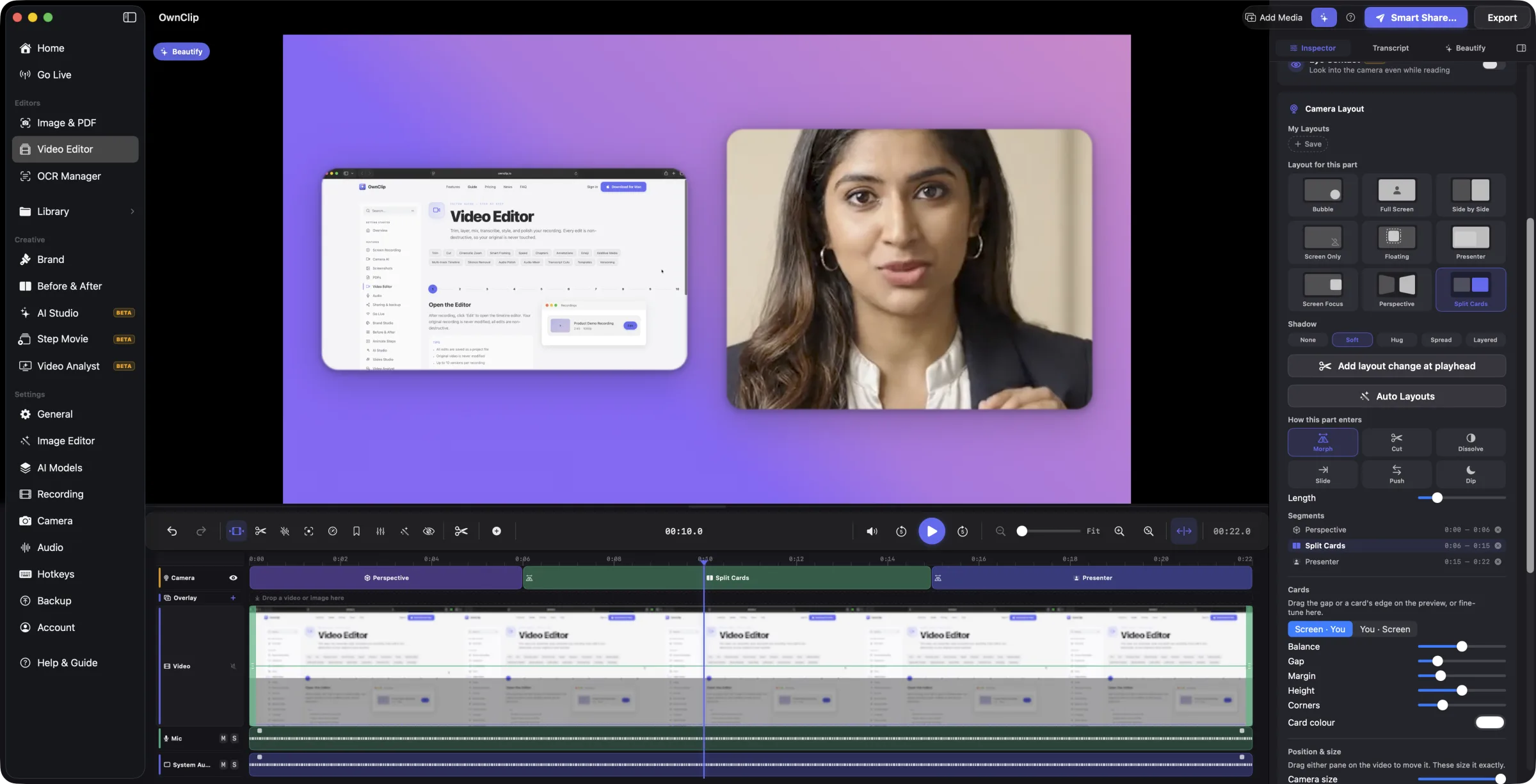
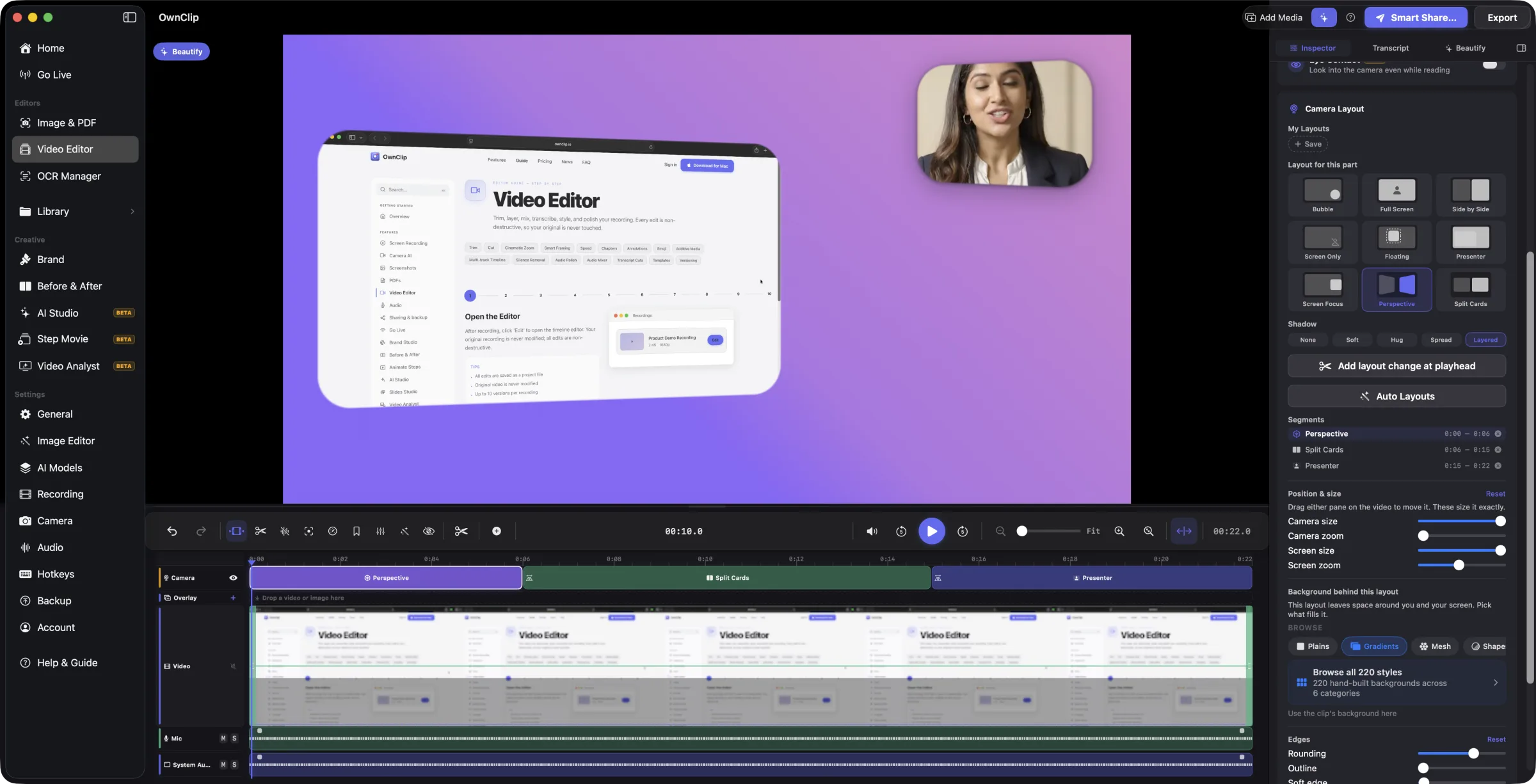
Use the camera layouts
For recordings that captured your webcam as its own track. If yours did not, the Camera tile and the Eye Contact card do not appear.
Camera layouts
Choose how you and your screen share the frame, one stretch of the video at a time.
Click Camera in the Enhance group.
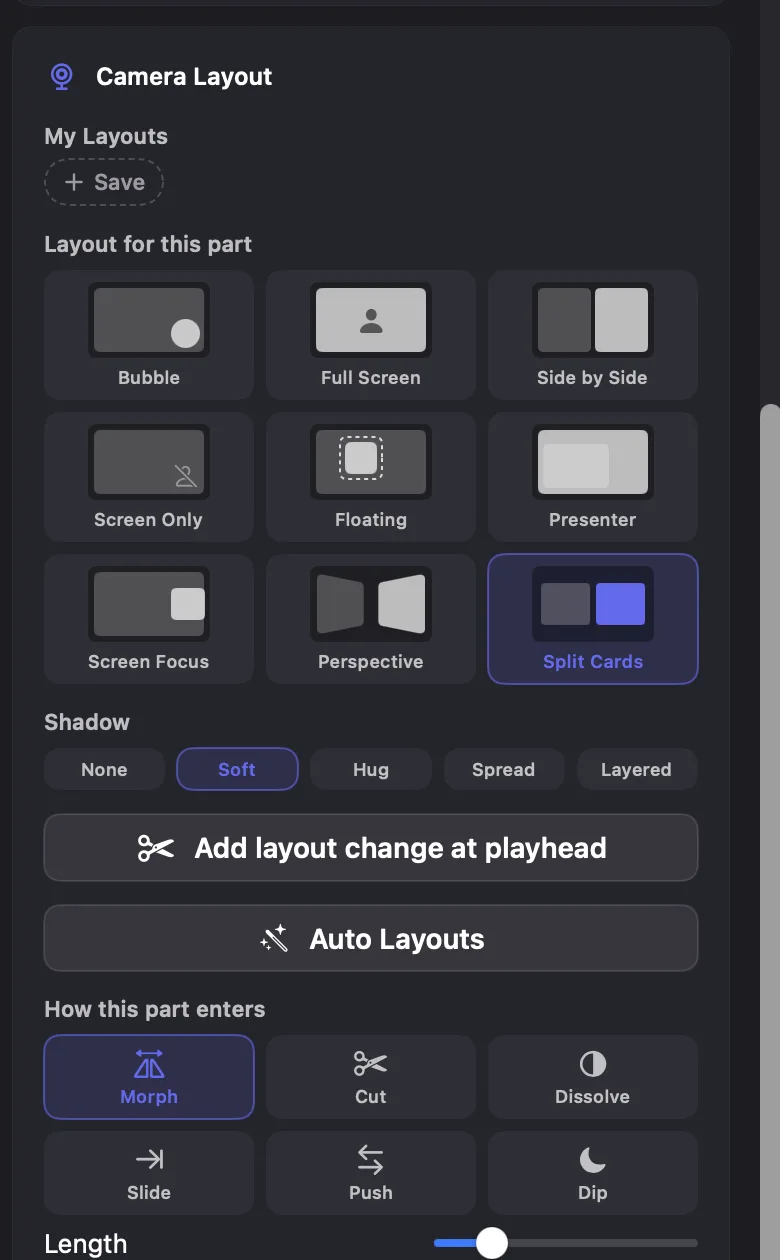
Pick a layout: Bubble, Full Screen, Side by Side, Screen Only, Floating, Presenter, Screen Focus, Perspective or Split Cards.
Move the playhead to another stretch and pick a different one. Press ⌥S or click Add layout change at playhead to split a part first.
Shortcut
1–9
layout of the part under the playhead
⌥+S
split here
Tips
‣Split Cards, Side by Side, Screen Focus and Perspective leave space around the two, and your background fills it.
‣Shadow has five settings: None, Soft, Hug, Spread and Layered. It greys out on layouts that fill the frame.
‣Save a framing you like to My Layouts and apply it again from a chip.
‣Select a sentence in the Transcript tab and give exactly those words their own layout.
‣Layouts stay attached to the moment they were set on, so trims, cuts and speed changes do not move them.
OwnClip: Camera Layout
Layout parts and transitions
Re-time a layout change, swap one layout for another, or choose how each part enters.
Drag the edge of a part on the camera lane to move the switch.
Right-click a part to pick a different layout, or remove it to merge it into its neighbour.
Choose how a part enters: Morph, Cut, Dissolve, Slide, Push or Dip. Each boundary has its own setting.
Tips
‣Pick a transition and the preview jumps back a second and plays it, so you see the choice.
‣The first part has no entry setting. Nothing comes before it.
‣Drag the gap or a card edge on the preview to reshape Split Cards, or double-click the gap to swap sides.
OwnClip: Camera Layout
Auto Layouts
Pro
Let OwnClip lay out the whole clip for you as a first pass.
Click Camera, then Auto Layouts.
Review the parts it adds. They are ordinary parts, so drag, retype or delete any of them.
To undo the whole run, use the banner it leaves behind.
‣It reads the transcript and your cursor activity on your Mac. You are full-frame to open, the screen takes over once you start clicking and typing, and you appear beside it while you point at something.
‣Changes land in the gaps between words, and it holds itself to about four changes a minute so the result does not flicker.
What needs Pro
‣Building layout parts by hand stays free. Only the automatic pass needs Pro.
Camera Layout
Eye Contact
Beta
Make it look as if you were looking at the camera while you were reading your screen.
In the Inspector, find the Eye Contact card above the tool panel and switch it on.
The first time, click Get to download the model. It is a one-time download, it is free, and it runs on your Mac.
Set Strength, then click Preview this frame to see a Before and After of the frame under the playhead.
Preview versus export
‣You cannot watch Eye Contact play back in the editor. It is applied to the whole webcam clip when you export, and the Export sheet tells you when it is on.
Fix the sound and polish the picture
Clean up the sound, hide what should not be seen, and frame the picture.
Mic and system audio
Balance your voice against the sound your computer played, or silence one without touching the other.
Press M to open the Audio Mixer.
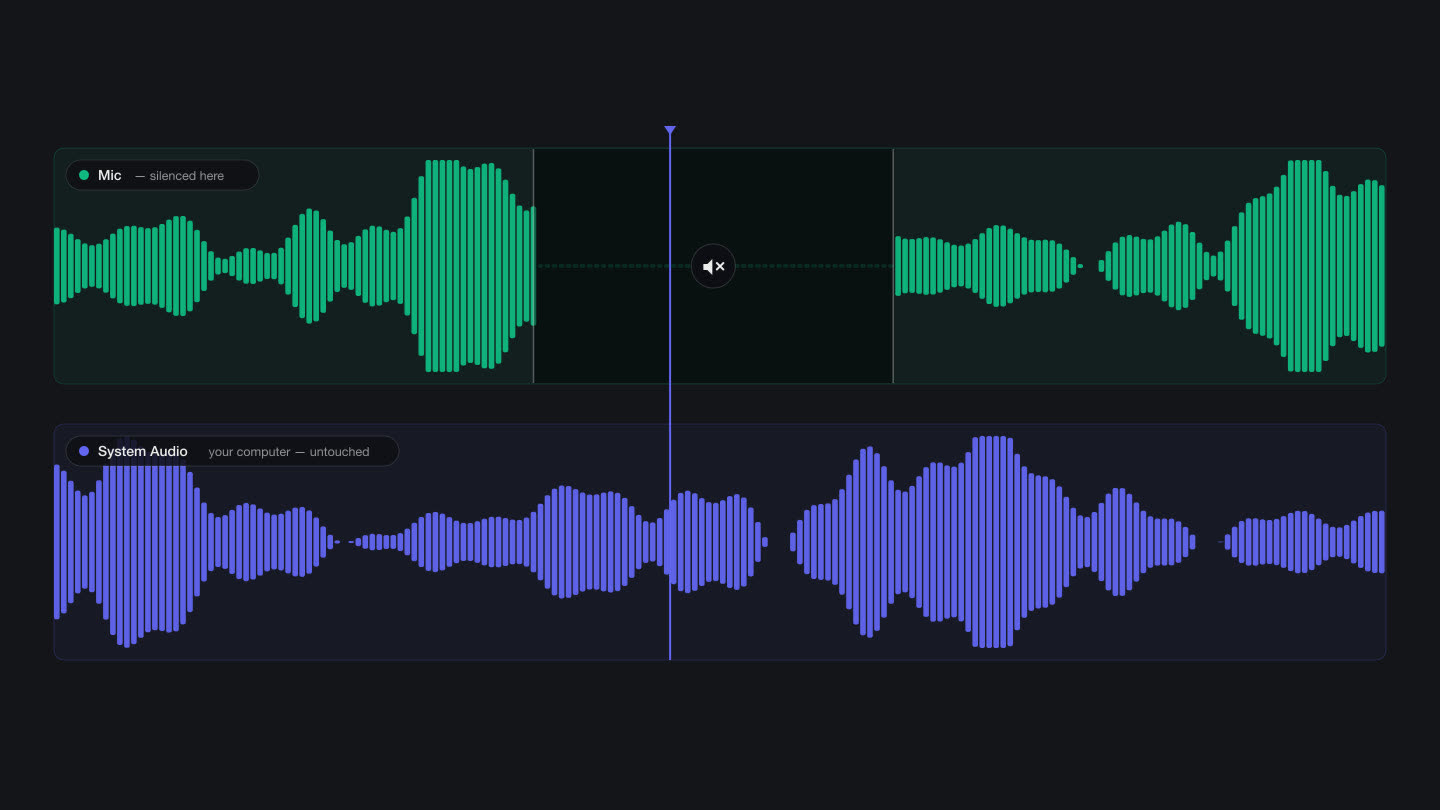
Recordings that captured both mic and computer sound open already split into a Mic track and a System Audio track. If you see Split into Mic + System tracks on the Original Audio strip, click it. Split separates your voice (Mic) from your computer’s sound (System Audio), so you can change one without the other.
Drag across part of a waveform to silence only that stretch. Right-click a clip for Mute Segment or Unmute Segment.
‣Each track has M and S buttons. Option-click S to solo only that track.
Shortcut
M
Audio Mixer
Mic and system audio tracks
Audio Mixer: clean up the voice, add music
Make speech clearer and more even, and mix music or a voiceover underneath it.
Press A to open the mixer on the Original Audio strip.
Choose a Tone (Off, Voice, Podcast or Music), raise Reduce Noise, and choose Even Out Volume (Off, Light, Normal or Strong).
Press and hold Hold to Compare to hear your original without those changes.
To add music or a voiceover, click Add Audio. Set its Volume, fades and pan.
‣Clean Up Voice removes background noise from a voice track with an on-device engine, in one step you can undo. It lives on the Mic track, so split the audio first.
‣Each track can Normalize to a loudness target, so it plays at a steady level. For a spoken interview or podcast, pick −16. Pick −14 for social video and −23 for broadcast. Higher numbers (closer to zero) are louder. The numbers are LUFS, a standard loudness measure.
‣Under speech (on a music or voiceover track) lowers that track while someone is talking, so the voice stays clear, then brings it back up. Choose Off or how many dB it drops by.
‣The Master strip shows the overall loudness of the finished video. Its True-peak limiter stops loud peaks from distorting, and the Ceiling sets the loudest level it allows.
‣Hold Option and drag a clip up or down on the timeline to change its gain.
Shortcut
A
Original Audio strip
M
Audio Mixer
Where Audio Polish went
‣Tone, Reduce Noise, Even Out Volume and Clean Up Voice used to be a separate Audio Polish tool. They now live in the Original Audio strip.
Audio Mixer
Original Audio
Volume 0 dBFade In 0.0sFade Out 0.0s
Music
Volume −6 dBPan C
Normalize to
Voiceover
Volume +2 dBPan C
Master−15.8 LUFS
Solo lets you hear one track alone. The peak limiter is applied when you export.
Remove a logo
Erase a logo or watermark that stays in one place on the picture. This is a separate tool from the OwnClip watermark that Free-plan recordings carry; it cannot remove that watermark.
Press W, or click Remove Logo in the Enhance group.
Drag a box over the logo on the video. It is erased in the preview and in the export.
Choose a Fill: Content-Aware rebuilds the area from the pixels around it and suits gradients and soft backgrounds. Blur smears it. Pixelate makes a mosaic. Solid is a flat black patch.
‣The box stays where you draw it. It does not follow a logo that moves around the frame. Draw it over the spot where the logo sits.
‣For a see-through badge, click Analyze Badge. OwnClip looks at about two dozen frames to measure the badge, then tries to subtract it so the picture underneath comes back. It only works when the picture behind the badge changes during the clip. If the measurement is not clean enough to trust, the app tells you and uses the normal fill. It is not a promise to remove any watermark. Reset goes back to the standard fill.
‣Delete one box with its trash button, or click Remove All Boxes.
Shortcut
W
Remove Logo
Your original and your plan
‣Your original file is never changed. It is free on every plan.
Hide an email, phone number or card number (Redact)
Blur, pixelate or black out emails, phone numbers, card numbers and keys before you share a recording.
Press R, or click Redact.
Click Scan for Sensitive Content. OwnClip reads the text on screen, follows text that moves, and proposes regions to cover. Or drag a box over anything yourself.
Check Proposed regions. Remove any you do not want with its trash button.
Choose a Style for a region: Pixelate, Blur or Blackout. Defaults: emails, phone numbers and web addresses start as Pixelate. Card numbers, Social Security numbers, API keys, tokens and AWS keys start as Blackout, because pixelating small text can leak the shape of its letters. A box you draw yourself starts as Pixelate. Blur is never a default, so pick it yourself if you want it.
Click Apply N regions.
Shortcut
R
Redact
Check before you share
‣Boxes you draw, and regions a scan proposes, only count once you click Apply N regions. If you forget, OwnClip applies the ones still waiting when you share, export or leave the editor. Click Apply yourself to see them in the preview first.
‣That automatic step only adds cover. To uncover something you removed, click Apply after removing the box. Discard Changes throws away proposals you have not applied.
‣Scanning suggests; it does not promise it found everything. Always play the preview and check it before you share. Redact is free on every plan.
Redact
Example regions. The real scan reads your video.
Beautify: frame your video
Put the video on a styled background, with padding and rounded corners around it.
Click the Beautify tab, or the Beautify button in the top bar. The switch at the top of the panel turns the frame on and off.
Pick a background from the library, set Padding, and choose a shape in the Aspect ratio row.
Open Customize frame & shadow for corners and shadow.
‣Make a vertical 9:16 video. Turn Beautify on, then in the Aspect ratio row click Stories (the 9:16 shape; All 9 lists it as 9 : 16). Your video sits in the middle of a tall frame and the background fills the space above and below. It does not crop or re-aim the picture, so a wide screen recording stays small in a tall frame. For a version made for phones, with captions and reframing, the automatic option is Promo Shorts (Studio).
‣Your Footage plays your own clip behind the video, looped to fill it (Choose a clip…). Blur and Strength keep it from competing with your content.
‣This Section uses the current background only for the stretch under the playhead (Use here only).
‣Generate AI Wallpaper makes a background from a description. Remove Beautify takes the whole frame away.
What needs a paid plan
‣3D Tilt needs Pro. The Motion wallpaper (a slow animated background) needs Studio, and so does the best-quality engine for AI wallpapers. The rest of Beautify is free.
Export and share
Turn your edit into a file, keep a copy of each version, or send it somewhere.
Export
Save your edit as a video file, or just its sound, then send it.
On the Free plan: recordings are limited to 3 minutes at 720p, with the OwnClip watermark recorded into the video. Pro and Studio remove those limits for new recordings. Free plan details
Click Export in the top right. (Smart Share next to it makes a link instead.)
Choose a Format. If you are unsure, use MP4.
Choose a Quality: Web for the smallest file, Standard for most uploads, High for the biggest and best. The sheet shows an Estimated size for your trimmed video before you export.
Set Resolution and Frame Rate if you need to. Source keeps what you recorded.
Click Export, then choose where to save it. The name box is filled in as the recording’s name plus _edited, for example My demo_edited.mp4. OwnClip offers the folder you used last time; the first time, it is the folder macOS suggests.
When it finishes, click Finder to show the file.
Send it. Attach the exported .mp4 to an email or chat message from Finder (drag it in, or use the attach button). Most email services accept only about 20 to 25 MB per message, so check the size guide below first. If the file is bigger, send a link with Smart Share instead.
‣Video formats: MP4 (works almost everywhere), HEVC (smaller, but some older players cannot open it), MOV (QuickTime), WebM (VP9 video with Opus audio, for the web) and GIF (no sound). ProRes 422 and ProRes 4444 are for professional editing. ProRes files are very large.
‣Audio only exports just the sound as WAV, ALAC, FLAC or M4A. There is no MP3 option. M4A is the small one; WAV, ALAC and FLAC keep every detail and make much bigger files.
‣How big will it be? The MP4 sizes below come from the targets the Export sheet uses, and they include the sound. They are approximate, because the file size depends on your video. Per minute of video: Web is about 11 MB, Standard about 37 MB, and High at least 75 MB. Choosing HEVC makes Web about 7 MB per minute and Standard about 22 MB. MOV files are larger: about 37 MB per minute at Web.
‣To fit an email (about 20 to 25 MB). Trim the video first (T), then export MP4 at Web. That fits about 2 minutes. For longer videos, send a Smart Share link (Smart Share needs an OwnClip sign-in and a connected Google Drive), or put the MP4 in any shared folder (iCloud Drive, Dropbox, OneDrive) and send that link. If only your voice matters, export Audio only as M4A: about 2 MB per minute, so roughly 10 minutes fit in an email.
‣Polish audio is on by default. It cleans up the voice and balances the loudness for sharing. Turn it off to skip that extra cleanup.
‣Resolution only goes down. Picking 1440p for a 1080p recording still gives 1080p.
‣OwnClip remembers your last choices, so the next export starts where this one ended.
Smart Share and plans
‣Smart Share (the button next to Export) uploads the file to your own Google Drive and gives you a link on a view.ownclip.io page. It needs you to sign in to an OwnClip account with Google and connect Google Drive, and the video uses your Drive storage. The feature itself is free on every plan. The link is public to anyone who has it, or limited to people you name.
‣Every export format is available on every plan.
Export Video
Format
H.264. The most compatible choice.
ProResProRes 422ProRes 4444Audio only (no MP3)WAVALACFLACM4A
Quality
Balanced quality and size. About 37 MB per minute as MP4. Good for most uploads.
ResolutionSource1440p1080p720p480p
Frame RateSource30 fps60 fps
Export
Versions and your original
Keep a copy of each export next to your original, so you can always go back.
In the Export sheet, leave Save as version on. It is on by default.
To find versions later, select the recording in the Library. The Versions card lists v1, v2 and so on, with the date and size.
Click the play button on a row to open that version.
‣OwnClip keeps up to 10 versions per recording. When you save an eleventh, the oldest goes to the Trash.
‣Turn Save as version off to save only the file you pick. OwnClip remembers the setting.
Version History
Up to 10 versions per recording. The original is never changed.
Make a vertical Short
Studio
Turn this recording, with the edits you made here, into a vertical Promo Short.
Click Short in the top bar. You will also find it on the screen that appears when an export finishes.
OwnClip saves your edits first, then opens Promo Shorts with this recording as the source.
Press ? in the editor for the full list. Global recording shortcuts are covered in the shortcuts guide.
Tools
T
Trim
C
Cut
S
Silence Removal
Z
Zoom (Smart Zoom and manual zooms)
P
Playback Speed
H
Chapters
M
Audio Mixer
A
Mixer, on Original Audio
W
Remove Logo
R
Redact
Playback
Space
Play or pause
J
Shuttle backward (K pauses, L goes forward)
←
Back 5 seconds (→ forward)
,
Back one frame (. forward)
⇧+←
Previous chapter (⇧→ next)
⇧+Space
Play from 2 seconds back
Editing
I
Set trim start at the playhead (O sets the end)
⌘+B
Mark Cut Here
⌘+Z
Undo (⇧⌘Z redo)
⌘+D
Duplicate the selected item
⌫
Delete the selected item
N
Snapping on or off (hold ⌘ to flip it)
⇧+Z
Zoom the timeline to the selection
1–9
Camera layout for this part
?
Show every shortcut
Troubleshooting
My zoom doesn't appear
A zoom only shows between its markers on the timeline, so check that the Zoom tool has some. With Smart Zoom, switch on Cinematic zoom and click Apply. If it reports that it could not find clear focus moments, the cursor stayed in one spot. Record again with deliberate clicks across different parts of the screen, or add zooms by hand. By hand, press Z and Option-click the video preview. A zoom box dragged out to the full frame means no zoom.
Smart Zoom says "No pointer data in this clip"
Smart Zoom follows the pointer, and OwnClip only has pointer data for screen recordings it made itself. OwnClip records that data by itself during every screen recording, so there is no setting to switch on. A video you imported, a recording from a device, or a take recovered after the app quit has none. It also needs at least two clicks or a few seconds of deliberate pausing. You can still add zooms by hand: press Z and Option-click the preview.
My export is 720p with a watermark
That is the Free plan. The limit applies when you record. Free recordings are captured at 720p with the OwnClip watermark already in the picture, so every export of them carries both. The Export sheet says so. Pro and Studio remove both, but only for recordings you make after upgrading. Takes you already made on Free keep the 720p and the watermark.
My blur boxes didn't apply
Boxes you drew or a scan proposed take effect when you click Apply N regions, and OwnClip also applies them when you share, export or leave the editor. If you removed a box that was already applied, click Apply afterwards: a share only ever adds blur, so deleting a box alone does not uncover anything. Always watch the result before you send it.
The Transcript tab is empty
Nothing is transcribed until you ask. Open the tab, choose the spoken language and click Transcribe. If it says Speech Recognition is off, allow it in System Settings, Privacy & Security, Speech Recognition, then come back. If it reports no speech, the clip may be silent, music only, or in a different language than the one selected, so try another language and run it again.
The audio sounds different after export
Polish audio is on by default in the Export sheet. It cleans up the voice and balances the loudness for sharing. Turn it off to skip that extra cleanup. Also check the Original Audio strip: press A, and use Hold to Compare to hear your original against Tone, Reduce Noise and Even Out Volume. The Master strip's loudness target and its limiter (which stops loud peaks from distorting) shape the export too.
How do I undo something?
Press Command-Z to undo and Shift-Command-Z to redo, or use the arrows at the left of the timeline toolbar. To remove one specific edit without losing the others, open the Applied list at the bottom of the Inspector. Command-Delete clears all edits, and asks you to confirm first. Silence Removal also has its own Undo button right after it runs.
Where did my original go? Where are my versions?
Your original recording is never changed. Edits are stored separately and applied when you preview or export. When you export, Save as version (on by default) keeps a copy next to the original. Select the recording in the Library and open its Versions card to see them. OwnClip keeps up to 10, and the oldest goes to the Trash after that.
I can't find the Camera tile or Eye Contact
Both only appear for recordings that captured the webcam as its own track. A recording made without a webcam, or one that did not keep the webcam as its own track, has nothing to lay out or correct.
I can't find Transitions
Transitions sit in the Cut tool, and only show once the clip has at least one cut. Make a cut first, then press C. To set one cut on its own, right-click it on the timeline and choose Transition.