A screenshot tool that does not stop at the capture
Take the screenshot and it opens in an editor instead of landing in a folder. Mark it up, drop it on a background, blur what should stay private, or lift the text straight out of it.
Free Capture is part of Pro, a one-time $39 purchase. Everything else on this page is free.
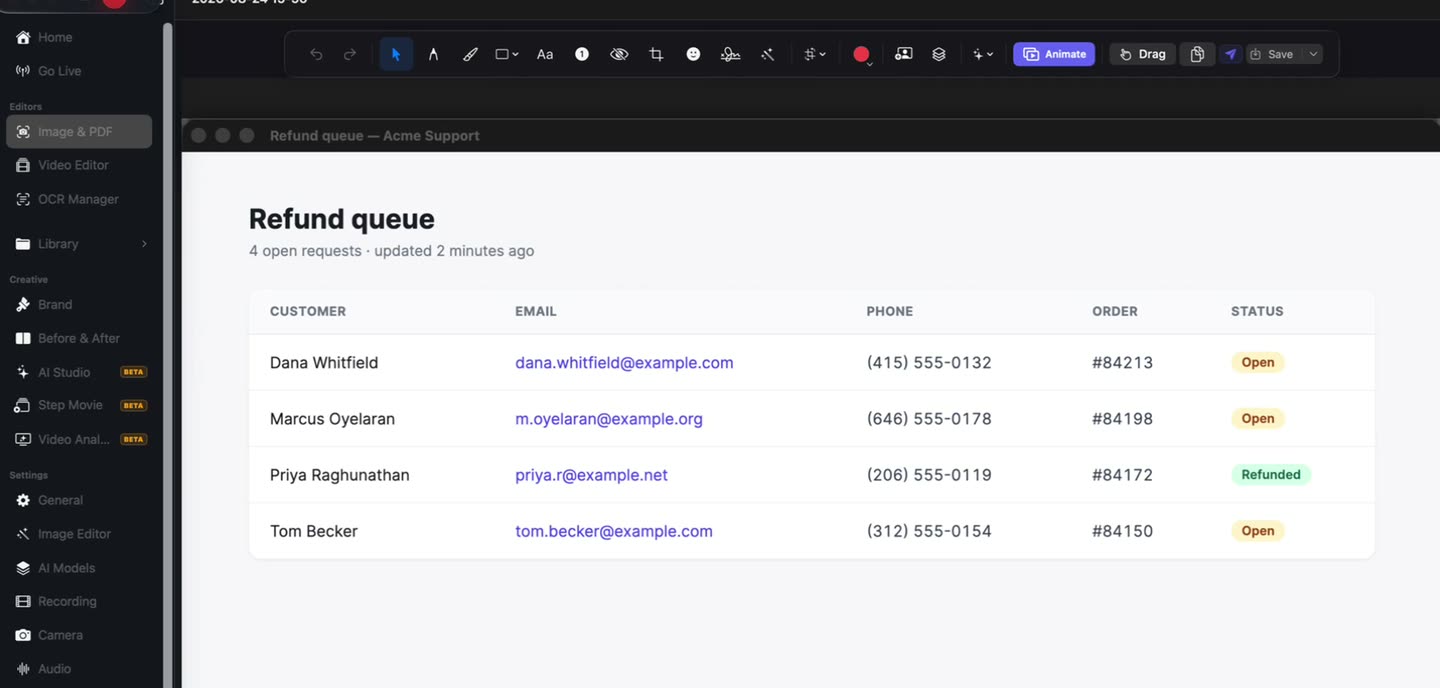
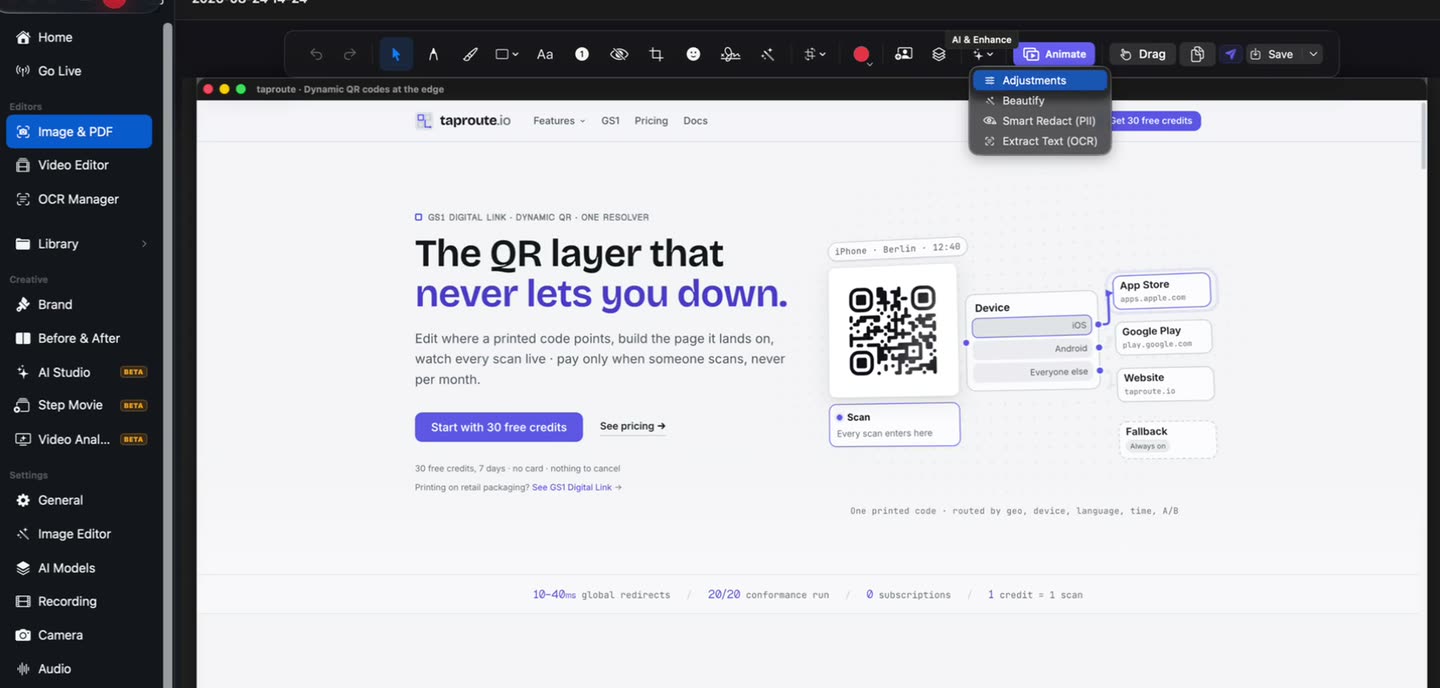
The capture opens somewhere useful.
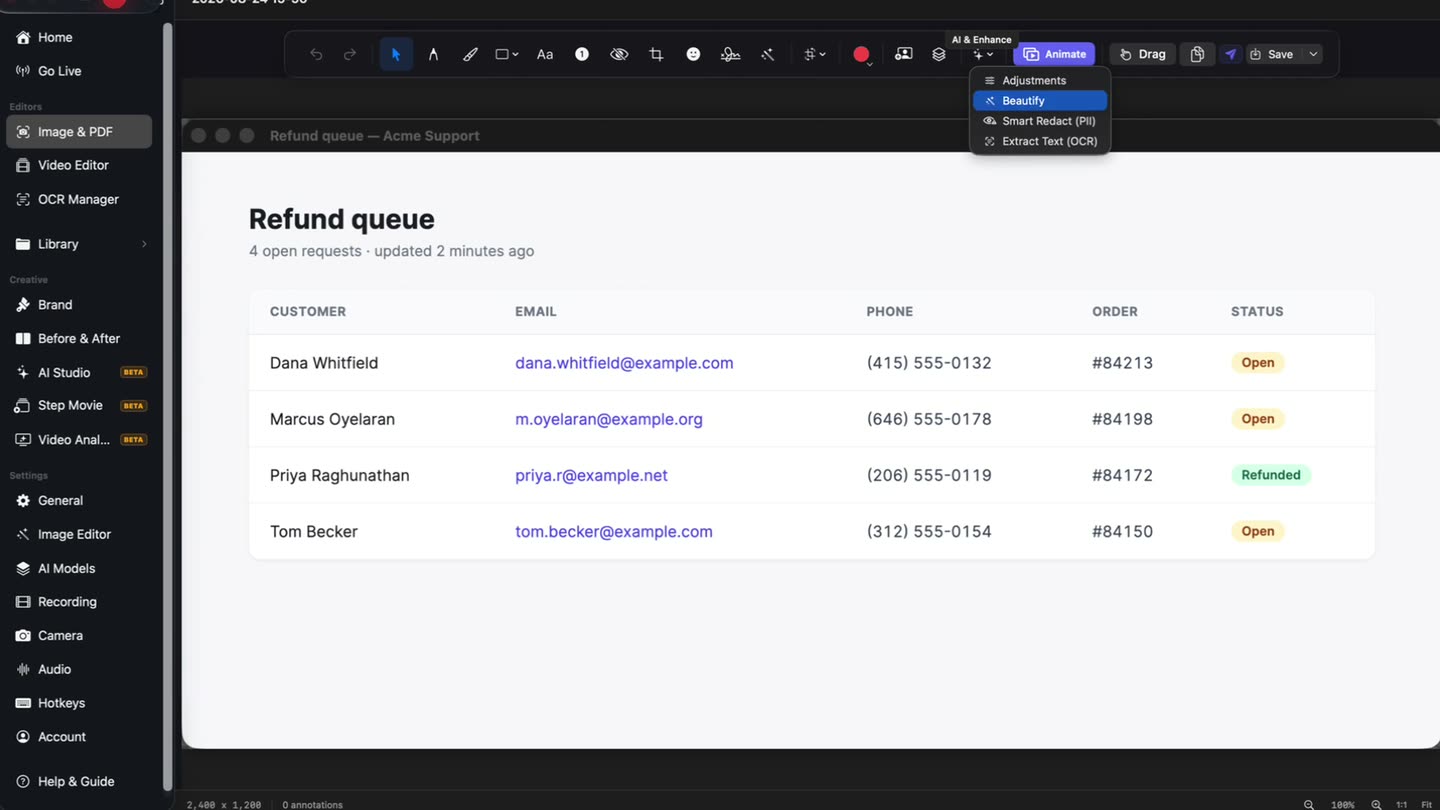
The shot arrives in the screenshot editor. Markup sits on the toolbar, and the menu beside it holds Adjustments, Beautify and Extract Text — on the capture you took a second ago.
- 22 tools
- Adjustments
- Beautify
Ways to take a screenshot
Five ways to take one, and the panel that catches whatever comes out of them.
A whole display
One screen captured whole, menu bar included.
A single window
The window on its own, without the desktop showing around its edges.
A region you drag
A rectangle over the part that matters, at the moment it matters.
A region across two displays
Drag past the edge of one screen and the selection carries on over the next.
Any shape you tracePro
Free Capture cuts out exactly what you draw around — the result is a transparent PNG, not a rectangle with the background still in it.
A page that scrolls
Scroll Capture keeps going past the bottom of the window and returns the whole page as one image.
Quick Access
Each capture lands in a floating panel alongside the last few, so the next step is a click instead of a hunt through a folder.
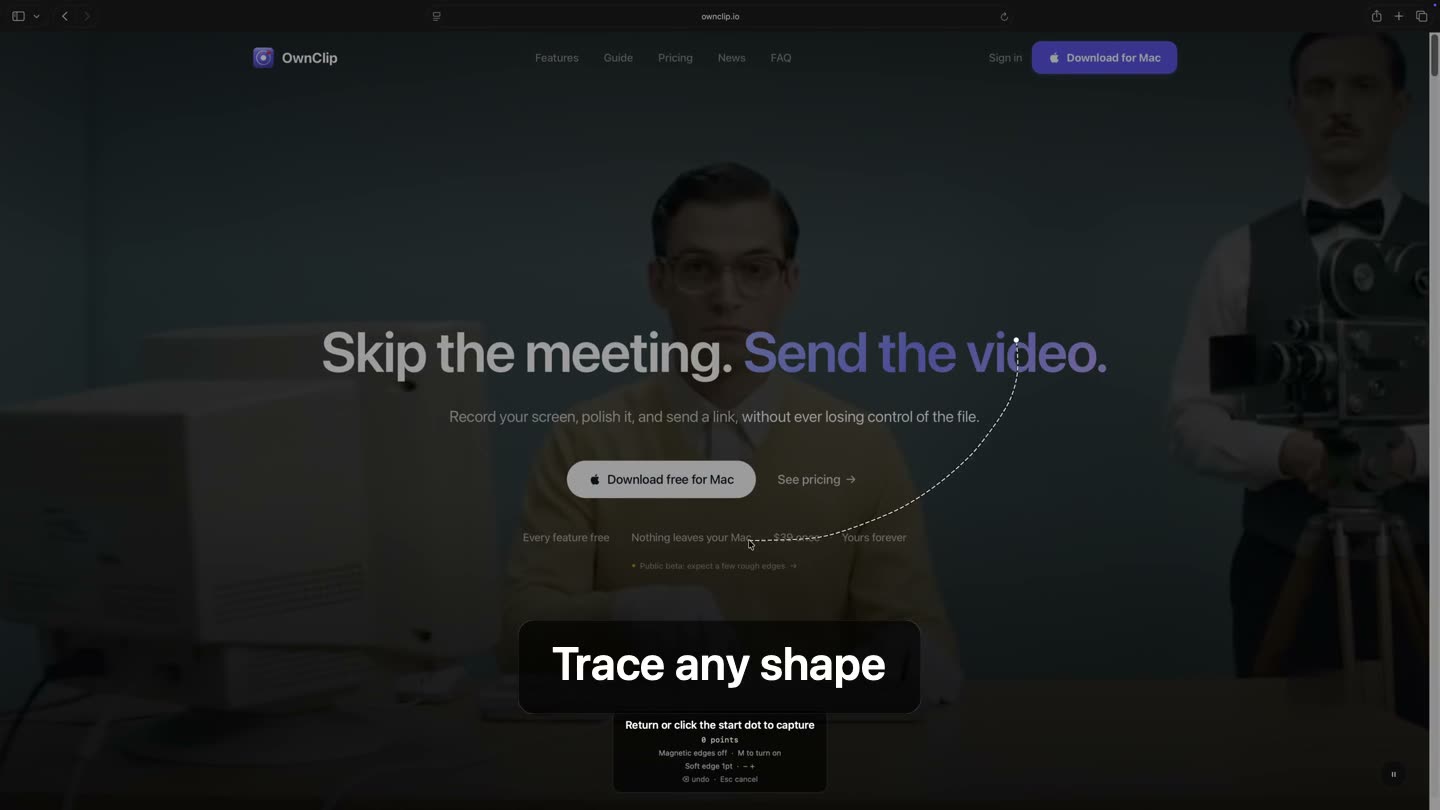
Not everything worth capturing is a rectangle.
Press ⌃⌥⌘L and the screen freezes. Trace the shape you want — freehand, or click for straight edges — and let go. What lands is that shape on a transparent background, cropped to it, ready to drop into a deck or a chat.
- Freehand or polygon
- Magnetic edges
- Transparent PNG
Annotate it: what you can do to a capture
A screenshot with an arrow on it answers the question. A screenshot without one starts a conversation about which part you meant. Twenty-two tools, one menu deep.
Arrows and shapes
Four arrow styles plus rectangles, ellipses, triangles, diamonds, stars and lines.
Pen, marker, highlighter
Three freehand tools with different weights and opacities.
Text and numbered steps
Labels, and badges that number themselves in sequence.
Blur
Obscure a region by hand, or let a scan propose the sensitive parts.
Signature
Draw a signature once and place it on documents.
Crop and stickers
Trim to what matters, and drop in emoji or images.
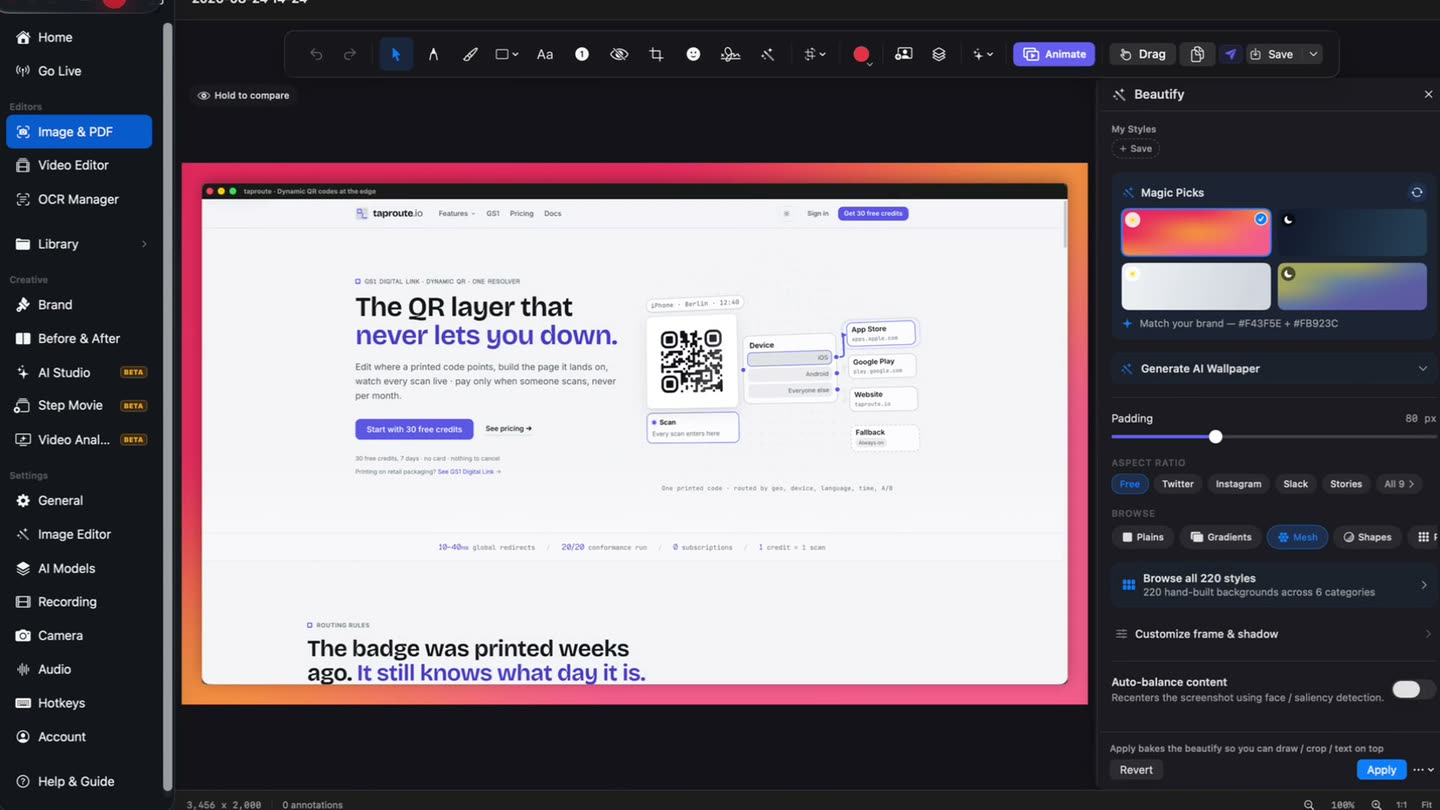
A flat shot, ready to send.
Drop the capture onto a background with padding, rounded corners and a shadow when it is going into a changelog or a deck.
- Backgrounds
- Padding and shadow
Blur what should not ship.
A local scan finds email addresses, phone numbers, card numbers and identifiers and proposes them for review. You can also blur any region by hand.
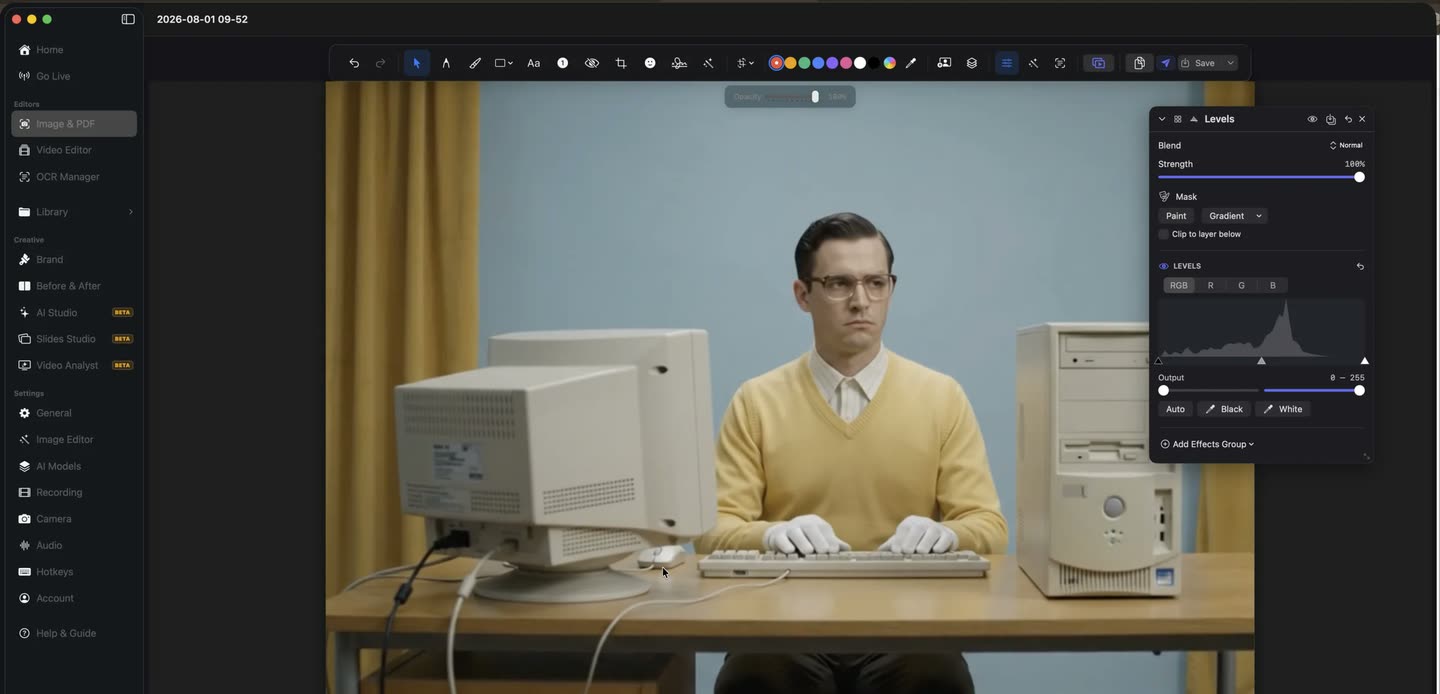
Adjustment layers, on a screenshot.
Curves, levels and HSL as non-destructive layers with masks and blend modes — the same editor handles a photo as happily as a capture.
It all happens on your Mac
Captures are ordinary image files in a folder on your Mac. Text extraction, object removal and the adjustments run on your own machine — nothing is uploaded to be processed.
Magic Erase paints something out of a shot and closes the background behind it. Its High Quality engine downloads a model once, then works from your Mac like the rest.
You do need to sign in to use OwnClip, so it is not usable fully offline. Free exports carry a small watermark; Pro is $39 once and removes it.
From shortcut to sent
- 1Take itA display, a window or a region you drag, straight from a keystroke.
- 2Catch itThe capture appears in the Quick Access panel with the last few, so none of them go missing.
- 3Work on itMark it up, blur what should stay private, or put it on a background.
- 4Send itCopy it to the clipboard, save it, or drag it into wherever it was going.
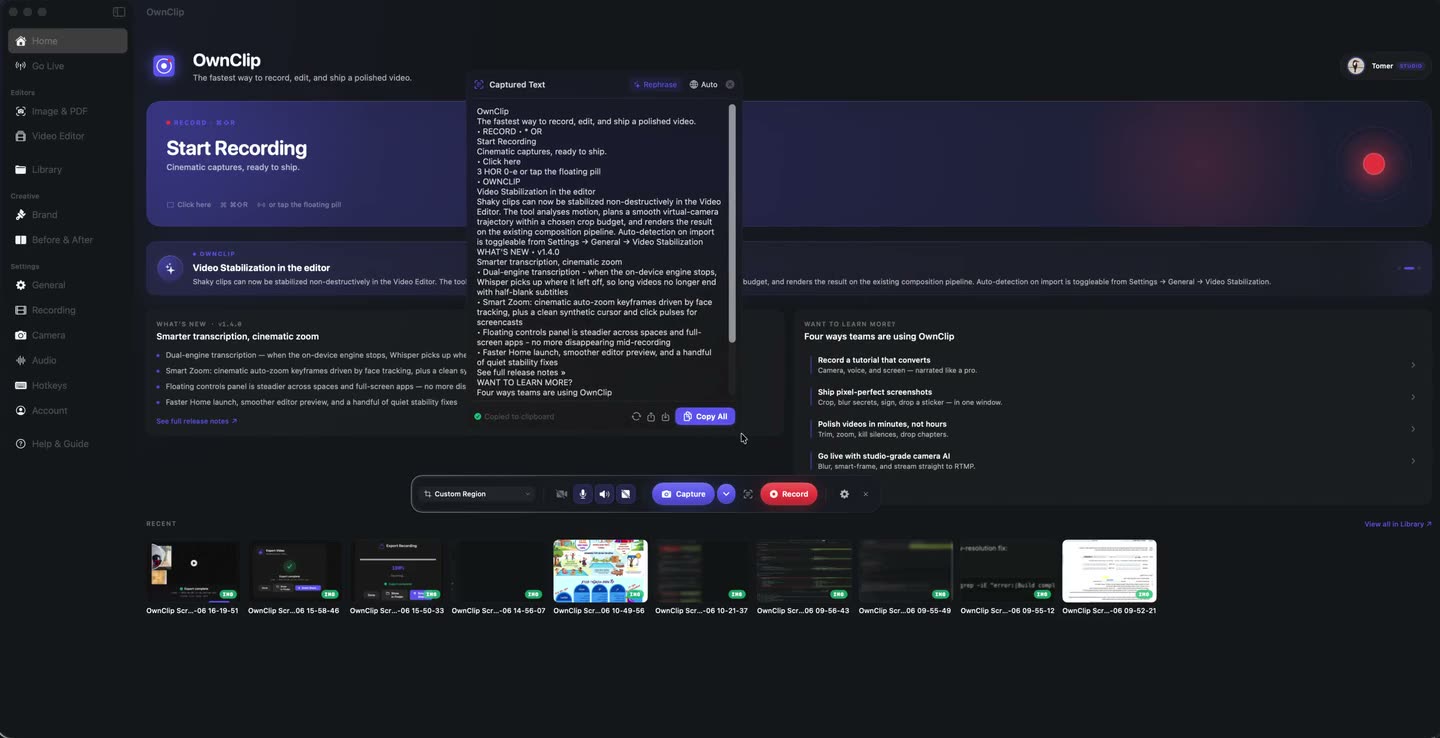
Text in a picture, as text.
Drag over any text on screen and get it back as text you can edit and paste. It runs on your Mac. Free accounts get five extractions a month; Pro and Studio are unlimited.
What people take these for
A bug someone else has to fix
The error, the state it happened in, and an arrow at the part that went wrong — one image instead of a paragraph.
Feedback on a layout
A box drawn around the spacing problem, instead of three replies describing where it is.
A step in a written process
Numbered badges on a capture, so the document shows each step rather than describing one.
Something you need as text
A reference number or an error string, pulled out of the image instead of retyped from it.
Questions people ask
OwnClip runs on the latest macOS — currently macOS 26 — on an Apple silicon Mac. It is a native Mac app; there is no Windows or web version.
Yes. The 22 markup tools, Beautify and Magic Erase are all on the free tier. Free exports carry a small watermark and text extraction is capped at five uses a month. Scroll Capture is free too. Recording has its own free caps — three minutes per take, recorded at 720p with the watermark in the video, and 25 saved recordings. Pro is $39 once and lifts all of them.
Yes. Every capture opens in the screenshot editor with the markup tools already there — arrows, shapes, pen, highlighter, text, numbered steps and blur.
Yes. Scroll Capture takes a full page or a scrolling region and stitches it into a single image, on every tier including Free. Free exports carry the watermark like any other free export.
Into a folder on your Mac as ordinary image files, and into the Quick Access panel that appears after each capture so you can mark one up, copy it or discard it without opening Finder.
Yes, by hand or by scanning the capture for things like email addresses and card numbers, which are proposed for your review rather than applied automatically.
Related
Coming from another tool? See how OwnClip compares with CleanShot X, or browse every comparison.
A screenshot tool that does not stop at the capture
Free to start. The latest macOS, Apple silicon. See what Pro and Studio add.