Get the text out of a screenshot on your Mac
Extract text from a screenshot, a video frame or a scanned page without retyping any of it. Press ⌃⌥⌘T, drag over what you can see and cannot select, and it lands on your clipboard as editable text.
Free to use. Recordings are capped at three minutes and recorded at 720p with a watermark.
Text you cannot select
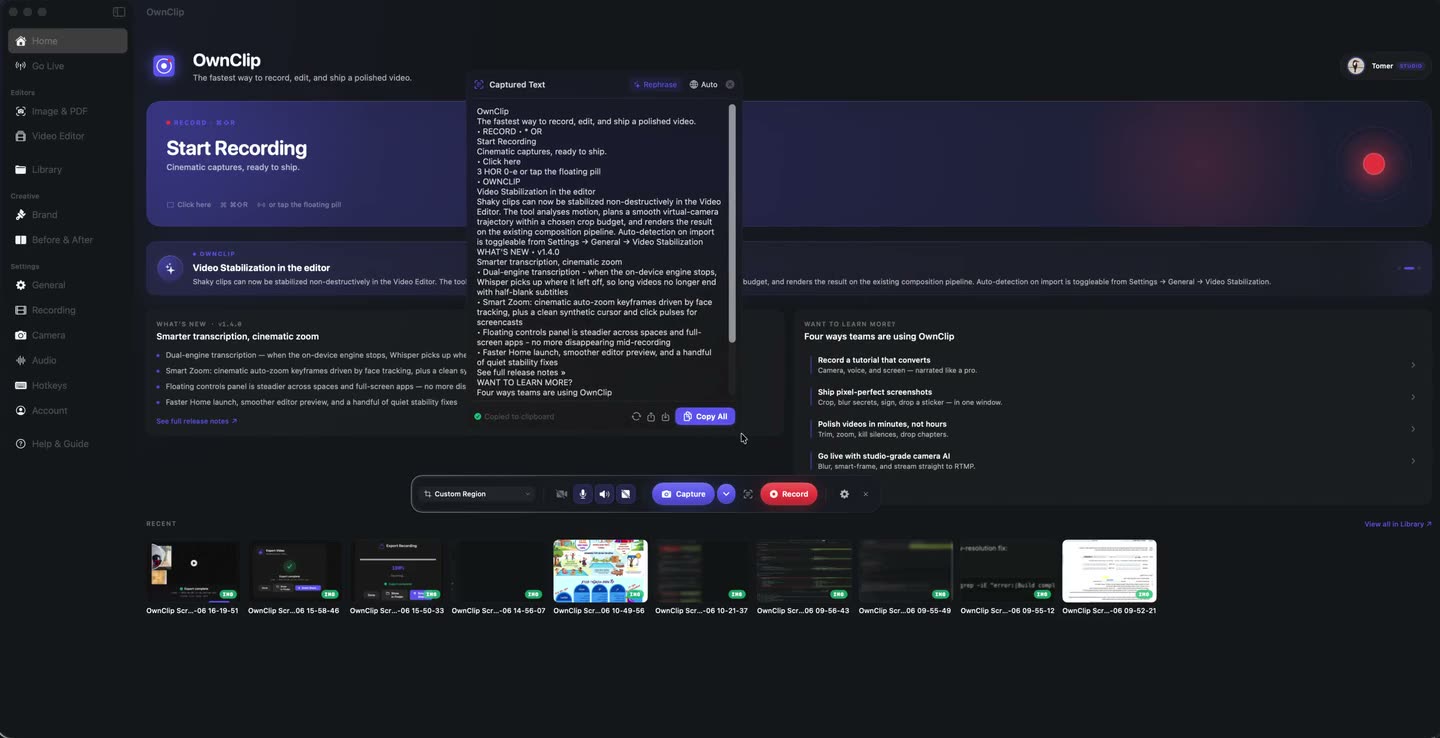
An error message that has to go into a ticket word for word. A number on a slide that arrived as a picture. The characters are right there on the display, and there is nothing to drag a cursor through.
Retyping is where the typos come from, and a wrong character in a licence key or a stack trace is its own problem to find. Turning a screenshot into text takes a keystroke instead: Capture Text puts a box over the region and hands the characters back, already on the clipboard.
The capture is already open.
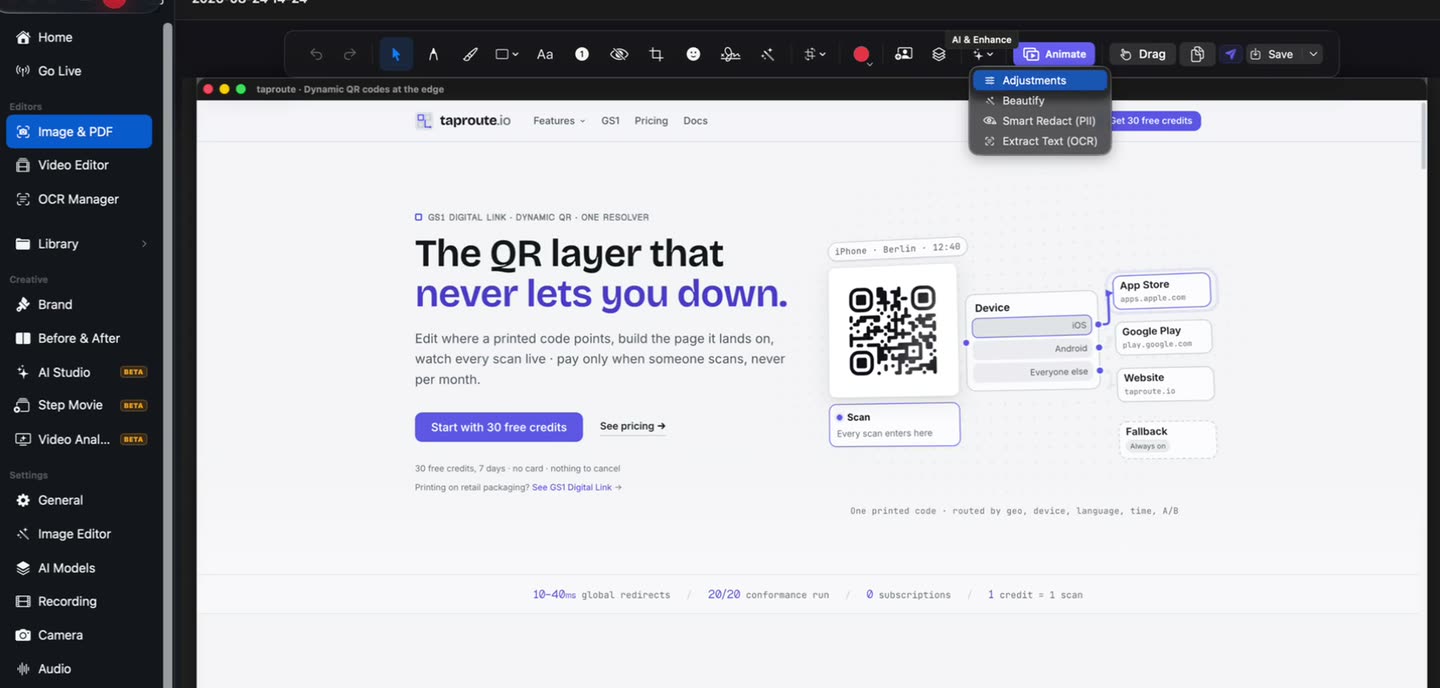
A shot you are marking up does not need a second pass. Extract Text sits in the editor’s own menu, next to Adjustments and Beautify, and reads whatever part of the image you draw a box around.
- Any selection
- Straight to the clipboard
- Kept in a history
What people pull text out of
Error dialogs
The exact wording of a crash, into a ticket, without transcribing it by hand and getting one character wrong.
Video frames
A command or a URL that only exists inside a video, where pausing still leaves you nothing to select.
Scanned documents
A receipt, a contract or a form that arrived as a picture of a page rather than as a document.
Slides and charts
The figures off something a colleague pasted in as an image instead of sending the table it came from.
Documents open in the same editor.
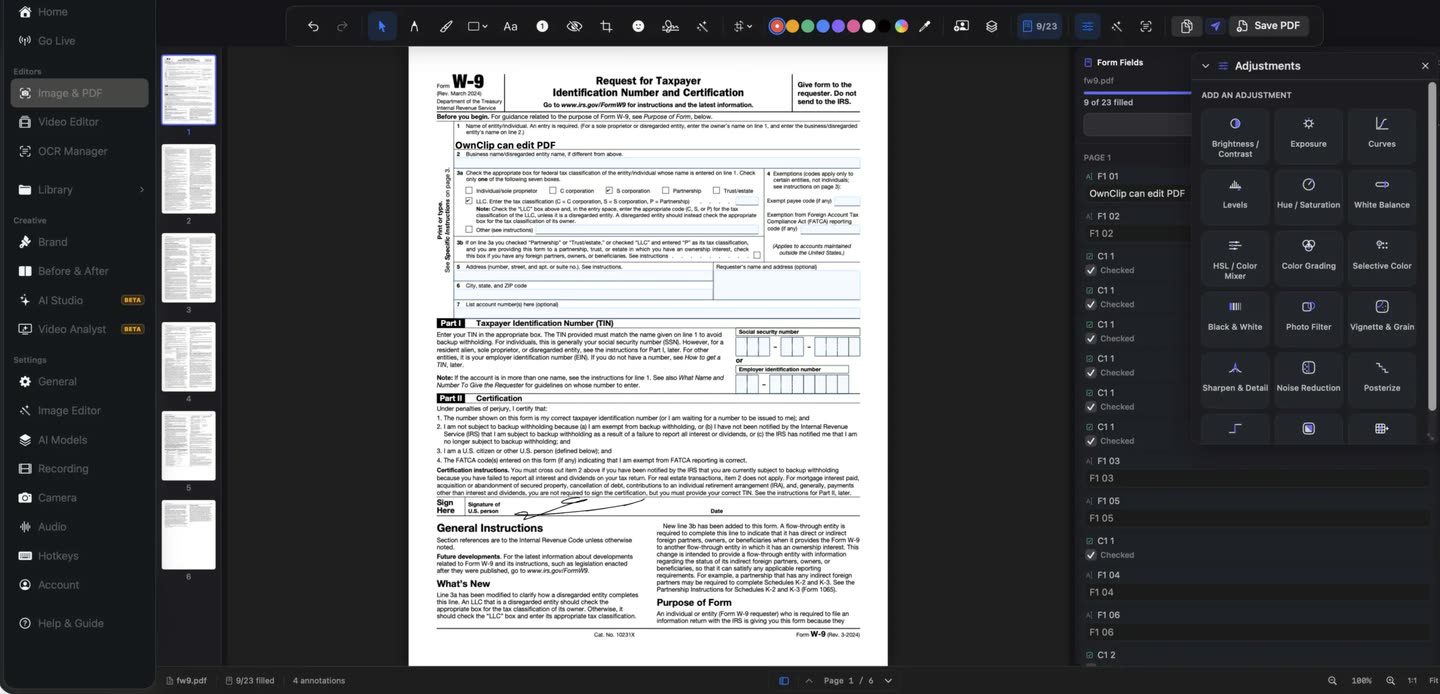
A PDF lands where your captures land, with its pages down one side. It is the same editor, opened on a document instead of a screenshot.
What the scan can read
Text extraction is free with a monthly allowance, and unlimited on Pro and Studio.
Any region of any screen
Drag over part of a window, a menu, a video or another app. If it is on the display, it can be read.
On the clipboard immediately
The text is copied the moment the scan finishes, and kept in a history you can go back to.
Five a month on Free
Five extractions per calendar month, reset on the first. Pro at $39 once and Studio at $99 once make it unlimited.
Inside the screenshot editor
A capture you are already annotating has Extract Text in its menu, over any selection you draw.
Scanned pages
A PDF page with no text layer behind it is just pixels. The same scan reads it, a region at a time.
The language it finds
The script is detected from the region rather than assumed, so text that is not English comes back as it was written.
Read it, then cover it.
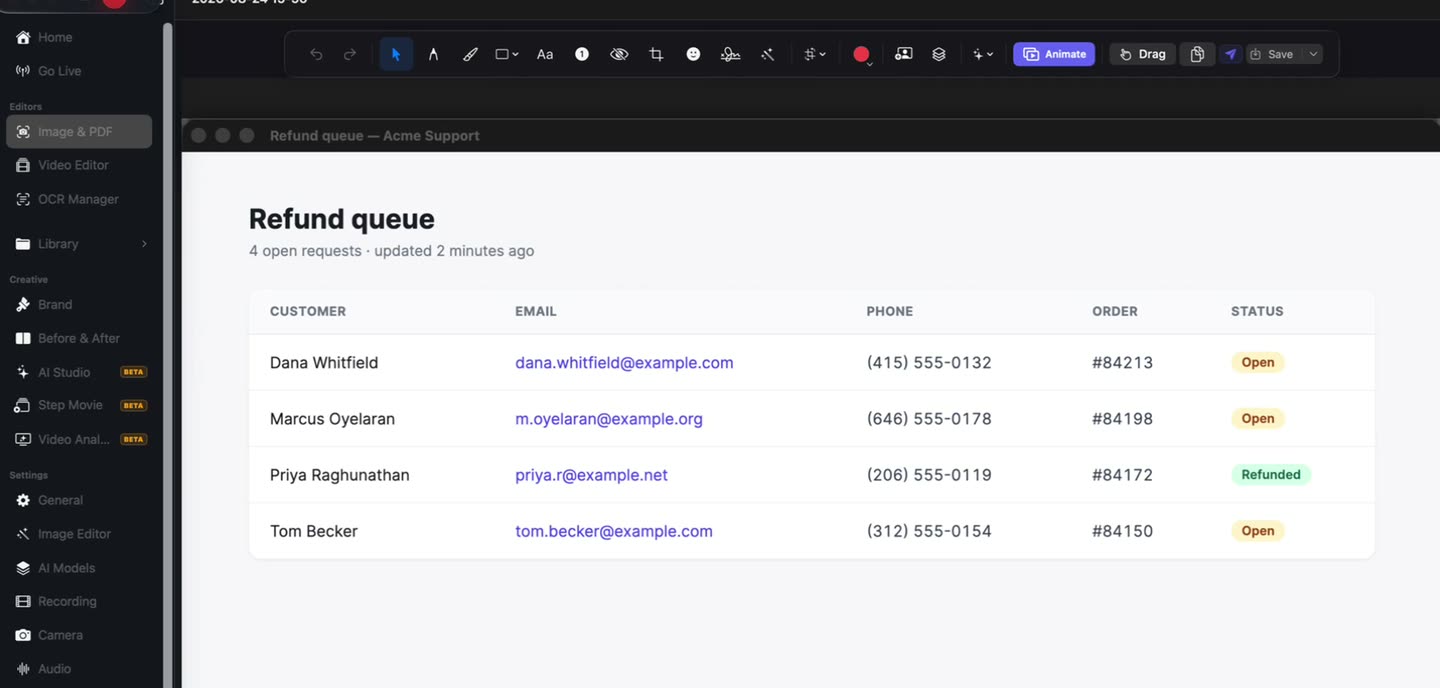
The table you just pulled the addresses out of is still open, with the blur tool on the same toolbar. Anything in the shot that was never meant to travel with it gets covered before the image goes anywhere.
On-device, and what it costs
The OCR runs on your Mac. The region is not uploaded for processing, so an internal dashboard or a signed contract can be read without a copy of it leaving the machine. You do need to be signed in to use OwnClip, so it is not usable fully offline — the reading itself is local either way.
The free allowance is five extractions per calendar month, shared with the Clean Up, Rephrase and Summarize actions in the text window, and it resets on the first. Pro is $39 once and Studio is $99 once; both make it unlimited, and neither is a subscription.
Questions people ask
Press ⌃⌥⌘T and drag a box over the part of the screen holding the text. OwnClip reads the region and puts the result on your clipboard, and keeps a copy in the text window so you can go back to it. The image can be a screenshot, a photo, a video frame or another app’s window.
Five times per calendar month on the free tier, counted on your own Mac and reset on the first of the month. The same pool covers the Clean Up, Rephrase and Summarize actions in the text window. Pro at $39 once and Studio at $99 once both make it unlimited.
Yes. A PDF opens in the same editor as your captures, and a page with no text layer behind it is read the way any other region of the screen is read — drag over the part you need. The document stays on your Mac.
No. Text recognition runs on your own machine and the region is never sent anywhere for processing. Nothing leaves the Mac unless you choose to share it, and sharing uploads to your own Google Drive rather than to our servers.
OwnClip runs on the latest macOS — currently macOS 26 — on an Apple silicon Mac. It is a native Mac app; there is no Windows or web version.
Free includes the whole editor — timeline, Smart Zoom, camera effects, audio cleanup, captions, annotations, and the screenshot and PDF editors. What it caps is the take itself: three minutes, recorded at 720p, with a small watermark recorded into the video. You can keep 25 recordings. A few tools are paid rather than capped — Video Analyst and Batch Beautify are Pro; Brand Studio, Go Live and Step Movie are Studio. Pro is $39 once and lifts every cap for what you record after upgrading; recordings made on Free stay 720p with the mark. Text extraction has its own allowance of five uses a month.
Related
Coming from another tool? See how OwnClip compares with CleanShot X, or browse every comparison.
Get the text out of a screenshot on your Mac
Free to start. The latest macOS, Apple silicon. See what Pro and Studio add.