Record and export your Mac screen in 4K
Record your Mac screen and export it in 4K. How it looks comes down to two decisions, what you capture and what you write out at the end, and OwnClip keeps those apart — up to 4096 pixels on the long side at 60 frames a second.
Free to use. Recordings are capped at three minutes and recorded at 720p with a watermark.
Quality is two separate decisions
A take from a Retina display holds far more detail than a 720p file can carry. So a high quality screen recording is mostly decided at export rather than at capture — by the preset you write the file out with, not by the pixels the display handed over.
OwnClip keeps the two apart. The capture runs at the size of the display, window or region you picked, up to the ceiling your tier allows. The export sheet is where frame size, frame rate and bitrate get chosen, reaching 4096 pixels on the long side at 60 frames a second and 6 Mbps.
On the free tier the capture is held to 720p and the export sits at 720p, 24fps and 1.5 Mbps. Pro at $39 once and Studio at $99 once raise both, and the payment happens once — there is no subscription behind the higher numbers.
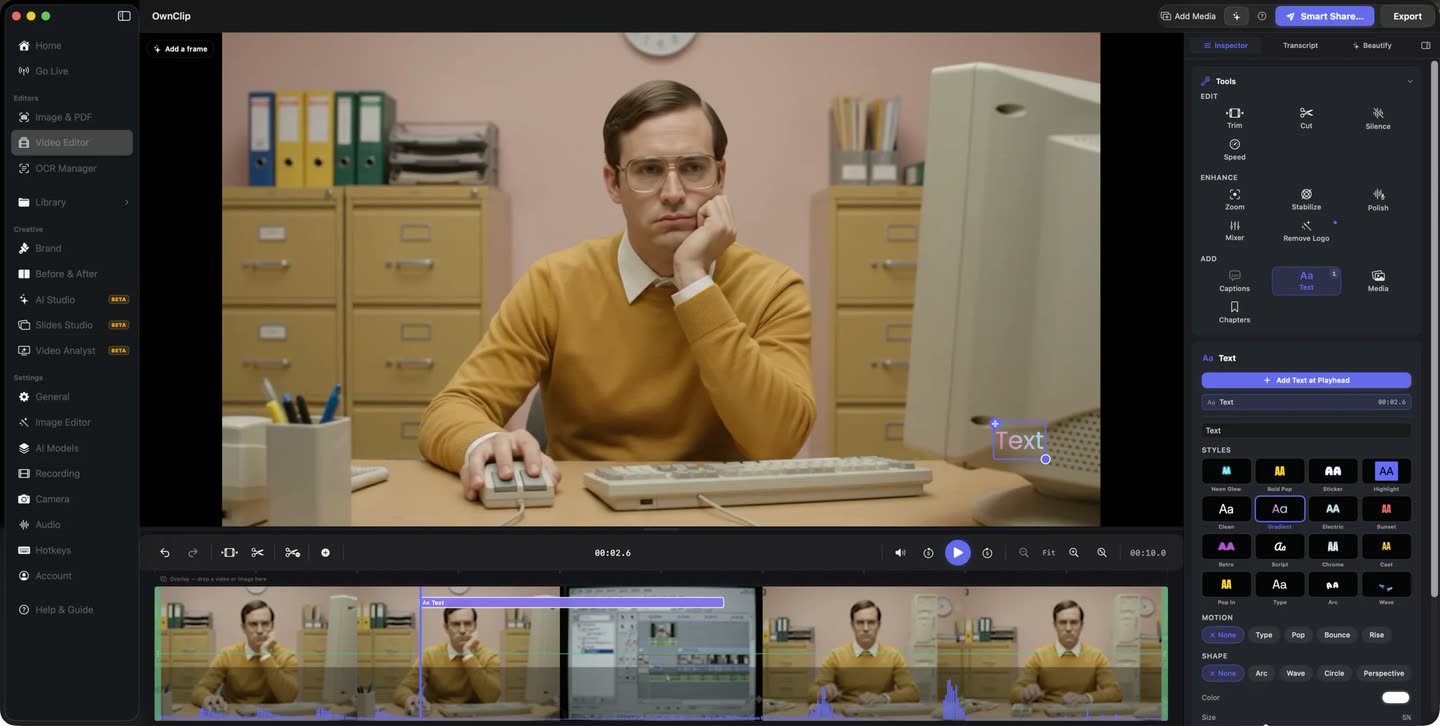
Edits never touch the original.
The take opens on a timeline at the size it was captured, with both audio tracks already split out below it. Your trims and everything you add sit in a project file beside the recording, so exporting again at a different resolution months later still starts from the frames you shot — which is why the tier you record on matters more than the tier you export on.
- Timeline
- Both audio tracks
- Non-destructive
What sets the ceiling
Free records at 720p and exports at 720p, 24fps and 1.5 Mbps. Pro and Studio raise the numbers below. The format list is the same on every tier.
Screen, window or region
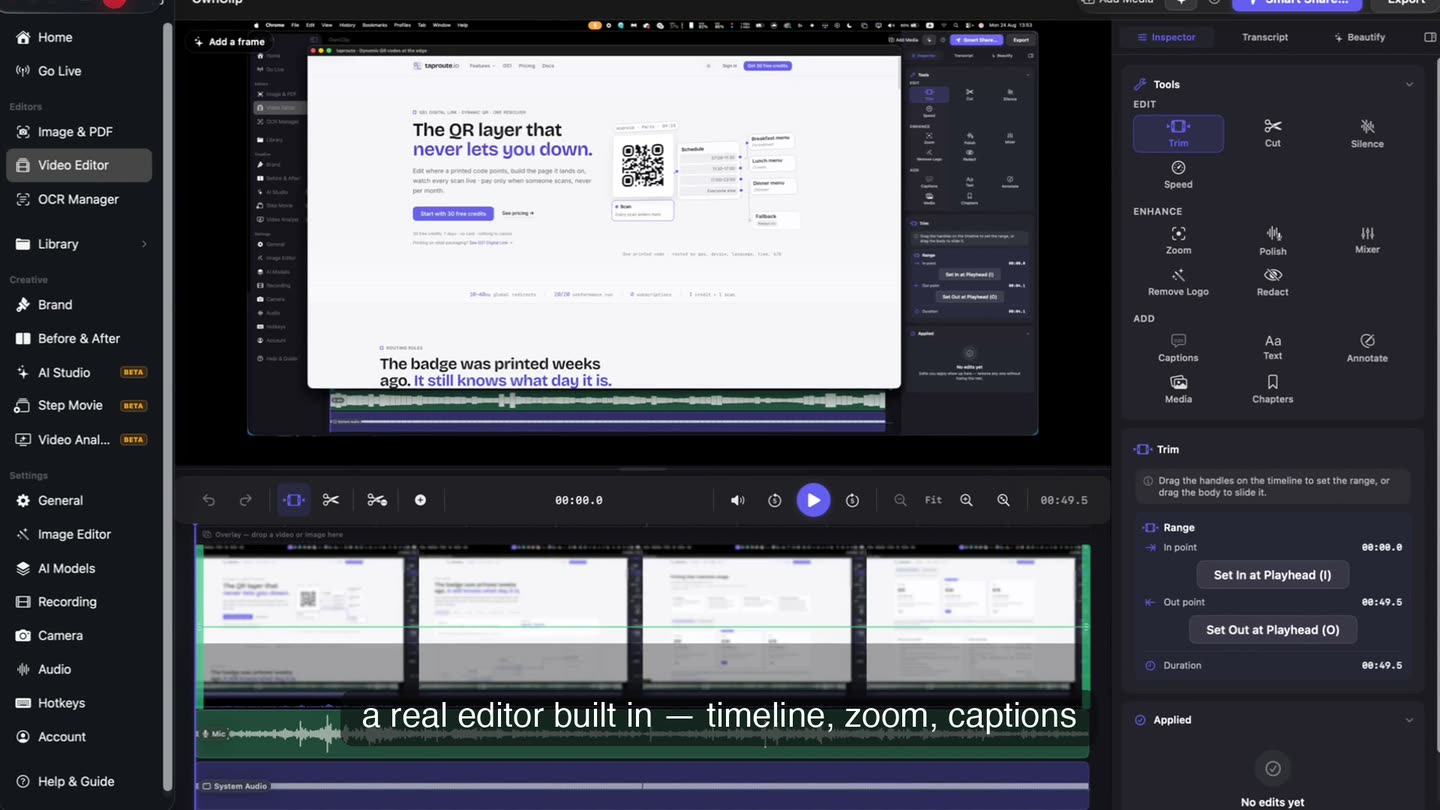
A whole display, a single window, or a region you drag — including one spanning two displays. The capture runs at the size of what you picked, up to the ceiling your tier allows — 720p on the free tier.
Up to 4K at 60fps
Paid exports reach 4096 pixels on the long side at 60 frames a second and 6 Mbps. Free exports are written at 720p, 24fps and 1.5 Mbps.
Five formats to export into
MP4 with H.264, HEVC, MOV, ProRes 422 or 4444, and GIF. Every one of them is on the free tier, ProRes included.
Recording length
Free takes stop at three minutes. Pro and Studio record for as long as the disk holds out.
Record at the size you may need
Edits live in a project file, so you can export a take again at a lower resolution whenever you like. You cannot go the other way: a take recorded at 720p on the free tier stays 720p, even after you upgrade, because the capture itself was held to 720p. Resolution is the one decision the editor cannot undo.
Ordinary files on your disk
Recordings are written to your Movies folder as packages you can move, copy or back up like anything else.
Recorded and exported in one app.
The take goes straight onto the timeline in the app that made it, so the resolution you export at is chosen in the same window you recorded from. Nothing is handed off to a second application to keep in sync.
Which format to export into
MP4 with H.264 is the safe default. It plays on everything, and screen content holds up well in it because most of the frame is static between cuts.
HEVC gets a similar picture into a smaller file on Apple hardware. MOV is the same footage in a QuickTime container, for a tool that asks for one. ProRes 422 and 4444 keep far more of the original detail for a hand-off into someone else’s edit, at a much larger size on disk. GIF is for a short loop in a README or an issue thread, where nothing above a few seconds belongs.
Every one of those is available on every tier, ProRes included. What a paid tier changes is the size, frame rate and bitrate the file is written at, not which format you are allowed to pick.
Large takes stay on your Mac.
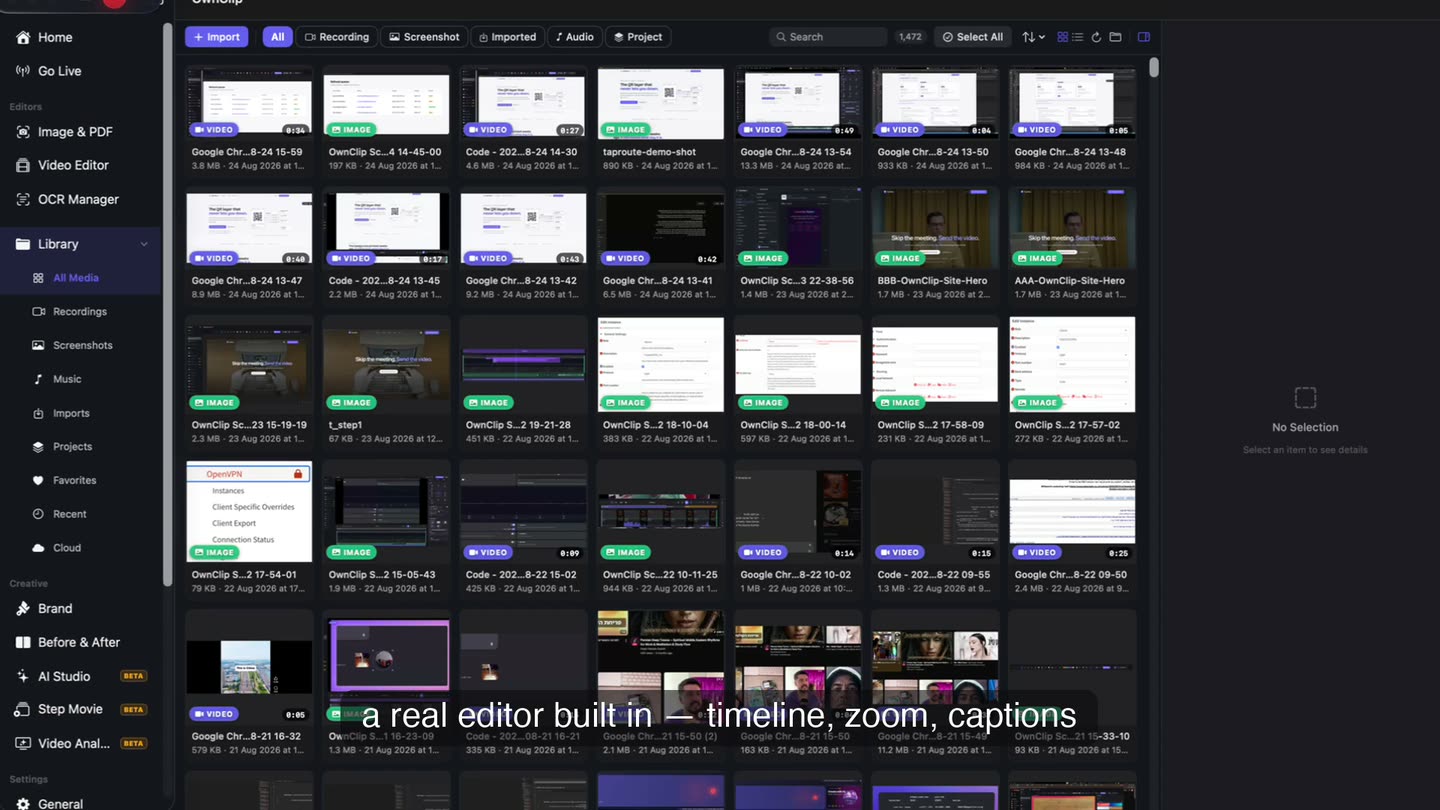
A 4K recording is a big file, and it stays on your own disk instead of going to a server to be processed. The library lists every take you have made with its date and length, so a long shoot is still something you can find in one place.
- Local library
- Date and length
- Processed on your Mac
When the ceiling actually matters
A demo embedded on a product page
Interface text has to stay legible in a player that might be 900 pixels wide. Exporting comfortably above the player size is what keeps the small type readable.
An upload to a video platform
Uploads are re-encoded on arrival, so handing over a larger, higher-bitrate file leaves more picture to survive that pass.
A hand-off to someone else editing
ProRes 422 or 4444 carries the detail a colourist or editor needs, at the cost of a great deal of disk space. Export it once and let them work from that.
A clip in a README or a ticket
Here the ceiling is the wrong goal. A short GIF or a small MP4 loads in a comment thread; a 4K ProRes file does not.
Questions people ask
Yes, on Pro and Studio. Exports reach 4096 pixels on the long side at up to 60 frames a second and 6 Mbps. The capture itself runs at the size of the display, window or region you selected, held to 720p on the free tier. Free exports are written at 720p, 24fps and 1.5 Mbps.
On Pro and Studio, yes. Free exports use a 24 frames a second preset at 1.5 Mbps; the paid tiers raise that to 60 frames a second and 6 Mbps, under the same 4096-pixel resolution ceiling.
Free includes the whole editor — timeline, Smart Zoom, camera effects, audio cleanup, captions, annotations, and the screenshot and PDF editors. What it caps is the take itself: three minutes, recorded at 720p, with a small watermark recorded into the video. You can keep 25 recordings. A few tools are paid rather than capped — Video Analyst and Batch Beautify are Pro; Brand Studio, Go Live and Step Movie are Studio. Pro is $39 once and lifts every cap for what you record after upgrading; recordings made on Free stay 720p with the mark.
No. MP4, HEVC, MOV, ProRes 422, ProRes 4444 and GIF are all available on the free tier. The free tier caps the resolution, frame rate and bitrate the file is written at, not the format you choose.
OwnClip runs on the latest macOS — currently macOS 26 — on an Apple silicon Mac. It is a native Mac app; there is no Windows or web version.
In your Movies folder, as a package holding the screen video, the camera track if you recorded one, the audio tracks and a small project file describing your edits. They are ordinary files you can move or back up, and editing is non-destructive: the original is never rewritten.
Related
Coming from another tool? See how OwnClip compares with OBS Studio and Screen Studio, or browse every comparison.
Record and export your Mac screen in 4K
Free to start. The latest macOS, Apple silicon. See what Pro and Studio add.