Blur sensitive information out of a recording
Blur the sensitive information out of a screen recording before you send it. Smart Redact scans the take for email addresses, phone numbers, card numbers and social security numbers, then hands you the list to approve.
Free to use. Recordings are capped at three minutes and recorded at 720p with a watermark.
The recording you cannot send
The bug reproduces on a real account. The totals only add up on the real dashboard. So the version of the walkthrough that explains it best is the one with a customer’s email address on screen for eleven seconds.
Recording it again against dummy data costs an afternoon and usually loses the thing you were trying to show. Hiding the personal data in the screen recording afterwards is the faster fix, as long as it happens before the file leaves your Mac.
Redact sits with the other tools.
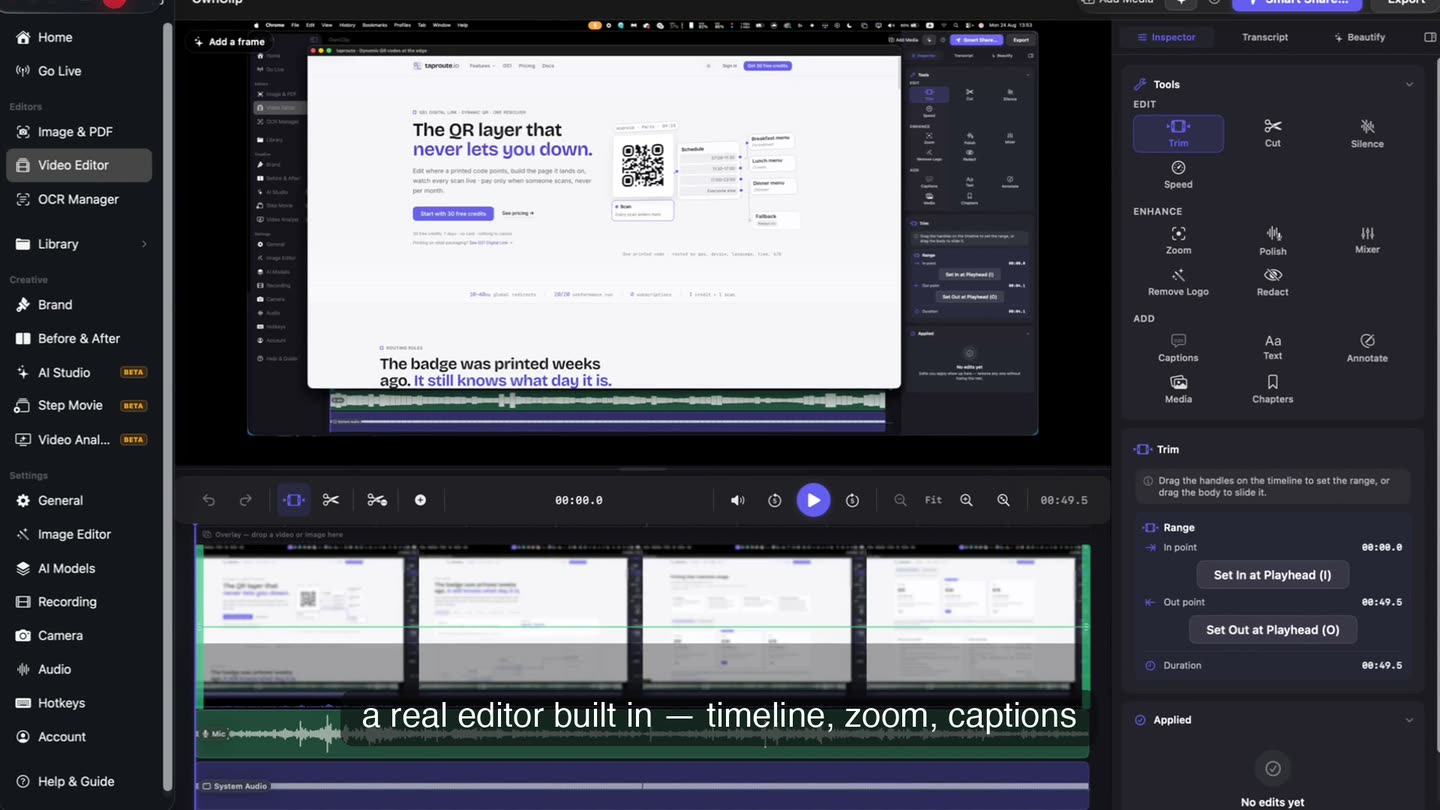
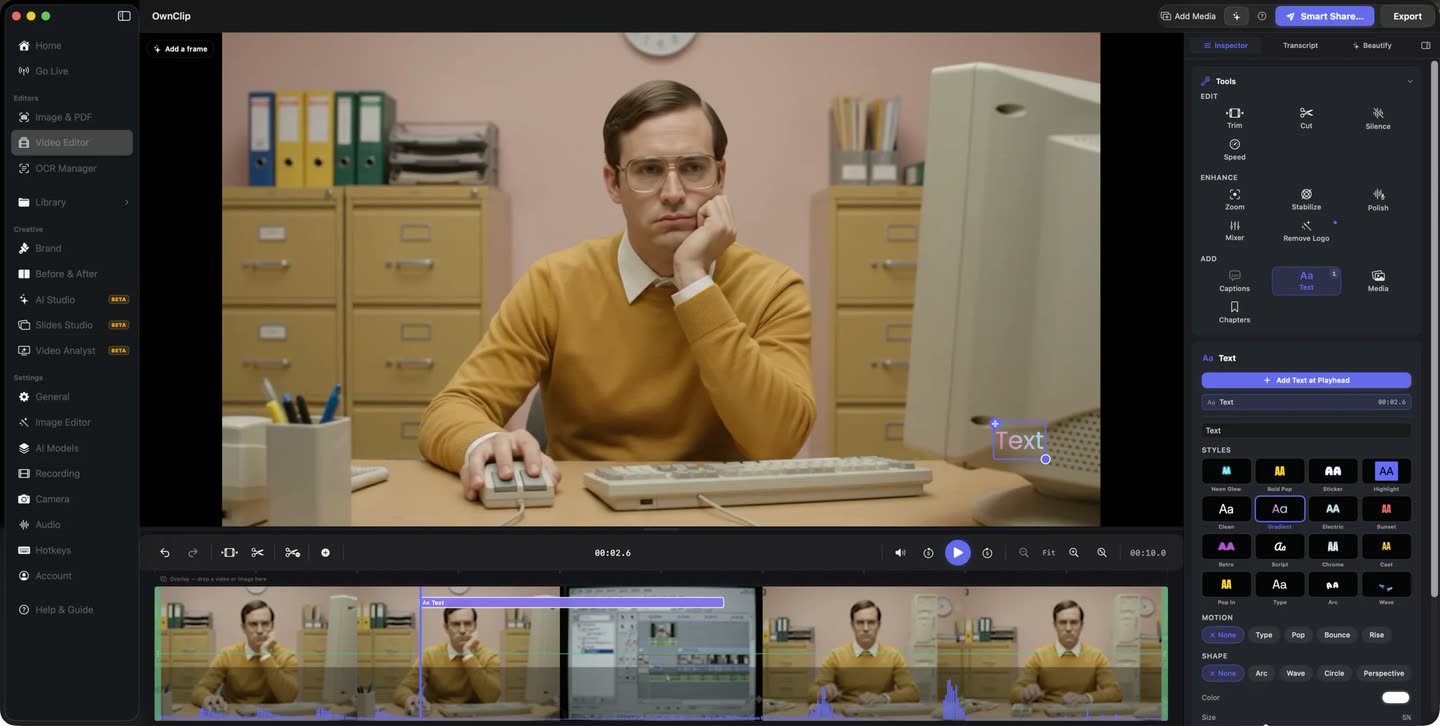
Redact is in the tool panel beside trim, zoom, captions and the rest, so covering something is an edit you make in the editor the take already opened into. Run the scan, or drag the regions yourself.
- Scan or draw
- Time-ranged
- Non-destructive
What Redact does to a video
The Redact tool in the video editor is free — the scan, the regions you draw and the render all sit on the free tier.
A scan that proposes
It looks for email addresses, phone numbers, card numbers and social security numbers, and lists what it found for you to accept or reject.
Nothing covered on its own
You approve every region before it is applied. A tool that redacted by itself would also quietly hide the things it missed.
Regions you draw yourself
Anything the scan has no pattern for — a name, an account balance, a face in the corner of the frame — is a rectangle you place by hand.
Covered only while it shows
A region is a stretch of timeline, not a setting on the whole clip. A field on screen for four seconds is covered for four seconds, and it keeps its place when the shot pushes in.
Blur on a still too
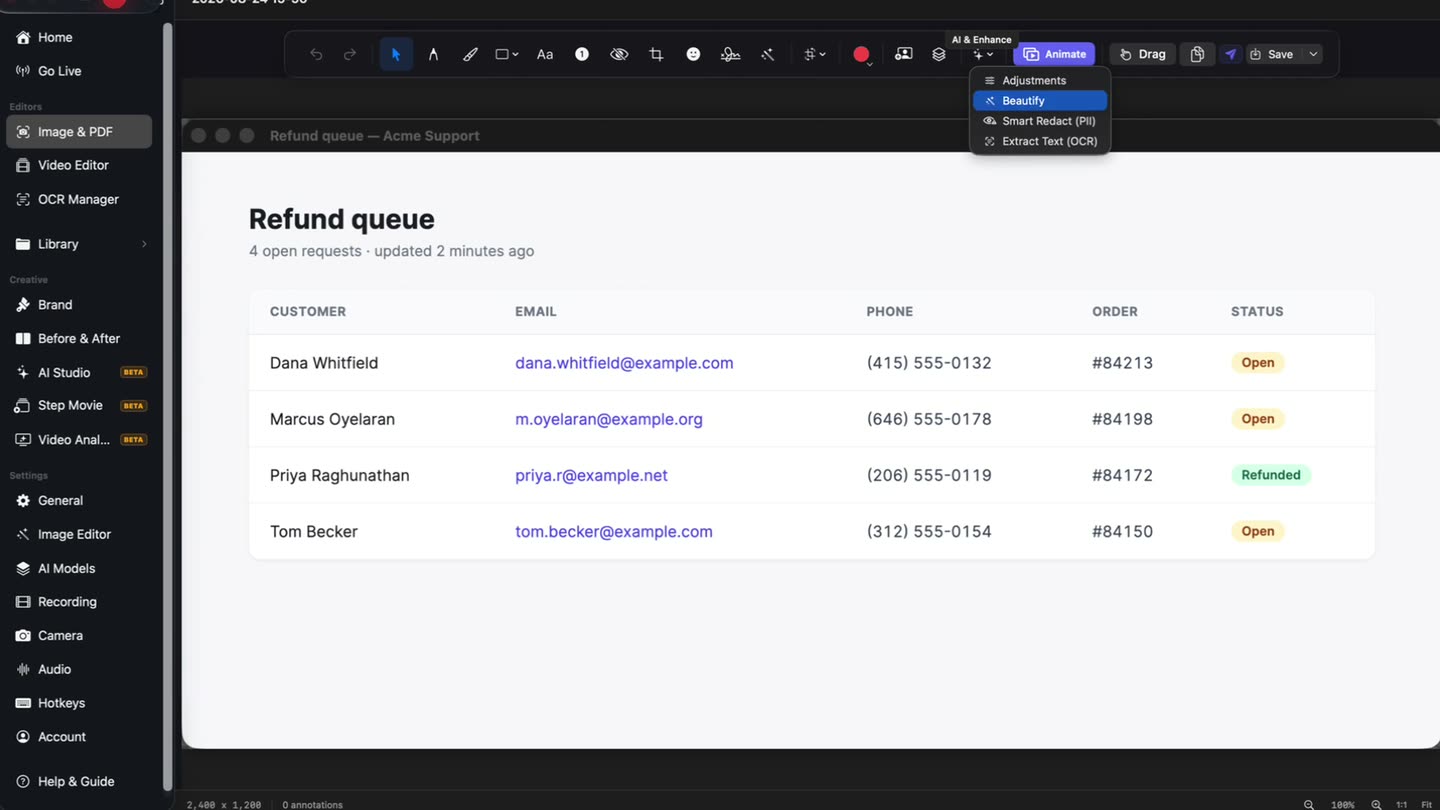
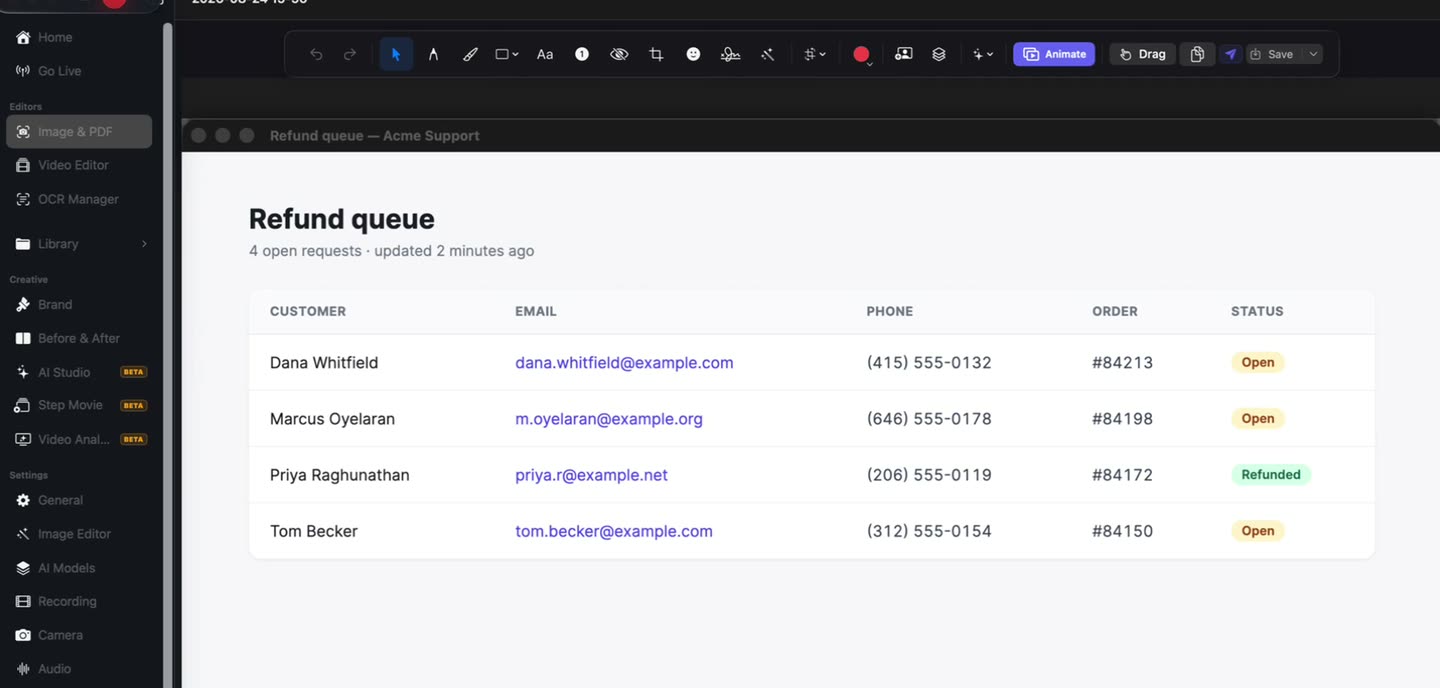
The screenshot editor carries its own blur tool, so you drag it across the addresses in a capture the same way you would in a recording.
Rendered into the export
The exported file carries the blur and the source keeps its pixels. MP4, HEVC, MOV, ProRes 422/4444 and GIF all render it.
The same job on a screenshot.
A capture of a customer table gets the blur tool from the screenshot editor, dragged over the email addresses and the phone numbers, before it goes anywhere near a ticket or a slide.
- Blur tool
- Any region
Where this comes up
Support reproductions
The bug only happens on a real account, so the recording has a real account in it.
Design review of live data
The screen you want feedback on is populated with the client’s customers, not placeholder text.
Internal walkthroughs
A process video recorded in the admin panel shows every record you happened to scroll past on the way.
Anything you publish
A changelog clip or a conference talk. Once it is out, it is not yours to unsend.
The blur lives in the project.
Regions sit beside the trim and the zoom in the project file, so the recording in your Movies folder keeps every pixel it started with. The copy you export is the only one that is blurred.
What it will not do
The scan proposes and then stops. It knows the shape of an email address or a card number; it does not know that the figure in the third column is somebody’s salary, so the last pass over the timeline is still yours.
It runs on your Mac and nothing is uploaded to do it. The Redact tool in the video editor is free, scan included. Free exports are capped at 720p and carry a small watermark, and Pro is $39 once to lift both.
Questions people ask
Open the recording in OwnClip’s editor and pick Redact from the tool panel. The scan lists the personal data it recognises and you accept or reject each item; anything it has no pattern for, you cover by dragging a region over it yourself. The blur is rendered into the file when you export.
Yes, in the video editor’s Redact tool. The scan looks for email addresses, phone numbers, card numbers and social security numbers, lists what it found, and covers nothing until you accept it. On a screenshot, you blur the addresses by dragging the screenshot editor’s blur tool over them.
No. Editing is non-destructive: the regions live in the project beside the file, and the recording in your Movies folder keeps its original pixels. The blur is rendered into the exported copy, which is the file you send.
No. The scan and the render both run on your Mac. A recording only leaves your machine when you share it, and sharing uploads to your own Google Drive rather than to our servers.
Free includes the whole editor — timeline, Smart Zoom, camera effects, audio cleanup, captions, annotations, and the screenshot and PDF editors. What it caps is the take itself: three minutes, recorded at 720p, with a small watermark recorded into the video. You can keep 25 recordings. A few tools are paid rather than capped — Video Analyst and Batch Beautify are Pro; Brand Studio, Go Live and Step Movie are Studio. Pro is $39 once and lifts every cap for what you record after upgrading; recordings made on Free stay 720p with the mark.
OwnClip runs on the latest macOS — currently macOS 26 — on an Apple silicon Mac. It is a native Mac app; there is no Windows or web version.
Related
Coming from another tool? See how OwnClip compares with CleanShot X, or browse every comparison.
Blur sensitive information out of a recording
Free to start. The latest macOS, Apple silicon. See what Pro and Studio add.