A screen recorder that keeps your work on your Mac
Screen recordings contain whatever was on your screen — customer data, internal tools, unreleased work. OwnClip records to your own disk and processes everything locally. Here is exactly what that does and does not mean.
Free to use. Recordings are capped at three minutes and recorded at 720p with a watermark.
Where your recordings live
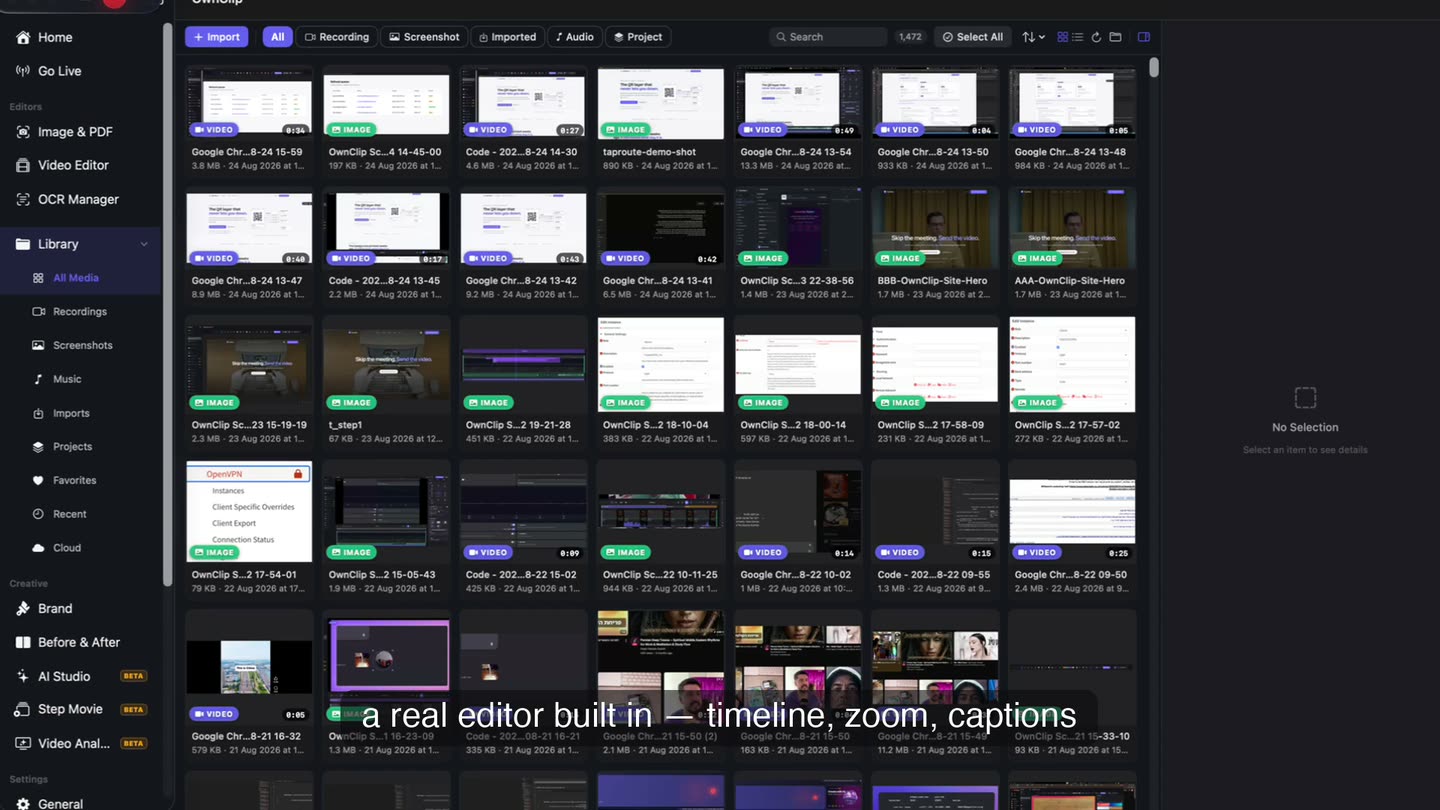
Each recording is a package in your Movies folder containing the screen video, the camera track, the audio tracks and a small project file describing your edits. They are ordinary files on your disk — you can move them, back them up, or open the video in another app.
Editing is non-destructive: your edits are stored beside the original, which is never rewritten.
It proposes, you decide.
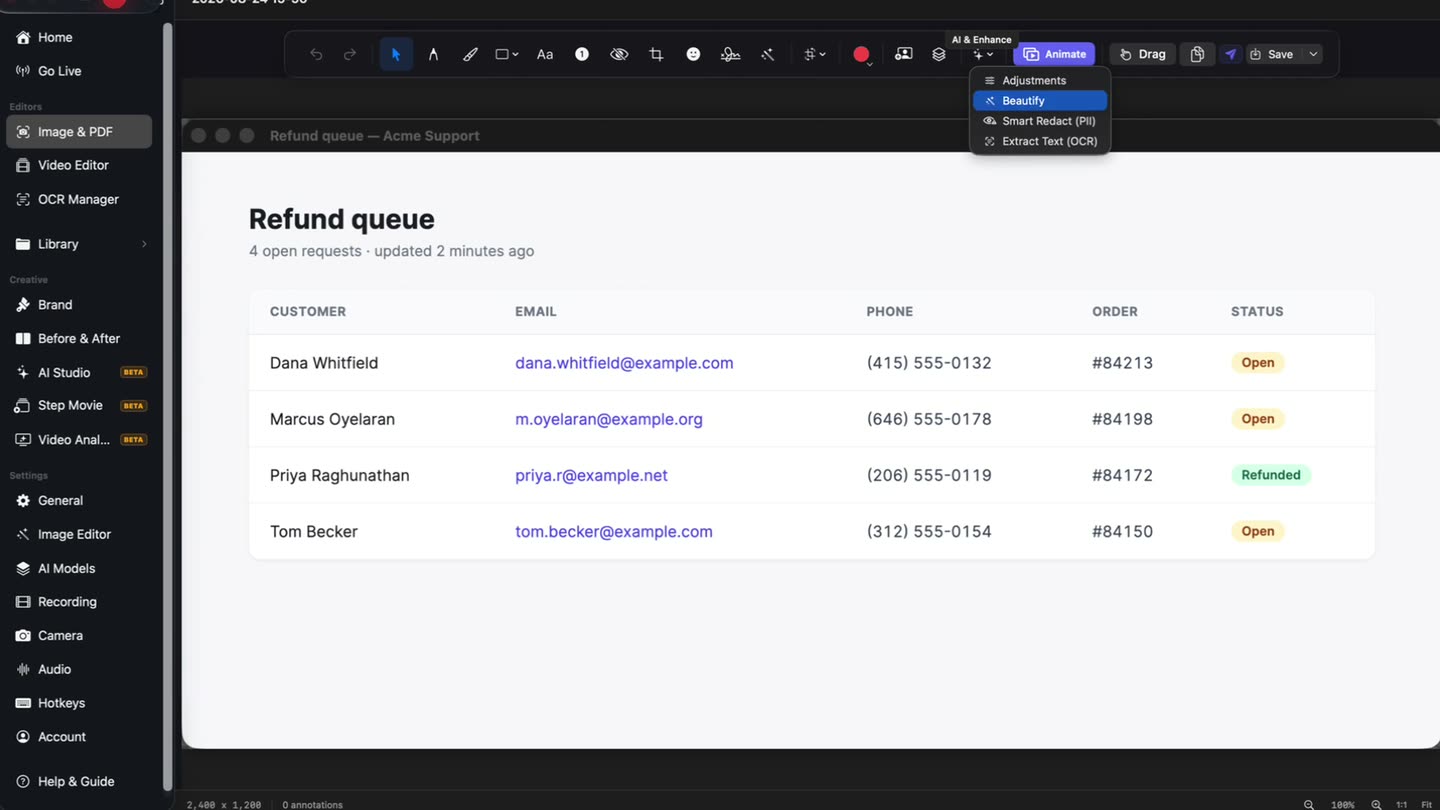
Reproductions and support recordings run against real data. A local scan finds email addresses, phone numbers, card numbers and identifiers and offers them for review — it never blurs anything on its own.
- On-device scan
- Review before applying
- Manual blur too
What runs on your Mac
None of these send your screen, audio or camera anywhere.
Transcription and captions
Speech recognition runs locally in 20 languages.
Camera effects
Background blur, replacement and framing are computed on your GPU and Neural Engine.
Noise removal
Audio cleanup happens on your machine.
Smart Redact
Scanning for personal data happens locally, and always proposes rather than applies.
Explicit, and revocable.
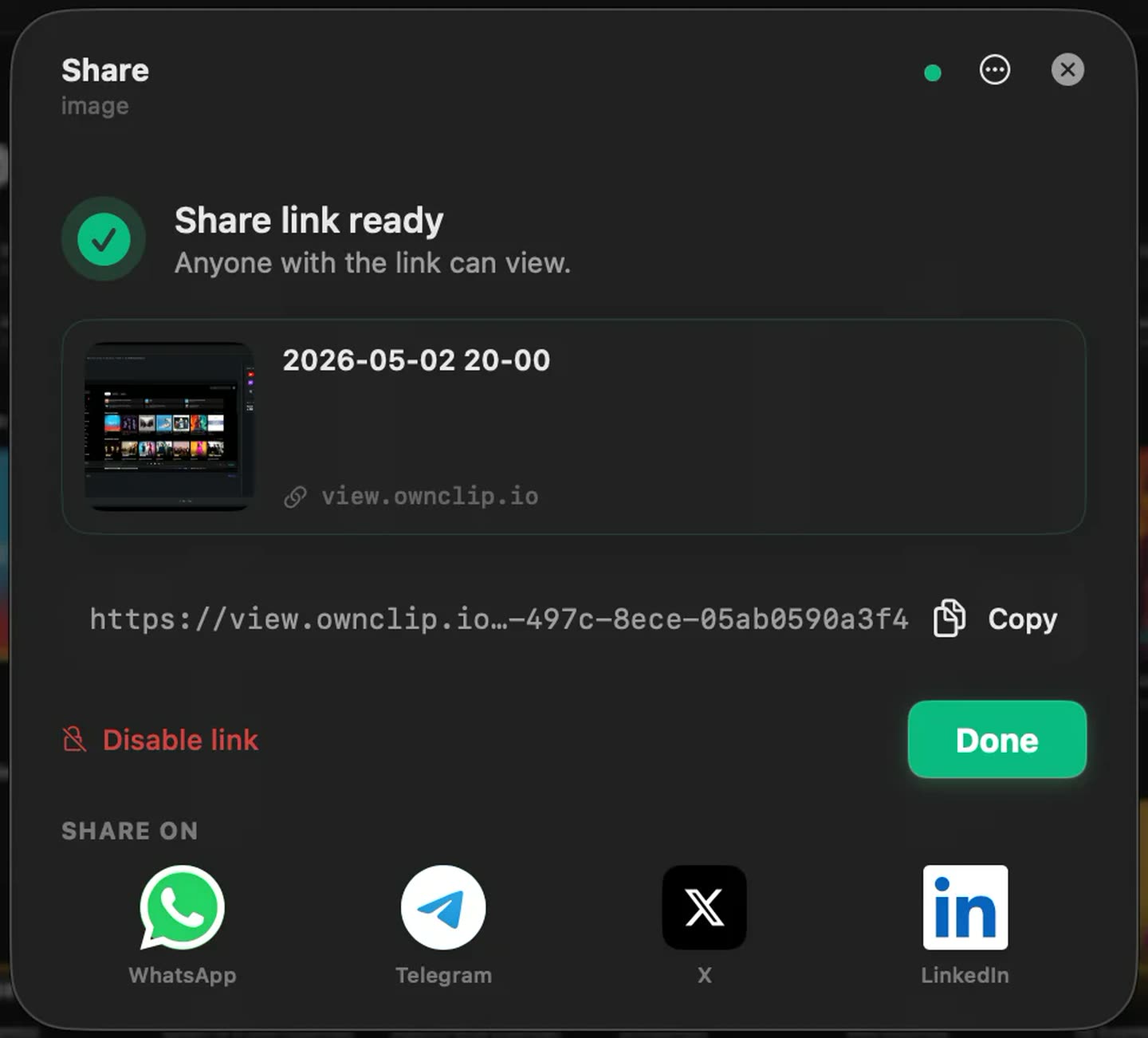
Sharing is always something you start. The file uploads to your own Google Drive and you get a link — and the same dialog that made the link can switch it off again.
What does touch the network
Being straight about this matters more than a slogan. OwnClip requires you to sign in, so it is not usable fully offline, and licence checks talk to our servers. The app checks for updates, and downloads AI models on demand the first time a feature needs one.
Crash and stability reports are on by default and can be turned off; they carry version numbers, error codes and state information, never your file names or content. Usage analytics are off unless you turn them on.
Automatic backup exists as an option and is off until you switch it on. When you do, copies go to accounts you already own — Google Drive, iCloud Drive or OneDrive, as many as you like at once — and Studio adds storage you rent yourself. The originals never leave your Mac.
The app hides from itself.
OwnClip’s floating controls, camera bubble and overlays are invisible to screen capture by default — including to macOS screenshots and other recording tools — so they never turn up in what you record. One setting turns that off when you want them visible.
Questions people ask
In your Movies folder, in a folder named OwnClip, as packages containing the video, audio and a project file. They are yours on your disk.
Not unless you share them. There is no background upload of recordings. Automatic backup exists as an option and is off until you switch it on — and when you do, the copies go to your own Google Drive, iCloud Drive or OneDrive account rather than to us. Studio adds storage you rent yourself. Either way the original stays in your Movies folder.
No. Signing in is required, so an internet connection is needed at least to authenticate. Recording, editing and the AI features themselves run locally once you are signed in.
Into your own Google Drive, using permission scoped to files OwnClip creates. You get a link to a viewer page; the file lives in your storage, and revoking access is something you control in Drive.
Crash and stability reports by default, which you can turn off, containing versions, error codes and app state but never file names or content. Usage analytics are off unless you opt in.
Yes. Smart Redact scans for things like email addresses, phone numbers and card numbers and proposes them for review — it never redacts automatically. You can also blur any region by hand.
Related
Coming from another tool? See how OwnClip compares with Loom, or browse every comparison.
A screen recorder that keeps your work on your Mac
Free to start. The latest macOS, Apple silicon. See what Pro and Studio add.