Record your screen with system audio and your mic
Capture what your Mac is playing — the app you are demonstrating, the video you are reacting to — and your narration as two separate tracks, not one mix. Noise removal and voice EQ clean the microphone on your Mac; the app audio stays untouched.
Free to use. Recordings are capped at three minutes and recorded at 720p with a watermark.
Mixed audio cannot be unmixed
When a recorder mixes your microphone and your computer’s output into one track, every later problem is permanent. Your speakers bled into your microphone; an alert fired mid-sentence; the app you were demonstrating was too loud. One waveform, no way in.
OwnClip writes them as two lossless tracks, sample-aligned, whenever both sources are on.
Two tracks, not one.
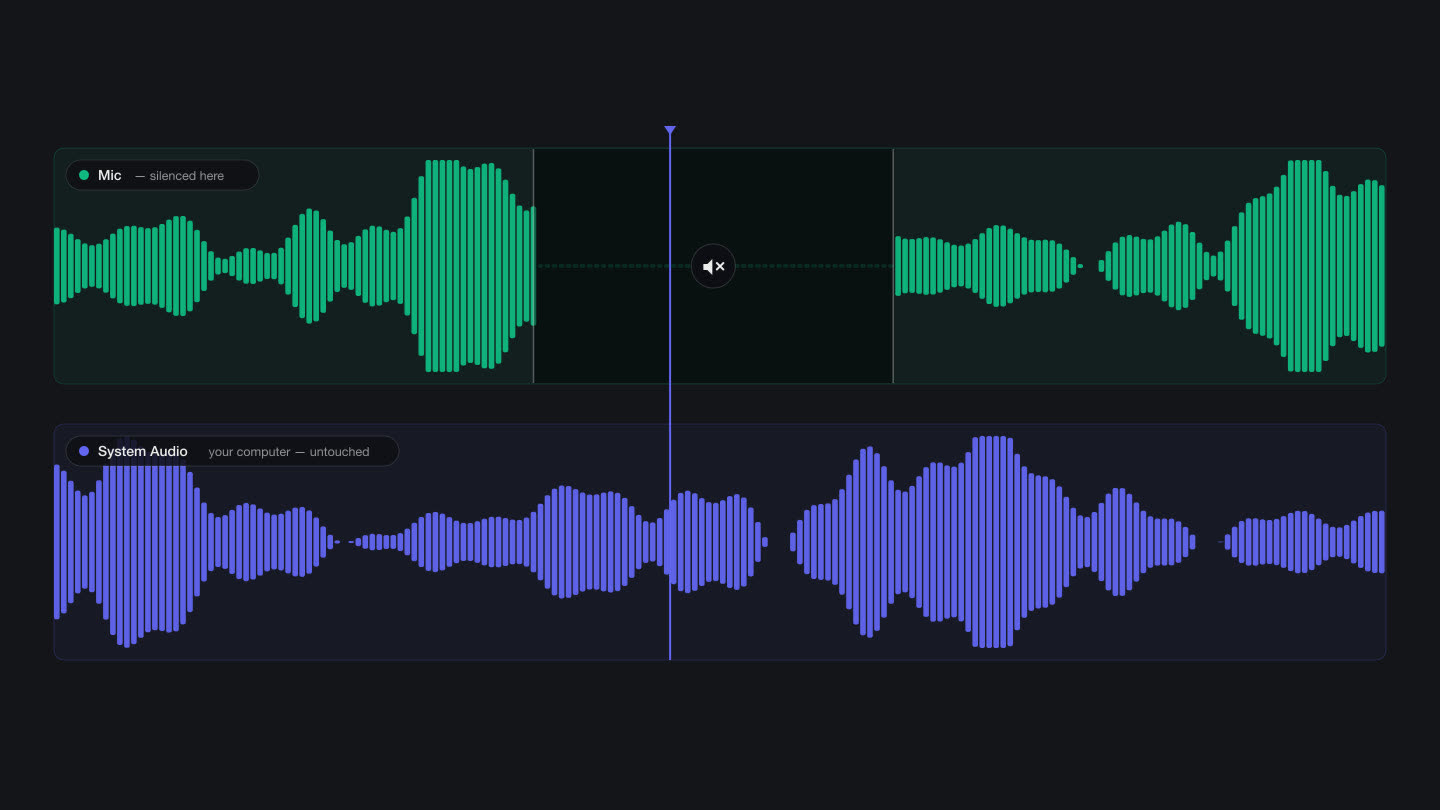
The take opens with the microphone and the system audio already split. Mute either whole, or silence just the stretch where the alert fired, without cutting the picture.
- Lossless
- Sample-aligned
- Per-moment mute
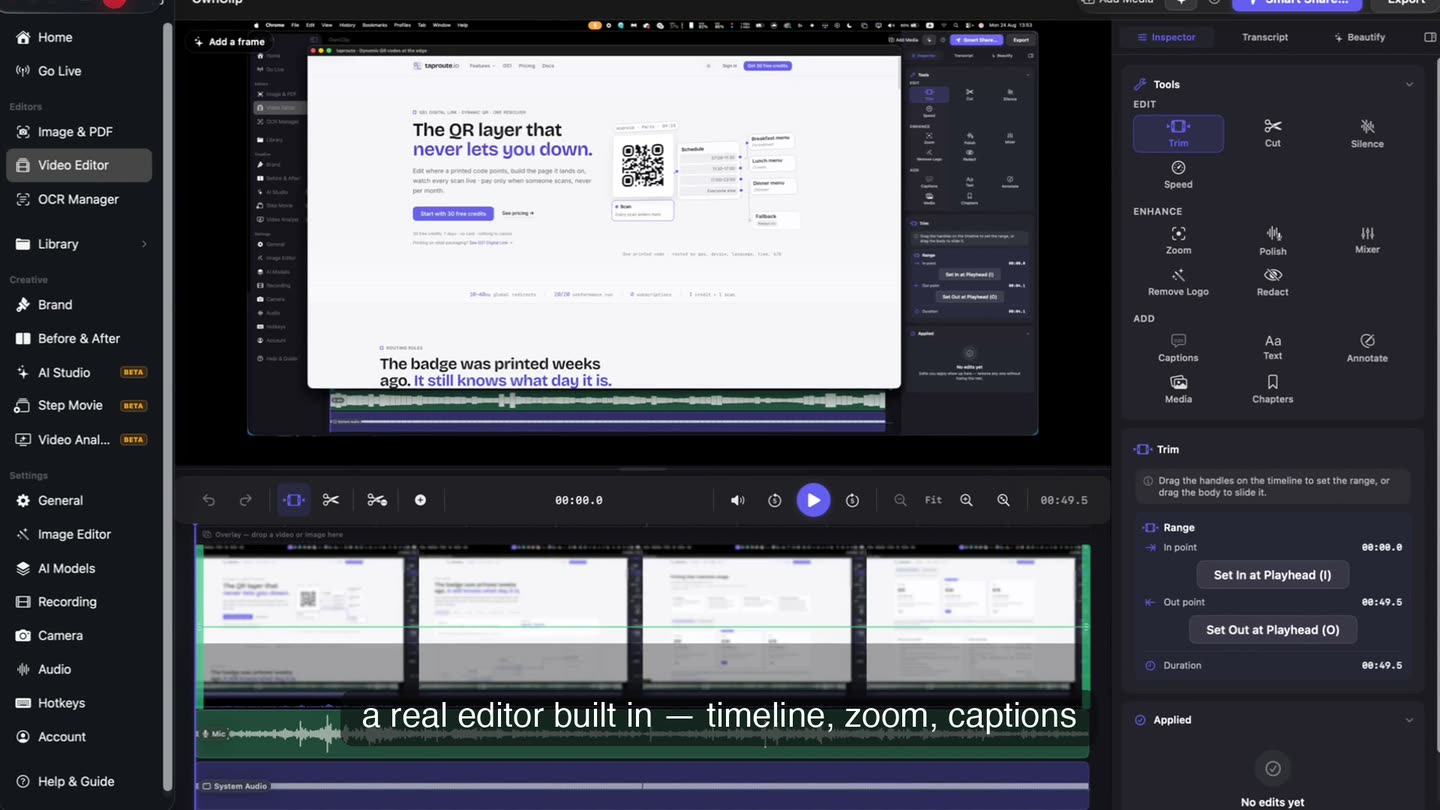
Mute the moments, keep the take.
Your speakers leaking into your own microphone is the usual reason a recording sounds doubled. Because the two are separate, you drop the microphone over exactly those moments and the demonstration audio survives intact.
What separate tracks let you do
Mute one entirely
Drop the system track where an app was making noise you do not want, keeping your narration.
Silence a moment
Mute either track over any stretch — an alert, a cough, a name — without cutting the video.
Balance them
Set levels independently so a demo app does not bury your voice.
Clean the voice only
Noise removal and EQ apply to the microphone without touching what the computer played.
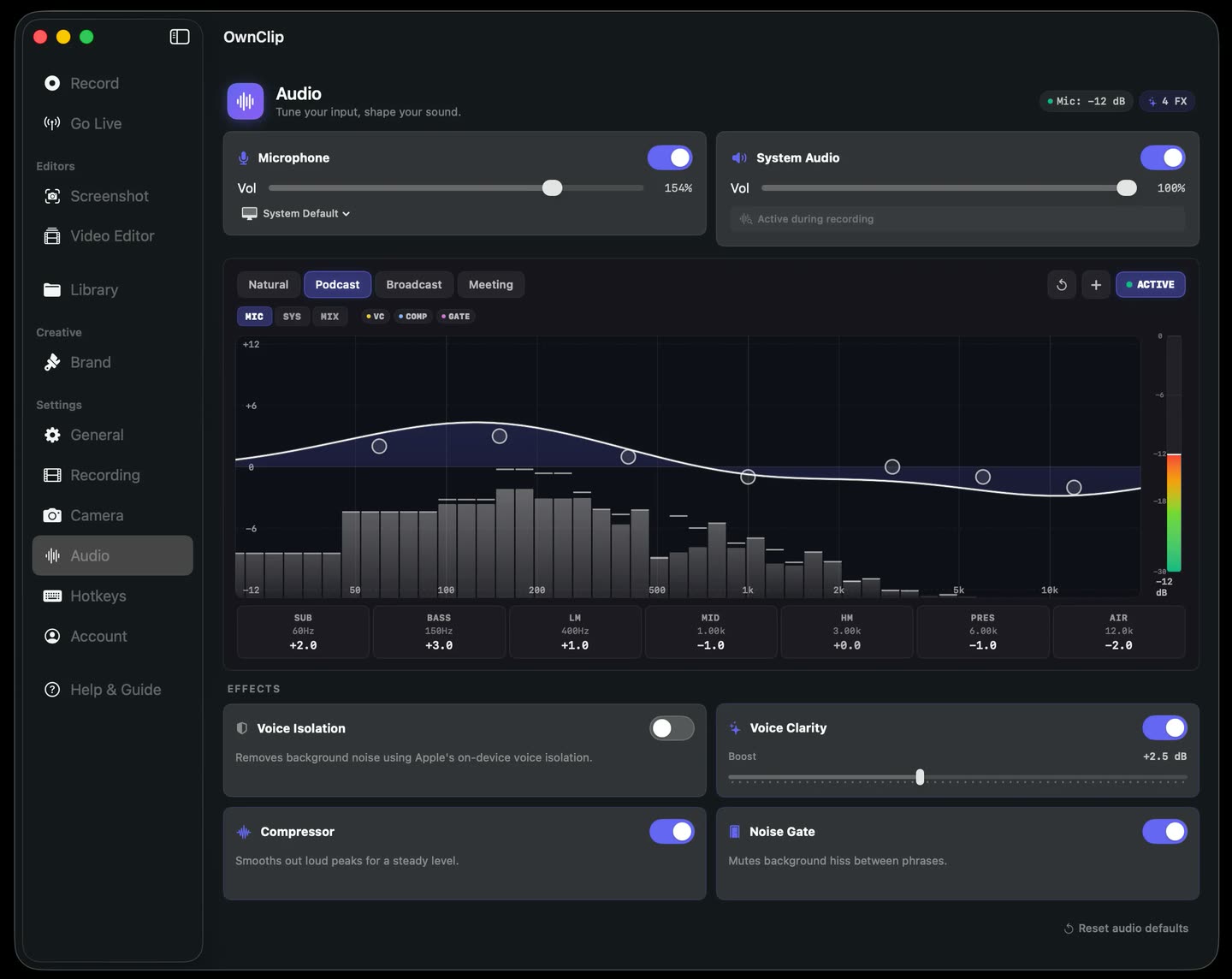
Both switches, one panel.
Microphone and system audio are separate toggles, with the voice presets and the EQ over a live spectrum right there — so you can hear what you are about to capture.
The voice tools
Most people record in a room, not a studio. The microphone is usually fine; the room around it is the problem, and these fix the room.
Noise removal
Steady background noise separated from speech on-device.
Voice presets
Natural, Broadcast and Podcast, rather than a stack of raw controls.
Its own track
Your voice stays separate from system audio, so cleaning it never touches the rest.
Silence a moment
Mute any stretch of the microphone — a cough, a name, an interruption.
Cut by reading
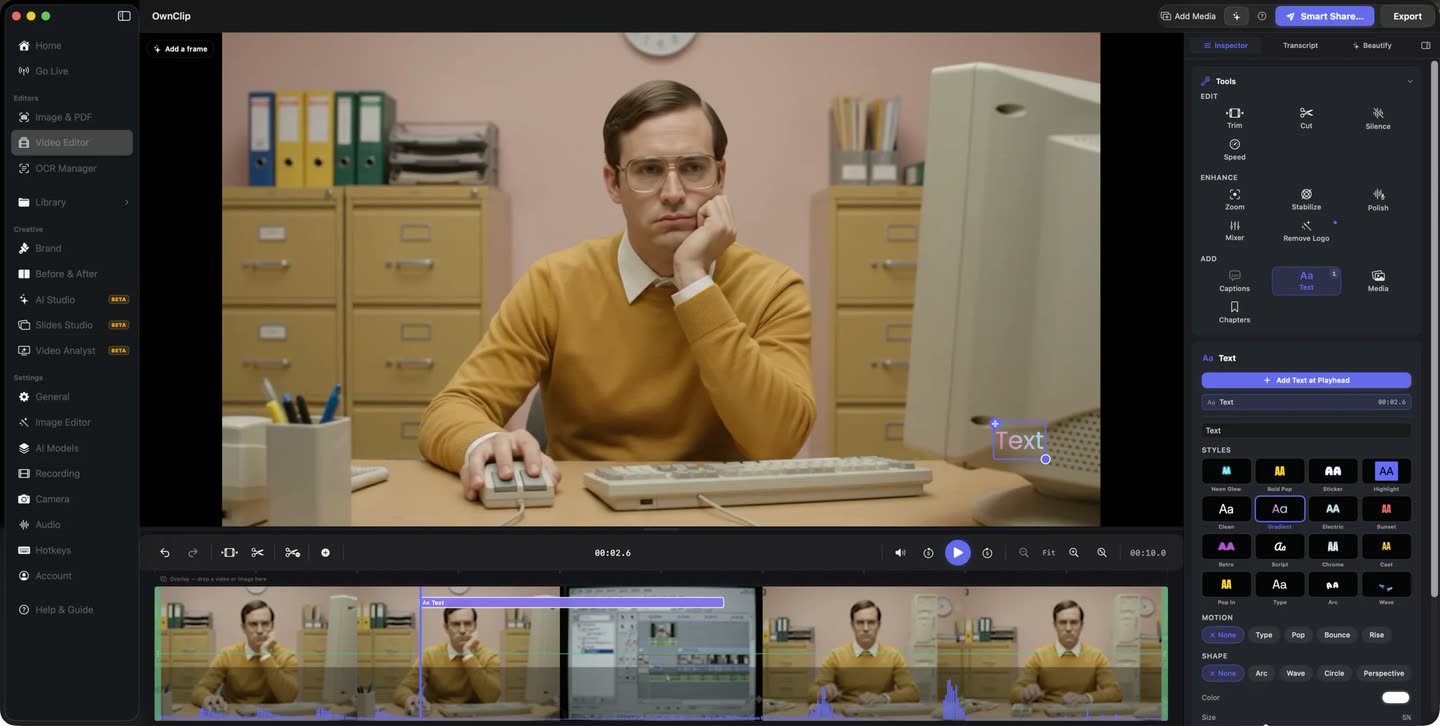
The transcript is editable, and removing a sentence there removes it from the video.
Silence removal
Long gaps between sentences found and cut in one pass.
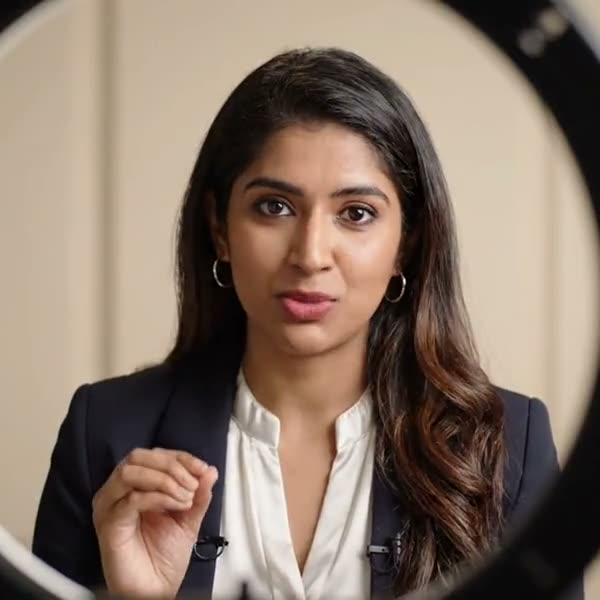
A microphone and a room
Getting closer to the microphone improves a recording more than any processing does. Everything after that — the hum, the room, the level — is something the app can fix afterwards.
A presenter with a lapel microphone talking to camera, lit by a ring light
The honest limits
The split only exists when OwnClip captured both sources itself. Audio that was already combined before it reached your Mac arrives as one signal and cannot be pulled apart afterwards.
Recordings made before version 1.7.5 have the two sources mixed and cannot be split retroactively.
Recording other people requires their consent, and in many places it is legally restricted. Check before you record a call.
Questions people ask
Yes. You choose which sources to capture. The separate-tracks behaviour applies when both are on; with only one source there is a single track.
Yes, and this is the supported way to fix it. Because your microphone and the system audio are separate tracks, you can mute the microphone over the moments where the bleed is audible, or drop it entirely for that section. There is no live echo cancellation doing this during the recording.
No. It is free, as are the mixer, per-moment muting and noise removal.
No. System audio capture is built in — there is nothing extra to install and no separate audio device to select.
The tracks stay separate in the project and in the mixer. The exported video carries the mix you set.
Yes. Noise removal, voice EQ, the audio mixer and transcription are all available on the free tier.
No. Noise removal, EQ and transcription all run locally on your machine.
Any microphone macOS recognises works, including the built-in one. Getting closer to the microphone improves a recording more than any processing does.
Related
Coming from another tool? See how OwnClip compares with ScreenFlow, OBS Studio and QuickTime Player, or browse every comparison.
Record your screen with system audio and your mic
Free to start. The latest macOS, Apple silicon. See what Pro and Studio add.