Onboarding videos you only record once
You have given the same onboarding walkthrough four times already. Recording it pays off only if next quarter’s change is an edit to the project rather than another afternoon of filming.
Step Movie is part of Studio, a one-time $99 purchase. Everything else on this page is free.
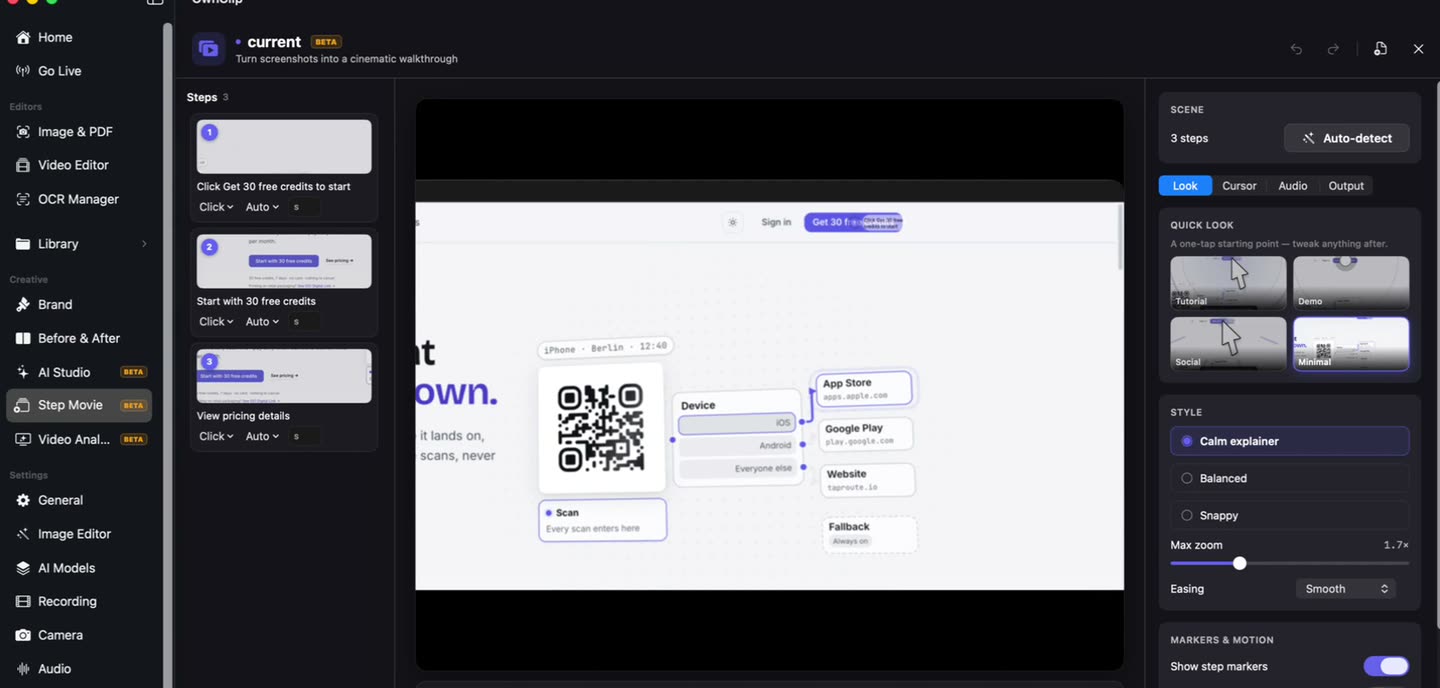
The fifth time you explain it
An employee onboarding video is the same walkthrough you give every time somebody joins — the same accounts to set up, the same place everyone gets stuck. Doing it live is fine once and expensive by the fifth time.
The reason it stays live is that a recording made in an afternoon goes stale in a quarter, and nobody wants to film it twice. So the useful question is not how quickly you can record it. It is what you have to redo when one screen changes.
Mark the click, not the screen.
Arrows, boxes, a highlighter sweep and numbered step badges land on the video at the moment a new hire would otherwise lose the thread. Each mark holds for its own stretch of the timeline, and nothing is burned in until export.
- Eight tools
- Numbered steps
- Time-ranged
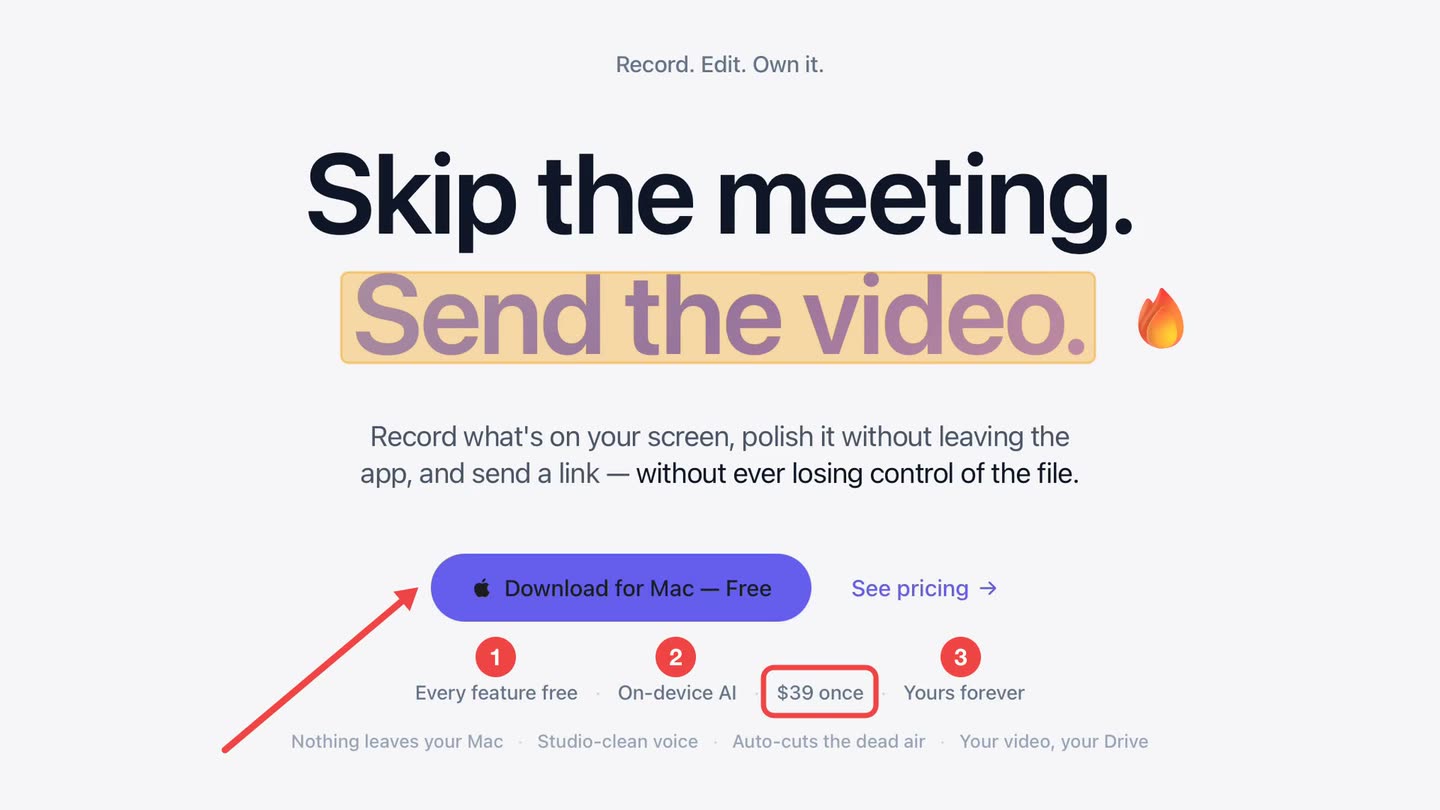
What makes it repeatable
Most of this is on the free tier. The paid tiers are noted where they apply.
A display, a window, a region
Record the whole screen, a single window, or a region you drag, so the walkthrough shows the tool a new hire will actually open.
Captions for a silent read
Transcription runs on your Mac and produces timestamped captions you can correct, burn in at export, or hand off as a subtitle file.
Steps that number themselves
Badges that renumber as you add and reorder them, so a sequence on the video reads as a sequence.
Edits that stay editable
Every change lives in a project file beside the recording, and the original take is never rewritten.
A link you can switch off
Sharing uploads to your own Google Drive and hands back a link the same dialog can disable later.
Step MovieStudio
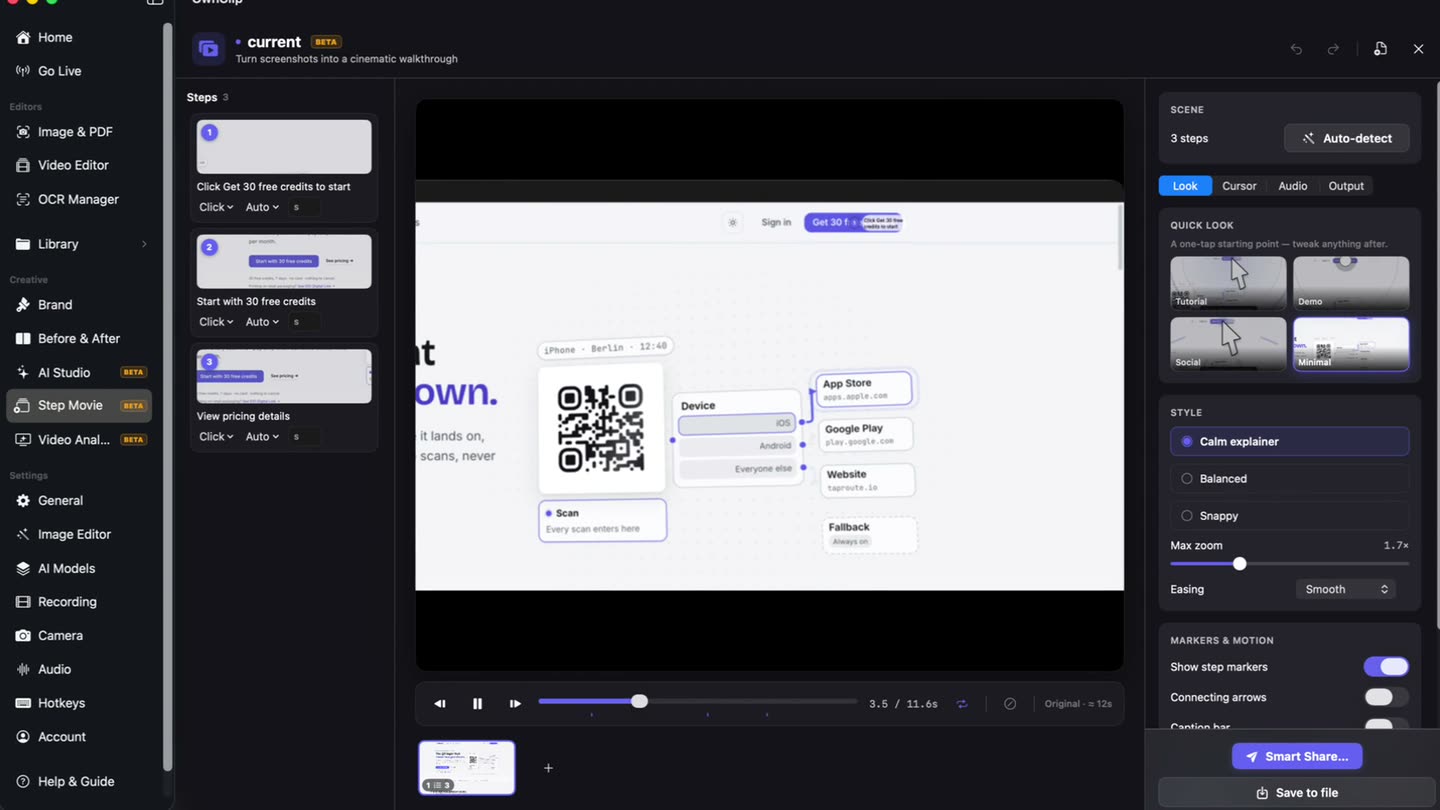
A sequence of captures becomes a walkthrough that exports as a video and as a written HTML guide.
The setup, as numbered steps.
The screens you captured while doing the setup once become numbered steps, with the frame travelling from one to the next rather than cutting between them.
Next quarter, the button moves
Editing is non-destructive. Trims, captions and annotations live in a project file beside the recording, so amending last quarter’s video means opening the project, fixing the part that went stale, and exporting again.
A screen that has genuinely been redesigned still has to be re-recorded. The difference is that it is one stretch of the walkthrough rather than the whole thing, and everything around it survives.
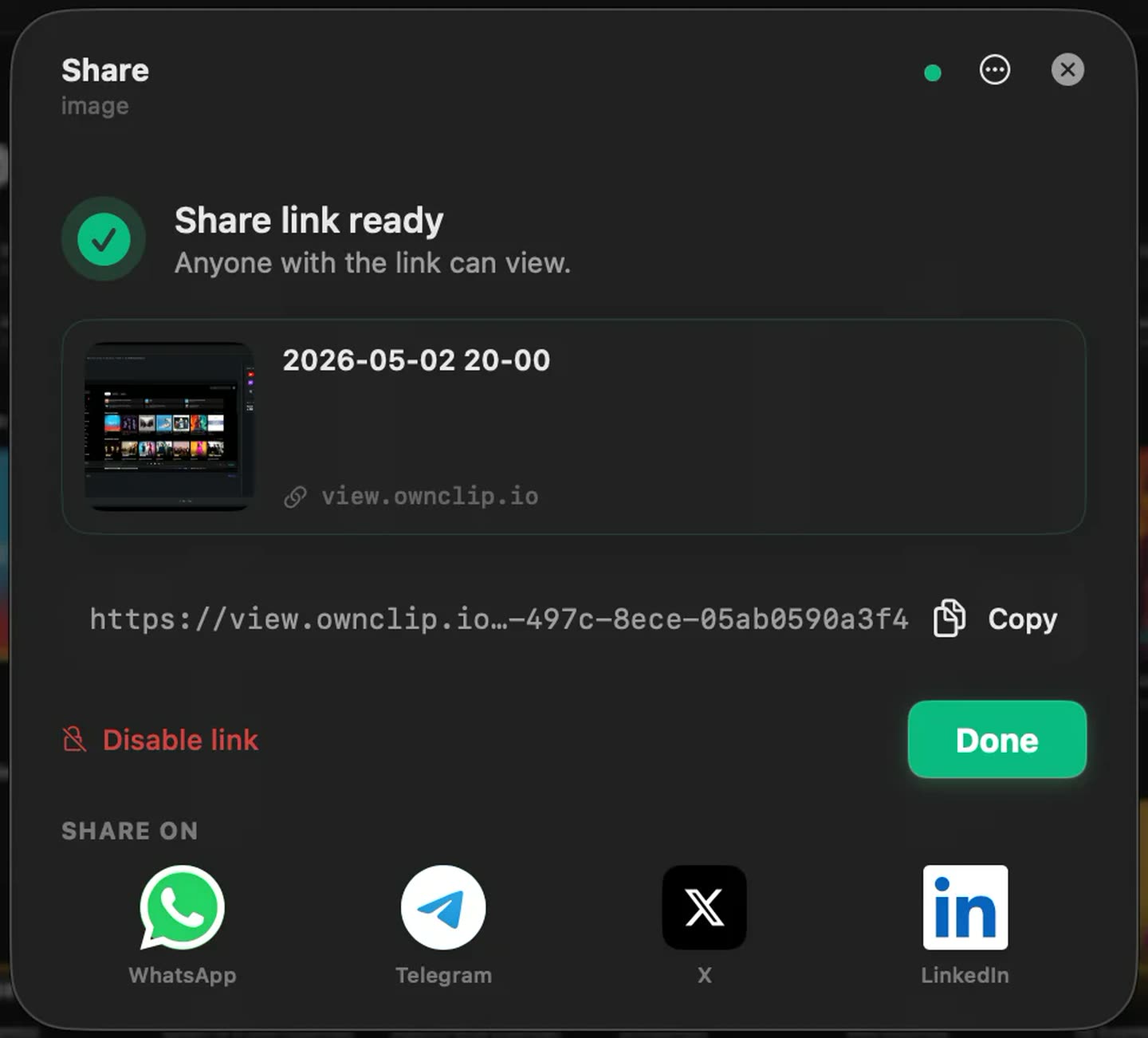
The link lives in your Drive.
Sharing uploads to storage you already own and gives you a link to drop into the handbook or the onboarding checklist. When the process is retired, the same dialog switches the link off again.
The walkthroughs worth recording
First-week setup
The accounts, tools and permissions everybody configures once and then forgets.
Internal documentation
The in-house tool with nothing written down and one person who knows how it works.
Handover
The process that would otherwise leave with someone, recorded before their last week.
Recurring tasks
The monthly job that has to be done the same way every time, shown rather than written.
Questions people ask
OwnClip runs on the latest macOS — currently macOS 26 — on an Apple silicon Mac. It is a native Mac app; there is no Windows or web version.
Free includes the whole editor — timeline, Smart Zoom, camera effects, audio cleanup, captions, annotations, and the screenshot and PDF editors. What it caps is the take itself: three minutes, recorded at 720p, with a small watermark recorded into the video. You can keep 25 recordings. A few tools are paid rather than capped — Video Analyst and Batch Beautify are Pro; Brand Studio, Go Live and Step Movie are Studio. Pro is $39 once and lifts every cap for what you record after upgrading; recordings made on Free stay 720p with the mark.
Yes, and it is free. Transcription runs on your Mac in 20 languages and produces timestamped captions you can correct and style. They are burned in at export, or exported as an SRT or WebVTT file instead.
Your edits live in a project file beside the recording and the original is never rewritten, so a change is usually opening the project, adjusting that part and exporting again. A screen that has been redesigned does need that section re-recorded.
No. Step Movie is part of Studio, a one-time $99 purchase, and is not available on the free or Pro tiers. Recording, the editor, annotations, captions and sharing are all on the free tier.
Related
Coming from another tool? Browse every comparison.
Onboarding videos you only record once
Free to start. The latest macOS, Apple silicon. See what Pro and Studio add.