Record your iPhone or iPad screen on a Mac
Plug the device in with a cable, unlock it, and it is listed next to your displays and windows. Press Record: the phone is mirrored on your Mac, its screen and its own sound are captured, and the take opens in an editor instead of landing in a folder.
Free to use. Recordings are capped at three minutes and export at 720p with a watermark.
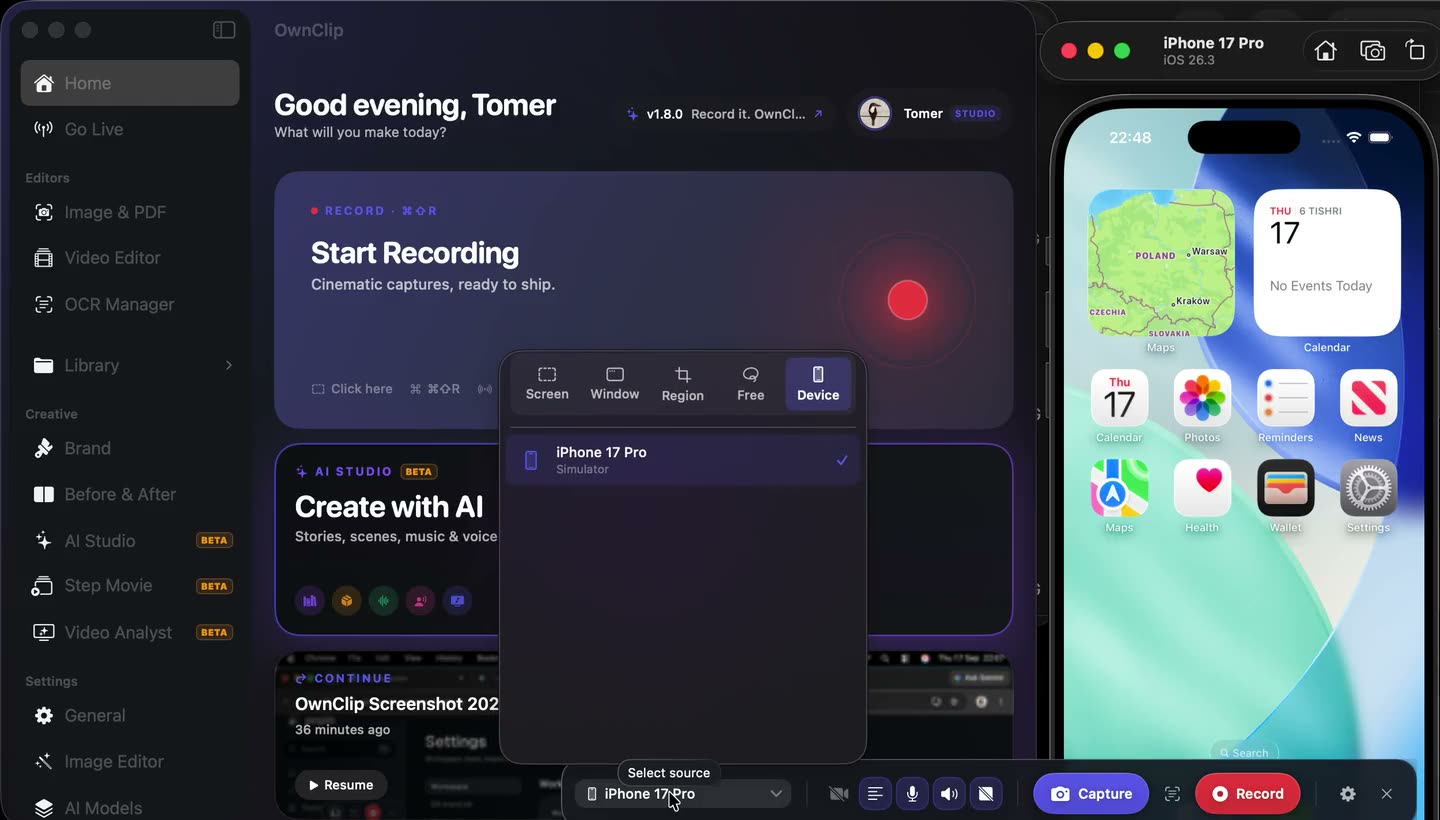
Three steps, and nothing on the phone
- 1Plug in and unlockA cable, then unlock the device and tap Trust if it asks. It appears in the Device tab within a few seconds, listed by its own name.
- 2Press RecordThe phone is mirrored on your Mac so you can watch the take without looking down. Its screen and its own sound are captured together.
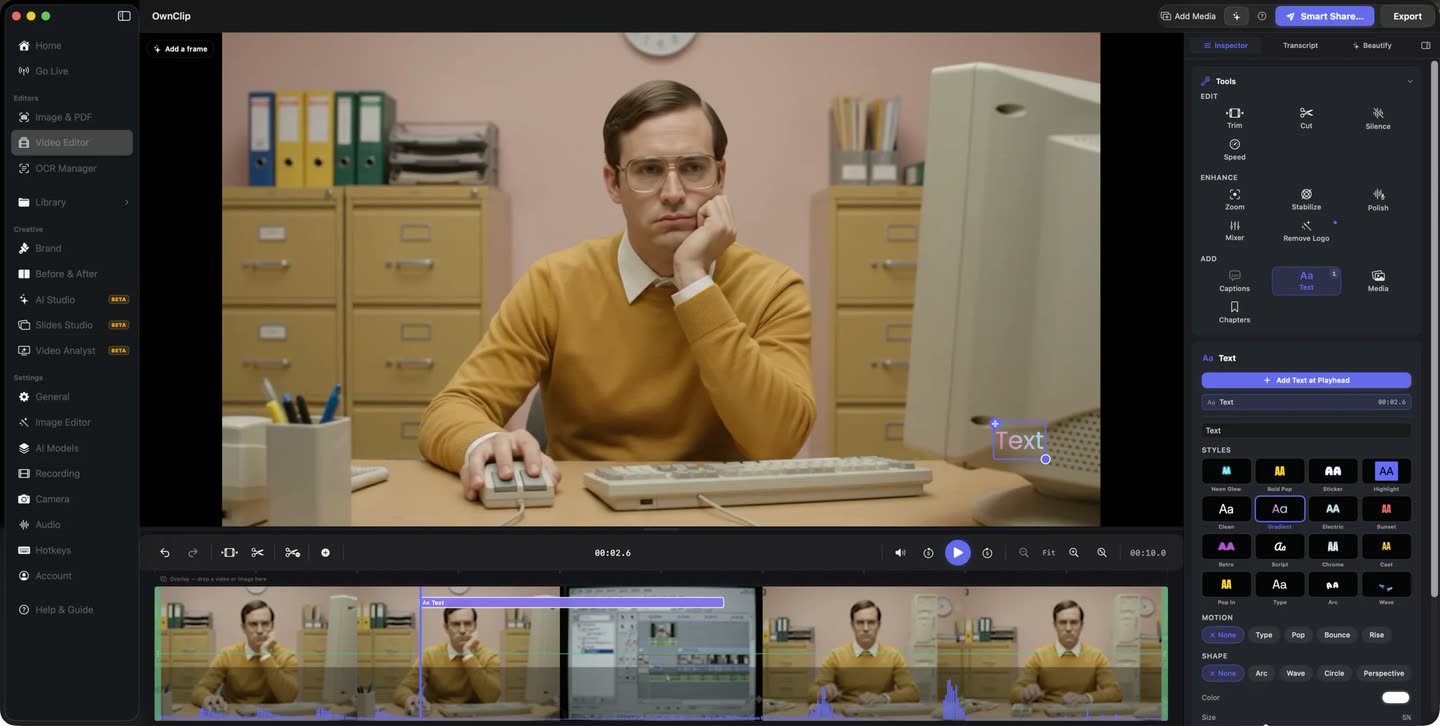
- 3Edit and exportThe take opens on a timeline. Trim it, caption it from the audio, lay yourself out beside it, export for 16:9 or 9:16.
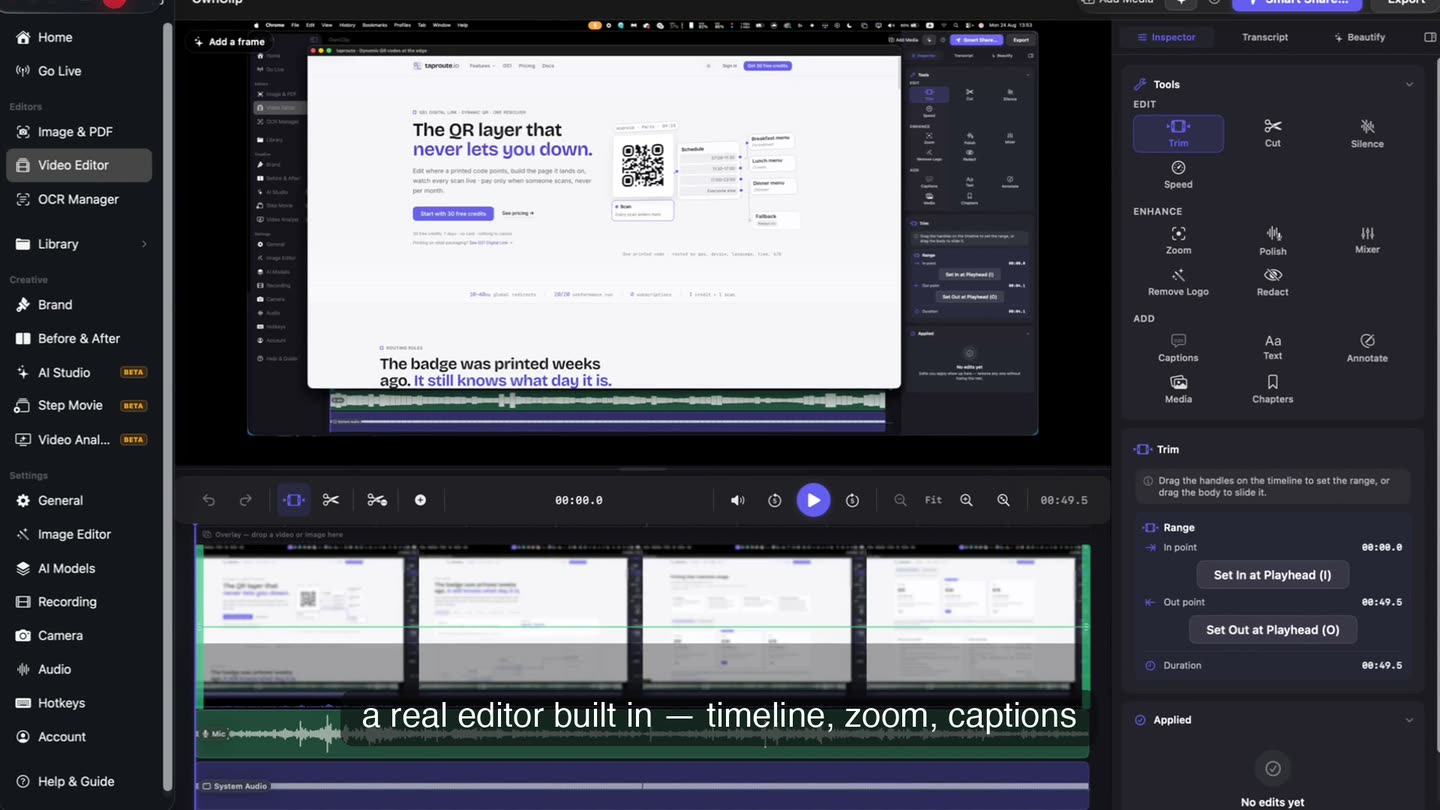
Present it, do not just show it.
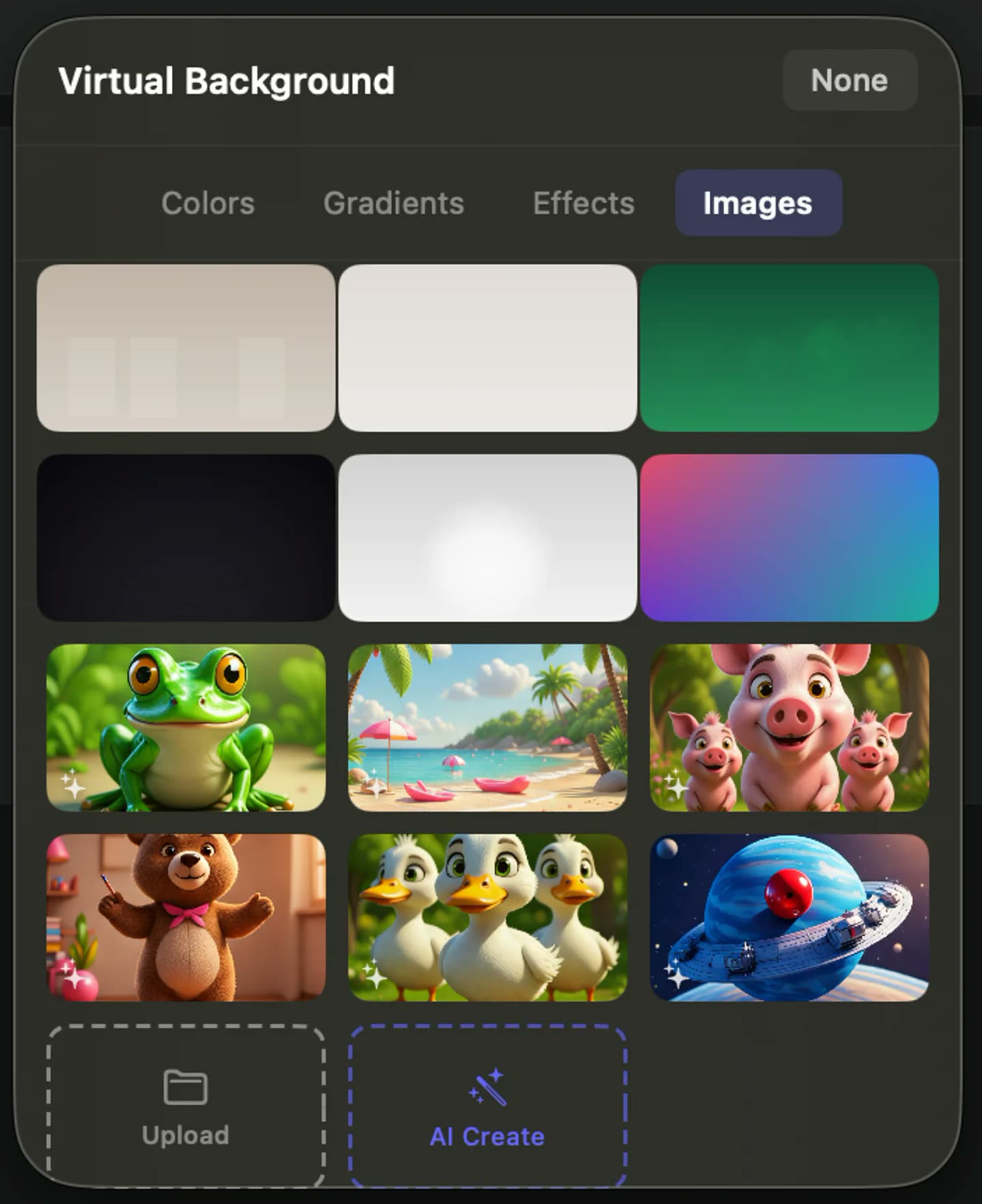
Your camera records to its own track beside the phone, so how you appear is a decision you make afterwards: a bubble on the screen, the two side by side, or you and the phone as separate cards. Draw on the mirrored phone while it records and the strokes are baked into the take.
- Camera on its own track
- Layouts after the fact
- Draw while recording
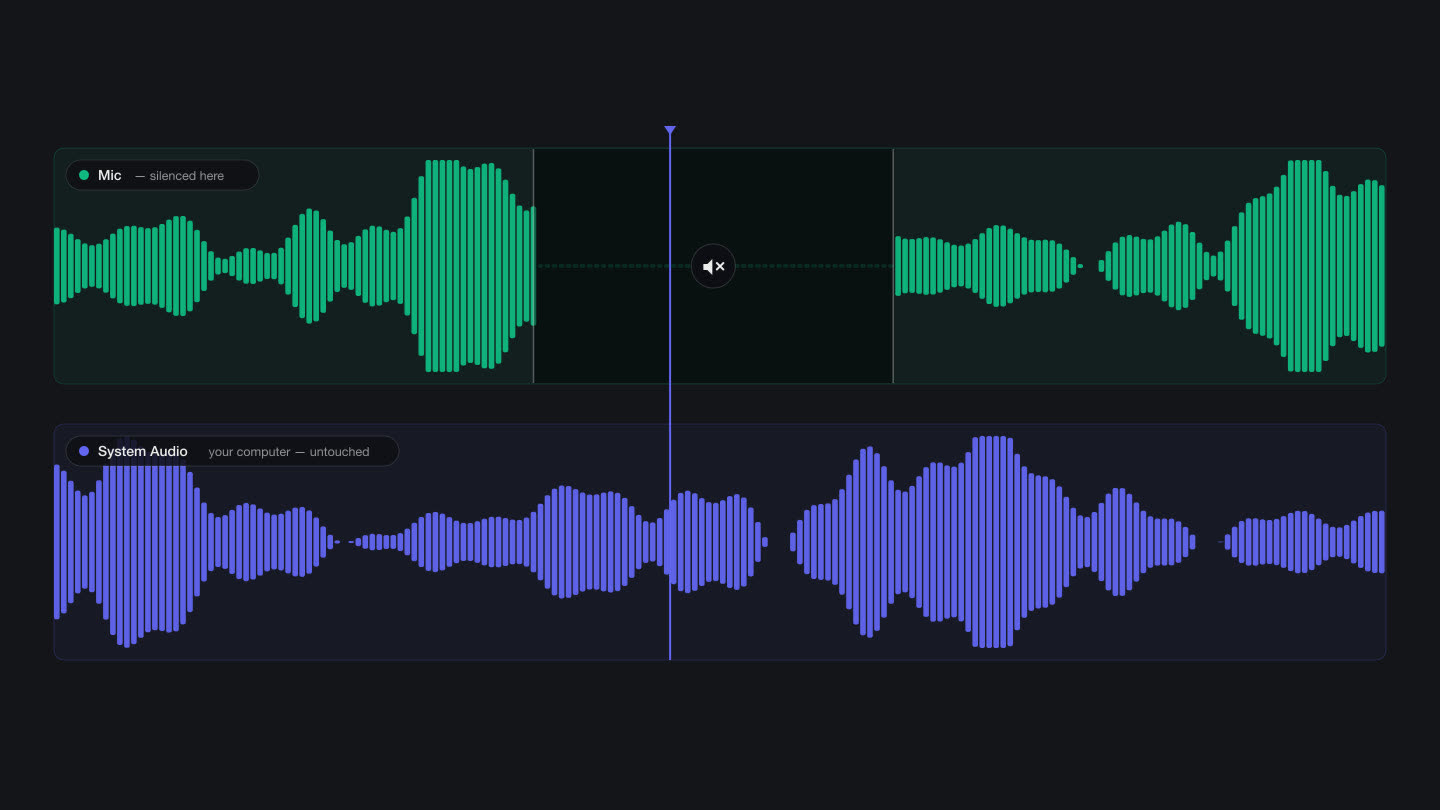
Its sound, and your voice, apart.
What the app plays comes off the cable as its own track, not through a microphone pointed at a speaker. Your narration is recorded separately, so you can talk over the phone without a mixer and fix either side later without touching the other.
- Device audio
- Separate mic track
- Noise removal
What a phone take comes with
Everything the editor does to a screen recording, it does to this. Most of it is on the free tier.
The device, by name
iPhones and iPads over a cable, and a running iOS Simulator for people shipping apps. Plug in a second one and you pick which to record.
Your camera, on its own track
Recorded separately from the phone, so its size, position and layout stay editable after the take.
Nine ways to frame the two of you
A bubble on the phone, side by side, separate cards, or the phone alone — switchable part-way through the clip.
Draw on it as it records
Arrows, highlights and pen strokes land on the phone in the recording, not on a layer you have to keep aligned.
Captions from what you said
Transcription runs on your Mac and produces timestamped captions you can correct before they burn in.
It stays on your Mac
The take is an ordinary file in your Movies folder. Nothing is uploaded to be processed.
Zoom that stays inside the screen.
A phone screen is tall and narrow, so the detail people need is often a third of the frame. Push in on any part of it and the move is boxed by the device's own edges — it can never drift onto the background behind it.
- Boxed by the device
- Keyframed by hand
- Non-destructive
What it does not do
A cable is required. There is no wireless capture, and that is deliberate rather than pending: the wireless routes available on macOS either black out under a screen recorder or offer no way for an app to record them at all.
Taps and swipes are not drawn on the recording, because iOS sends no touch information to the Mac. If another app on your Mac is already using the device, close it first.
Questions people ask
No. The phone needs to be unlocked and to trust the Mac the first time it is plugged in. Everything else happens in OwnClip on the Mac, and nothing is installed on the device.
Yes, when system audio is switched on. It comes off the cable as its own track rather than through a microphone, and your Mac microphone is recorded separately, so narration and app sound can be mixed or fixed independently.
No. Recording a device needs a cable. The wireless options macOS offers either stop showing a picture while a screen recorder is running or give apps no way to capture them, so OwnClip does not pretend to support them.
No. iOS does not send touch information to the Mac, so taps and swipes are not drawn on the recording. What the app does in response to a tap is captured normally.
Yes, the same way. An iPad is listed by name in the same tab and records landscape or portrait. Anything drawn on it with a Pencil is screen content, so it is recorded as it is drawn.
Yes. The camera records to its own track beside the device, so you choose the layout after the take — a bubble on the phone screen, the two side by side, or both as separate cards.
Free includes the whole editor — timeline, camera effects, audio cleanup, captions, annotations, and the screenshot and PDF editors. What it caps is the take itself: three minutes, recorded at 720p, with a small watermark composited into the frames as they are written. You can keep 25 recordings. A few tools are paid rather than capped — Smart Zoom is Pro; Brand Studio, Go Live and Step Movie are Studio. Pro is $39 once and lifts every cap.
OwnClip needs macOS 26 or later on an Apple silicon Mac. It is a native Mac app — there is no Windows or web version.
Related
Coming from another tool? Browse every comparison.
Record your iPhone or iPad screen on a Mac
Free to start. macOS 26 or later, Apple silicon. See what Pro and Studio add.